
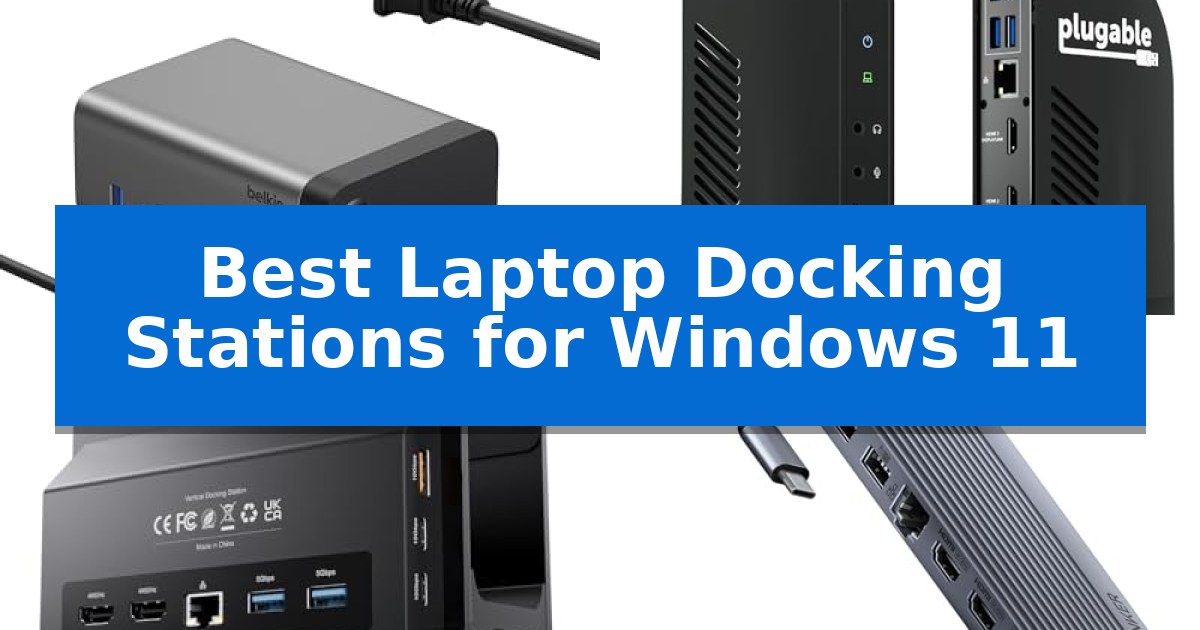
Finding the right hardware to expand your workstation can be a challenge when dealing with limited ports on modern ultra-thin laptops. The Best Laptop Docking Stations for Windows 11 are designed to bridge this gap, offering a single-cable solution to connect multiple high-resolution displays, high-speed peripherals, and power delivery for your machine.
Whether you are managing a complex multi-monitor setup or simply need to consolidate your desk clutter, selecting the correct dock depends on your specific port requirements and display resolution needs. This guide evaluates five distinct models to help you identify which hub provides the necessary connectivity for your unique professional or personal workflow.
Best Laptop Docking Stations for Windows 11 in 2026
Quick Comparison
| Product | Best For | Key Strength | Score |
|---|---|---|---|
| Belkin 11-in-1 Pro GaN Dock | Best Overall | Integrated 150W GaN power supply reduces cable clutter. | 4.9 |
| Plugable 13-in-1 Triple Monitor Dock | Enterprise-Grade Triple Display Support | 100W Power Delivery eliminates the need for separate laptop chargers. | 4.6 |
| PULWTOP 11-in-1 Vertical Dock | Space-Saving Vertical Stand Design | 11-in-1 connectivity including dual 4K@60Hz HDMI output. | 4.7 |
| Anker 14-in-1 USB-C Dock | Maximum Port Variety for Multitaskers | 14-in-1 connectivity including triple display support via dual HDMI and VGA. | 4.8 |
| Plugable 11-in-1 USB-C Hub | Reliable Dual 4K 60Hz Output | Supports dual 4K 60Hz display output on compatible Windows and ChromeOS devices. | 4.9 |
How We Chose
- Display Output Capabilities: Assessing the maximum resolution and refresh rate support for single, dual, and triple monitor configurations.
- Power Delivery Standards: Verifying the wattage provided to the host laptop and the efficiency of peripheral power distribution.
- Port Versatility: Analyzing the mix of USB-A, USB-C, Ethernet, and audio interfaces for diverse peripheral connectivity.
- Build and Form Factor: Evaluating the physical footprint and material quality to ensure a stable, space-efficient desk setup.
- Data Transfer Speeds: Confirming the throughput capabilities of USB and card reader slots for efficient file management.
1 Belkin 11-in-1 Pro GaN Dock — Efficient Power with GaN Tech
The Belkin 11-in-1 Pro GaN Dock streamlines complex desk setups by integrating a 150W power supply directly into a compact, space-saving chassis. By utilizing GaN technology, this unit manages power distribution efficiently, providing up to 96W of Power Delivery to a connected host laptop while simultaneously routing 50W to peripheral devices.
This docking station supports high-resolution visual output, enabling connections for up to three external monitors. Depending on the configuration, users can achieve a single display at 8K@30Hz, dual displays at 4K@120Hz, or triple displays at 4K@60Hz. These capabilities make it a versatile choice for users requiring high-definition multitasking across multiple screens.
Connectivity options include a variety of multimedia ports, including Ethernet, SD and MicroSD card slots, and a 3.5mm audio jack. Data transfer is supported at speeds up to 10Gbps, facilitating rapid file management and backups. The device is built with a 6-point safety system, incorporating fire-resistant materials to protect against over-current, over-temperature, and short-circuit risks.
Designed with sustainability in mind, the housing of the Belkin 11-in-1 Pro GaN Dock is constructed from a minimum of 75% PCR materials. The unit is backed by a 2-year manufacturer limited warranty, providing long-term support for the workstation hardware.
Best for: Professionals and creators who need a high-power, multi-monitor workstation with integrated charging and diverse peripheral connectivity.
Skip if: Users who do not require triple-monitor support or high-wattage power delivery may find the size and feature set of this dock more than their specific setup requires.
PROS
- Integrated 150W GaN power supply reduces cable clutter.
- Supports up to triple 4K monitor configurations.
- High-speed 10Gbps data transfer ports.
- Constructed with 75% PCR materials.
CONS
- Larger physical footprint compared to simple, non-powered USB-C hubs.
2 Plugable 13-in-1 Triple Monitor Dock — Enterprise-Grade Triple Display Support
Managing a multi-monitor workstation on Windows 11 requires a reliable interface that simplifies cable clutter while maintaining high-resolution output. The Plugable 13-in-1 Triple Monitor Dock provides a centralized hub for enterprise-grade connectivity, utilizing a single USB-C connection to bridge your laptop with up to three external displays.
This docking station is engineered for versatility, supporting one 4K display at 30Hz alongside two additional monitors at 1920×1200 resolution. By incorporating DisplayLink technology, it enables extended desktop configurations even on systems that might otherwise be restricted. It is compatible with Windows 10 and 11, as well as macOS and ChromeOS, ensuring it fits into diverse hardware environments.
Beyond display management, the dock acts as a power delivery station. It provides 100W of charging to your host laptop through the rear USB-C port, effectively replacing the need for separate power bricks. An additional 20W USB-C port on the front is dedicated to charging mobile devices or peripherals, keeping your workspace organized.
The unit features a comprehensive array of 13 ports, including four USB-A 5Gbps ports, a Gigabit Ethernet jack, an SD card reader, and dedicated audio in/out ports. Designed for professional deployments, it is TAA and NDAA compliant, making it a suitable choice for government and office environments that require standardized, reliable connectivity hardware.
Best for: Professionals and office environments requiring a single-cable solution to drive three monitors and charge a laptop simultaneously.
Skip if: Users who require high-refresh-rate gaming displays or 4K playback for protected HDCP content like streaming services.
PROS
- 100W Power Delivery eliminates the need for separate laptop chargers.
- Triple monitor support via DisplayLink technology.
- 13-in-1 connectivity including Gigabit Ethernet and SD card reader.
- Enterprise-ready with TAA and NDAA compliance.
CONS
- Limited to 4K 30Hz on the primary HDMI display.
- Does not support HDCP protected content playback.
3 PULWTOP 11-in-1 Vertical Dock — Space-Saving Vertical Stand Design
The PULWTOP 11-in-1 Vertical Dock integrates a high-capacity port replicator directly into a space-saving vertical stand, designed specifically to manage desk clutter while expanding connectivity for Windows laptops. By utilizing a single USB-C connection, it provides a centralized hub for peripherals and displays, effectively transforming a standard laptop setup into a multi-monitor workstation.
This docking station features 11-in-1 connectivity, including two HDMI ports capable of driving dual 4K displays at 60Hz via Multi-Stream Transport (MST). For data-heavy tasks, it includes high-speed 10Gbps USB-C and USB-A 3.2 Gen 2 ports, allowing for rapid file transfers. A dedicated Gigabit Ethernet port ensures stable wired network access, while the integrated 100W PD charging capability supports up to 85W of power delivery to the host device, keeping the laptop powered throughout the workday.
The vertical orientation is engineered for improved cooling and a reduced footprint, making it a practical choice for users with limited desk space. It is compatible with Thunderbolt 3, 4, 5, and USB4-equipped Windows laptops. Users should note that the dock is strictly for Windows environments and does not support macOS, and it requires an external power adapter—ideally 65W or higher—to function as a charging station.
Designed for productivity, the dock includes a dedicated USB 2.0 port for low-latency peripheral connections like mice and keyboards. The plug-and-play functionality removes the need for complex driver installations, allowing for immediate integration into existing office or home setups.
Best for: Windows laptop users who need a space-saving vertical stand that doubles as a high-speed, dual-monitor docking station.
Skip if: Users who require macOS compatibility or those who do not have a separate 65W+ USB-C power adapter to provide charging functionality.
PROS
- 11-in-1 connectivity including dual 4K@60Hz HDMI output.
- Space-saving vertical design that promotes better cooling.
- High-speed 10Gbps data transfer via Gen 2 ports.
- Supports up to 85W laptop charging via PD input.
CONS
- Not compatible with Mac operating systems.
- Power adapter not included in the package.
4 Anker 14-in-1 USB-C Dock — Maximum Port Variety for Multitaskers
Expanding your workstation connectivity requires a reliable hub that can handle multiple high-resolution displays and peripherals simultaneously. The Anker 14-in-1 USB-C Dock addresses this by providing a comprehensive suite of 14 ports, including dual 4K HDMI outputs and a 1080p VGA port, allowing for a triple-display setup that is essential for complex multitasking workflows.
Designed for versatility, this docking station supports USB-C, USB4, and Thunderbolt connections, ensuring broad compatibility with modern Windows 11 laptops. It features 80W pass-through charging, which keeps your laptop powered during intensive tasks, provided you have a compatible wall charger. The inclusion of five USB-A ports and a 5 Gbps USB-C data port ensures that your external drives, keyboards, and mice remain connected without sacrificing speed.
For users who prioritize stable networking and multimedia management, the dock includes a 1 Gbps Ethernet port for wired internet access and dedicated SD/micro SD card slots for rapid file transfers. The compact design, measuring less than an inch in height, allows it to integrate into crowded desk spaces while managing cable clutter through its extensive port array.
While this hub offers significant expansion, it is important to note that the wall charger is not included, requiring you to use your existing power adapter to enable the pass-through charging feature. Additionally, the triple display functionality is optimized for Windows environments, as macOS users will find that external monitors mirror the same image rather than extending the desktop.
Best for: Multitaskers using Windows 11 who need to connect three external monitors and multiple peripherals through a single USB-C port.
Skip if: Users who require extended display support on macOS or those who do not have a separate high-wattage USB-C wall charger to power the dock.
PROS
- 14-in-1 connectivity including triple display support via dual HDMI and VGA.
- 80W pass-through charging to keep connected laptops powered.
- High-speed data transfer via dedicated USB-A and USB-C ports.
- Integrated Ethernet and SD card slots for comprehensive peripheral support.
CONS
- Wall charger not included in the package.
- Limited display extension on macOS compared to Windows 11.
5 Plugable 11-in-1 USB-C Hub — Reliable Dual 4K 60Hz Output
The Plugable 11-in-1 USB-C Hub streamlines workstation connectivity by consolidating multiple peripheral needs into a single connection, supporting dual 4K 60Hz display output on Windows and ChromeOS systems. This hub is engineered for hybrid work environments, allowing users to transition between office and remote setups while maintaining access to essential ports.
Equipped with 100W USB-C pass-through charging, the device ensures that connected laptops remain powered during operation. The interface includes two HDMI ports for screen expansion, three USB 3.0 ports for peripherals, a USB-C data port, Gigabit Ethernet for stable networking, and dedicated SD and MicroSD card readers for data transfer.
Designed for immediate deployment, the hub is plug and play and requires no additional drivers for operation on Windows 10 or newer and ChromeOS 100+. It is compatible with a wide range of business laptops from manufacturers such as Dell, HP, and Lenovo, provided the host device supports Thunderbolt 4 or DP 1.4 over USB-C for full dual-monitor resolution.
The unit features a compact form factor measuring approximately 8.74 inches in width and 0.59 inches in height, making it suitable for travel. Every unit is backed by a 2-year coverage period and lifetime support from the manufacturer's North American-based team, providing long-term assistance for hardware questions.
Best for: Users needing a compact, all-in-one connectivity solution to drive dual 4K displays and multiple peripherals from a single USB-C laptop port.
Skip if: Users requiring native Apple Mac support for extended dual-display setups, as this device supports only mirrored displays on macOS.
PROS
- Supports dual 4K 60Hz display output on compatible Windows and ChromeOS devices.
- Includes 100W USB-C pass-through charging to power the host laptop.
- Comprehensive 11-in-1 port selection including Gigabit Ethernet and card readers.
- Plug and play functionality requiring no driver installation.
CONS
- Limited to mirrored display output when used with Apple Mac computers.
- Requires Thunderbolt 4 or DP 1.4 host compatibility for maximum display resolution.
Best Laptop Docking Stations for Windows 11 Buying Guide
Understanding Display Connectivity
The primary reason many users seek a docking station is to expand their visual workspace. When choosing a model, it is vital to check if the dock supports your monitor's resolution and refresh rate requirements. Some docks rely on MST (Multi-Stream Transport) to drive multiple displays, while others may require specific drivers to function correctly on Windows 11.
Always verify the port types available, such as HDMI or DisplayPort, and ensure they match your monitor inputs. For high-definition multitasking, look for docks that explicitly state support for 4K at 60Hz or higher to ensure smooth, flicker-free performance across all connected screens.
Power Delivery and Charging Efficiency
A major benefit of a modern docking station is its ability to charge your laptop through the same USB-C cable used for data and video. This simplifies your workspace by eliminating the need for a separate power brick. However, you must ensure the dock's power output meets or exceeds your laptop's minimum charging requirements.
Some advanced docks utilize GaN technology to provide more efficient power distribution, allowing for higher wattage to the host device while still powering connected peripherals. Check the dock's specifications to see the total power budget and how much is reserved for the laptop versus external accessories.
Data Transfer and Peripheral Ports
Beyond displays and power, the number and type of ports determine how well a dock integrates with your existing equipment. If you frequently transfer large files from external drives or cameras, prioritize docks with USB 3.2 Gen 2 or USB-C ports that offer 10Gbps transfer speeds.
Consider whether you need specialized ports like Gigabit Ethernet for stable wired internet, SD card readers for media, or 3.5mm audio jacks for headsets. A well-rounded dock should provide enough ports to keep your essential peripherals connected without needing additional hubs.
Form Factor and Desk Organization
The physical design of a docking station impacts your desk's aesthetic and available workspace. Vertical stands are excellent for saving desk real estate and can often improve airflow around your laptop. Conversely, low-profile, horizontal hubs are better suited for users who prefer a minimalist look or need to tuck the device under a monitor stand.
Think about your cable management needs as well. Docks with ports located on the back are generally better for permanent setups, while front-facing ports offer easier access for devices you connect and disconnect frequently, such as flash drives or headphones.
Compatibility with Windows 11
While most USB-C docks are designed for broad compatibility, Windows 11 environments can have specific requirements regarding Thunderbolt or USB4 standards. Always confirm that your laptop's USB-C port supports DisplayPort Alt Mode or Power Delivery, as these are necessary for the dock to function as intended.
Some docks are specifically optimized for Windows and do not require additional driver installations, providing a true plug-and-play experience. Reading the technical specifications regarding host requirements will save you from potential compatibility issues during setup.
Frequently Asked Questions
Do I need to install drivers for these docking stations?
Most modern USB-C docking stations are plug-and-play on Windows 11. However, some models that support triple-monitor setups may require specific drivers to function correctly.
Can I use these docks with a MacBook?
Compatibility varies by model. Some docks are designed specifically for Windows, while others offer limited functionality on macOS, often requiring DisplayLink software for multi-monitor support.
What is the difference between USB-C and Thunderbolt docks?
Thunderbolt docks typically offer higher bandwidth for data and display signals compared to standard USB-C docks, but they require a laptop with a Thunderbolt-compatible port.
Will a docking station charge my laptop?
Yes, if the docking station supports Power Delivery (PD) and provides enough wattage to meet your laptop's power requirements, it will charge your device through the USB-C cable.
Can I connect three monitors to any of these docks?
Only specific models designed for triple-display support can handle three monitors. Always check the product specifications to confirm the maximum number of supported displays and their resolution limits.
Conclusion: Our Top Pick
Choosing the right docking station is essential for creating a streamlined and productive Windows 11 workstation. By prioritizing your specific needs for display output, power delivery, and port variety, you can significantly reduce desk clutter while enhancing your system's capabilities.
For most users seeking a balance of power and connectivity, the Belkin 11-in-1 Pro GaN Dock stands out as our top recommendation. Its integrated GaN technology provides efficient power delivery, and its support for up to three external monitors makes it a versatile choice for high-definition multitasking.