
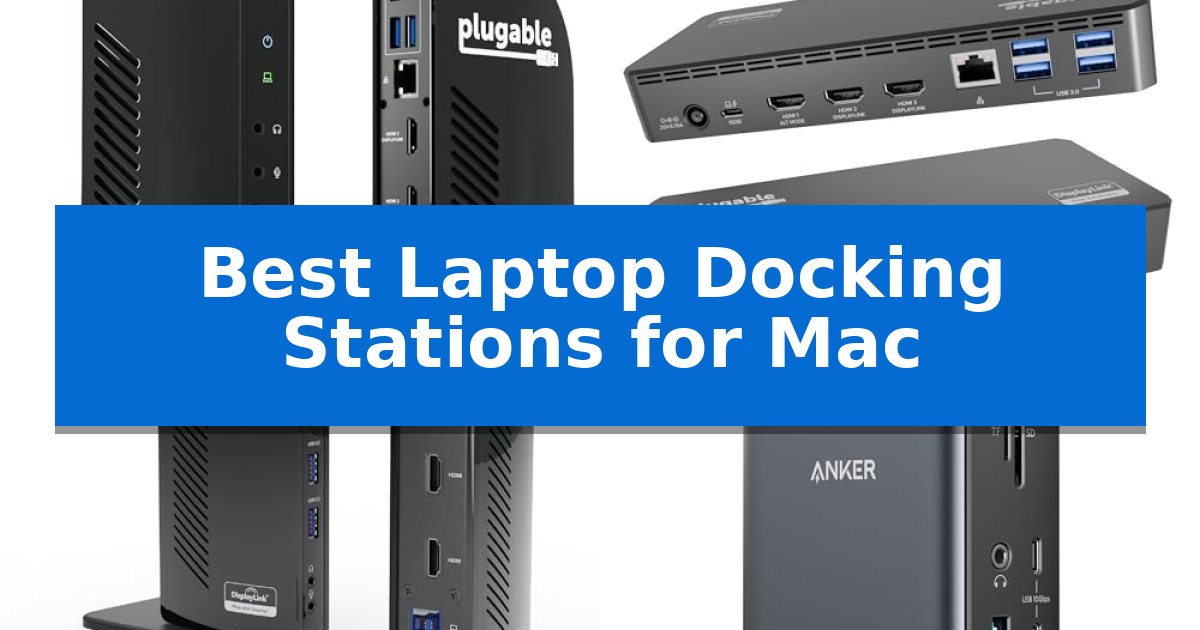
Finding the right hardware to bridge the gap between a sleek MacBook and a full-scale desktop environment can be challenging. Many users struggle with limited port selection or the inability to drive multiple external displays natively, which is why choosing one of the Best Laptop Docking Stations for Mac is essential for maintaining a productive workflow.
Whether you are a creative professional needing extra screen real estate or a hybrid worker looking to simplify your desk setup, the right dock acts as a central hub for all your peripherals. We have analyzed several leading options to help you identify which device best addresses your specific connectivity requirements and display needs.
Best Laptop Docking Stations for Mac in 2026
Quick Comparison
| Product | Best For | Key Strength | Score |
|---|---|---|---|
| Plugable USB-C Triple Monitor Docking Station | Best Overall | Enables triple monitor support on Macs that are otherwise limited. | 4.9 |
| Plugable USB-C Triple Display Docking Station | Enables multi-monitor Mac workstations | Triple display support via HDMI for expanded screen real estate. | 4.4 |
| Plugable USB 3.0 Universal Docking Station | Budget-friendly dual display expansion | Dual HDMI output support for expanded screen real estate. | 4.7 |
| Anker 13-in-1 USB-C Docking Station | High-speed port expansion for desks | 13-in-1 connectivity including high-speed 10Gbps data ports. | 4.5 |
| Anker Nano Laptop Docking Station | Detachable hub for hybrid workflows | Detachable 2-in-1 design provides both desktop and portable hub functionality. | 4.9 |
How We Chose
- Display support capabilities, specifically regarding multi-monitor configurations and resolution limits.
- Power delivery specifications to ensure adequate charging for various MacBook models.
- Port variety and bandwidth, focusing on USB-A, USB-C, and specialized data transfer speeds.
- Compatibility with macOS, including the necessity of drivers for extended display functionality.
- Build design and its impact on desk space efficiency and portability for hybrid work.
1 Plugable USB-C Triple Monitor Docking Station — Bypasses Mac display limitations
Managing multiple displays on a Mac often presents a challenge due to native port limitations, but the Plugable USB-C Triple Monitor Docking Station bypasses these constraints by utilizing DisplayLink technology. This 13-in-1 solution allows users to connect up to three extended HDMI displays, providing a significant expansion of screen real estate for professional workflows.
The dock serves as a comprehensive hub, offering 100W power delivery to charge your laptop through a single USB-C connection while simultaneously providing 20W of dedicated charging for mobile devices via a front-facing port. This consolidation of power and data reduces cable clutter, making it a practical choice for organized desk environments.
Connectivity is robust, featuring four USB-A 5Gbps ports, a Gigabit Ethernet port, an SD card reader, and audio in/out jacks. It is designed for broad compatibility across macOS 11+, Windows 10+, and ChromeOS, though users should note that the DisplayLink Manager software must be installed to enable multi-monitor support on Apple silicon and Intel-based Macs.
While highly functional for productivity, the unit does not support HDCP-protected content playback, such as streaming from services like Netflix or Hulu. It remains a specialized tool primarily intended for enterprise, education, and home office environments where multi-display multitasking is the priority.
Best for: Users needing to extend their workspace to three monitors on Mac systems that natively support fewer displays.
Skip if: Users who primarily require the dock for streaming HDCP-protected content or those who cannot install third-party DisplayLink drivers.
PROS
- Enables triple monitor support on Macs that are otherwise limited.
- Provides 100W laptop charging to simplify cable management.
- Includes 13 essential ports for comprehensive peripheral connectivity.
- TAA and NDAA compliant for business-ready deployments.
CONS
- Requires DisplayLink driver installation for multi-monitor functionality.
- Does not support HDCP-protected content playback.
2 Plugable USB-C Triple Display Docking Station — Enables multi-monitor Mac workstations
The Plugable USB-C Triple Display Docking Station addresses the common limitation of single-display output on many modern laptops by enabling a multi-monitor workstation through a single connection. Designed for hybrid office environments, this 12-in-1 hub utilizes a combination of native USB-C Alt Mode and DisplayLink graphics technology to support up to three extended HDMI displays.
This docking station provides 100W USB-C Power Delivery, ensuring that your connected laptop remains charged during intensive tasks. With six USB 3.0 ports for peripherals and integrated Gigabit Ethernet, it serves as a central hub for data analysis, conferencing, and general productivity. It is engineered for broad compatibility across macOS, Windows, and ChromeOS systems.
For users operating Apple Silicon MacBooks, this device is particularly relevant as it bypasses native display restrictions, allowing for an expanded screen setup. The unit is compact, measuring approximately 7.9 by 3.3 by 1.2 inches, making it suitable for hot-desking or managed office workspaces where desk space is at a premium.
Plugable provides lifetime technical support and a compatibility guarantee, offering direct access to engineers for deployment assistance. While it is a robust solution for multi-display needs, it is important to note that the device is not compatible with Linux systems and does not support HDCP content.
Best for: Professionals and hybrid workers needing to expand a single laptop connection into a triple-monitor workstation.
Skip if: Users requiring Linux compatibility or those who need to stream HDCP-protected content.
PROS
- Triple display support via HDMI for expanded screen real estate.
- 100W Power Delivery for continuous laptop charging.
- 12-in-1 expansion including Gigabit Ethernet and six USB 3.0 ports.
- Broad compatibility with macOS, Windows, and ChromeOS.
CONS
- Not compatible with Linux operating systems.
- HDCP not supported, limiting certain media playback capabilities.
3 Plugable USB 3.0 Universal Docking Station — Budget-friendly dual display expansion
The Plugable USB 3.0 Universal Laptop Docking Station (UD-3900) provides a straightforward way to expand your workspace by connecting dual HDMI monitors to a Mac or Windows laptop through a single cable. This dock features a hybrid 2-in-1 USB 3.0 and USB-C connection, making it compatible with a variety of host systems without requiring a dedicated charging port on the dock itself.
Designed for productivity and web-based workflows, the unit includes two HDMI video outputs that support resolutions up to 1920×1200 at 60Hz, or a single display at 2560×1440 at 50Hz. Beyond display expansion, the dock offers a wired Gigabit Ethernet port, 3.5 mm audio jacks for headphones and microphones, and a total of six USB ports—two USB 3.0 and four USB 2.0—for connecting peripherals like keyboards, mice, and external drives.
Setup for macOS 14 or later requires a manual DisplayLink driver installation, while Windows 10 and 11 users benefit from plug-and-play functionality via Windows Update. The device is TAA-compliant and includes a 2-year limited parts and labor warranty, backed by North American-based support for long-term reliability.
While this dock is a robust solution for office tasks, it is important to note that it does not support 4K resolution, gaming, or HDCP-protected streaming content. Additionally, because it does not provide power delivery, users will need to keep their laptop's original power adapter connected separately.
Best for: Users seeking a budget-friendly way to add dual external monitors and multiple USB peripherals to a Mac or Windows laptop for productivity tasks.
Skip if: Users who require laptop charging through the dock, 4K display support, or a solution for gaming and streaming protected media.
PROS
- Dual HDMI output support for expanded screen real estate.
- Hybrid USB 3.0 and USB-C connectivity for broad system compatibility.
- Six integrated USB ports for extensive peripheral expansion.
- 2-year warranty and lifetime support included.
CONS
- No laptop charging functionality provided.
- Not compatible with 4K displays or HDCP-protected streaming services.
- Manual driver installation required for macOS.
4 Anker 13-in-1 USB-C Docking Station — High-speed port expansion for desks
The Anker 13-in-1 USB-C Docking Station transforms a single USB-C connection into a comprehensive desktop workstation by providing 13 distinct ports, including dual HDMI and a DisplayPort for multi-monitor setups. Its vertical, space-saving design measures just 4.9 by 3.5 by 1.6 inches, making it a practical addition to crowded desk environments.
This dock supports high-speed data transfer through 10Gbps USB-C and 5Gbps USB-A ports, alongside SD and microSD card slots that reach speeds of 104 MB/s. It includes a 135W power adapter, enabling 85W of power delivery to your laptop while simultaneously providing 18W of charging for a mobile device.
Compatibility is a key consideration for Mac users. While the dock provides reliable charging and data connectivity, macOS users should note that the system limits external monitors to mirror mode. The unit is built to work with Full-Functional USB-C, USB4, and Thunderbolt 3, 4, and 5 ports, ensuring broad interface support across modern hardware.
Designed for power users who need to consolidate peripherals, the station includes Gigabit Ethernet, 3.5mm audio, and multiple USB ports to manage complex setups through one cable. It is backed by an 18-month warranty, reflecting the manufacturer's focus on long-term reliability for professional and home-office use.
Best for: Users who need to consolidate multiple peripherals and power delivery into a single, compact vertical hub for their workspace.
Skip if: Users who require extended (non-mirrored) display support on macOS, as this device is limited to mirror mode for Mac monitors.
PROS
- 13-in-1 connectivity including high-speed 10Gbps data ports.
- 85W power delivery to the host laptop via the included 135W adapter.
- Compact vertical footprint that minimizes desk clutter.
- Integrated SD/microSD card slots for efficient file management.
CONS
- macOS display limitation restricts external monitor output to mirror mode only.
- Requires USB-C DP Alt Mode compatibility on the host device for full functionality.
5 Anker Nano Laptop Docking Station — Detachable hub for hybrid workflows
Maintaining a clean desk while managing multiple peripherals and high-resolution displays requires a versatile connection hub. The Anker Nano Laptop Docking Station addresses this by offering a unique detachable 2-in-1 design, allowing users to transition from a full-featured desktop workstation to a portable 6-in-1 hub for mobile tasks without needing separate devices.
This docking station supports triple display setups via two HDMI ports and one DisplayPort, capable of driving up to 4K@60Hz for a single monitor or lower resolutions across three screens. It functions as a central command for your peripherals, providing a total of 13 ports including 10Gbps USB-C data transfer, three USB-A ports, Gigabit Ethernet, and SD/TF card slots, all connected to your Mac via a single upstream USB-C cable.
Power management is handled through 100W Power Delivery, ensuring your laptop remains charged even while running multiple connected devices. The package includes a 140W power adapter to maintain stable performance under heavy loads. Setup is straightforward, requiring no drivers for operation, and the unit is ready to use in under two minutes.
While the Anker Nano Laptop Docking Station provides extensive connectivity, users should note that macOS supports mirrored mode only when using multiple external displays. Additionally, the dock requires a constant connection to a host laptop to activate its ports and the integrated blue light strip, making it strictly a tethered solution for your workstation.
Best for: Professionals who need a single, flexible solution that transitions seamlessly between a multi-monitor home office and a portable setup.
Skip if: Users requiring extended desktop mode across multiple external displays on macOS, as this device supports mirrored mode only.
PROS
- Detachable 2-in-1 design provides both desktop and portable hub functionality.
- High-speed 10Gbps data transfer for efficient file management.
- Delivers 100W Power Delivery to keep laptops charged during use.
- Comprehensive 13-in-1 port selection covers all common peripheral needs.
CONS
- macOS mirrored mode limitation restricts multi-monitor display configurations.
- Requires host laptop connection to power on and activate ports.
Best Laptop Docking Stations for Mac Buying Guide
Understanding Display Compatibility
One of the most critical factors when selecting a dock for a Mac is how it handles external monitors. Many MacBooks, particularly those with standard M-series chips, have native limitations on the number of external displays they can support. Docks utilizing DisplayLink technology are often required to bypass these restrictions and enable multiple extended screens.
Always verify if your specific Mac model requires a driver installation to unlock full multi-display support. While some docks offer plug-and-play simplicity for basic tasks, high-resolution setups often depend on software like the DisplayLink Manager to function correctly across multiple HDMI or DisplayPort outputs.
Power Delivery and Charging
A primary benefit of a high-quality docking station is the ability to charge your laptop through a single cable. Look for docks that offer 100W Power Delivery or higher, as this ensures your MacBook receives sufficient power even under heavy workloads. This feature eliminates the need to carry your original power brick, keeping your workspace clean and organized.
In addition to host charging, consider the secondary charging capabilities of the dock. Some models include dedicated front-facing USB-C ports with lower wattage, which are ideal for quickly topping off smartphones, tablets, or other peripherals without occupying your main data ports.
Port Selection and Data Speed
The number and type of ports determine how many peripherals you can connect simultaneously. Essential ports for a professional setup typically include Gigabit Ethernet for stable wired internet, multiple USB-A ports for legacy devices, and SD card readers for photographers or video editors.
Pay close attention to data transfer speeds. Docks that support 10Gbps USB-C data transfer significantly reduce the time required to move large files between external drives and your computer. Ensure the dock's total bandwidth is sufficient to handle all connected devices without creating a bottleneck.
Form Factor and Desk Integration
The physical design of a docking station can impact your desk's ergonomics. Vertical designs are excellent for saving space on crowded desks, while horizontal, low-profile docks may fit better under monitors or in specific shelving units. Some modern docks even feature detachable hub designs, allowing you to take a smaller, portable version of the dock with you when you travel.
Consider the length of the included host cable. A longer cable provides more flexibility in where you place the dock relative to your laptop, whereas shorter cables are better for maintaining a minimalist, clutter-free aesthetic.
Reliability and Future-Proofing
Investing in a reputable brand often means better long-term support and firmware updates. Look for products that offer lifetime support or extended warranties, as these indicate a manufacturer's confidence in their hardware's durability for enterprise or home office deployments.
Compatibility with future macOS updates is also a factor. Since Apple frequently updates its operating system, choosing a dock that is regularly supported by its manufacturer ensures that your peripheral connectivity remains stable over the lifespan of your computer.
Frequently Asked Questions
Do all these docking stations work with M1/M2/M3 MacBooks?
Most of these docks are compatible with Apple Silicon, but many require the installation of DisplayLink drivers to enable multiple extended displays, as native support is often limited to one external monitor.
Can I use these docks for gaming?
These docking stations are primarily designed for productivity and office software. They are generally not recommended for high-performance gaming, as they may not support high refresh rates or HDCP-protected content.
Does the docking station charge my Mac?
Most models listed feature Power Delivery (PD) that charges your MacBook through the USB-C host cable, provided your laptop supports USB-C charging.
What is the difference between Alt Mode and DisplayLink?
Alt Mode uses the laptop's native video output capabilities, while DisplayLink uses software compression to send video data over a standard USB connection, allowing for more displays than the laptop might natively support.
Are these docks compatible with Windows laptops?
Yes, most of these universal docking stations are compatible with Windows 10 and 11, often offering plug-and-play functionality without the need for additional drivers.
Conclusion: Our Top Pick
For users seeking the most robust solution for multi-monitor setups on a Mac, the Plugable USB-C Triple Monitor Docking Station stands out as the top choice. Its ability to bypass native display limitations through DisplayLink technology makes it an essential tool for those who need to expand their workspace beyond a single screen.
While it requires a driver installation for full functionality, the inclusion of 100W charging and a comprehensive 13-in-1 port array provides the reliability and versatility needed for a professional-grade office environment. It effectively consolidates your power and peripheral needs into one streamlined device.