
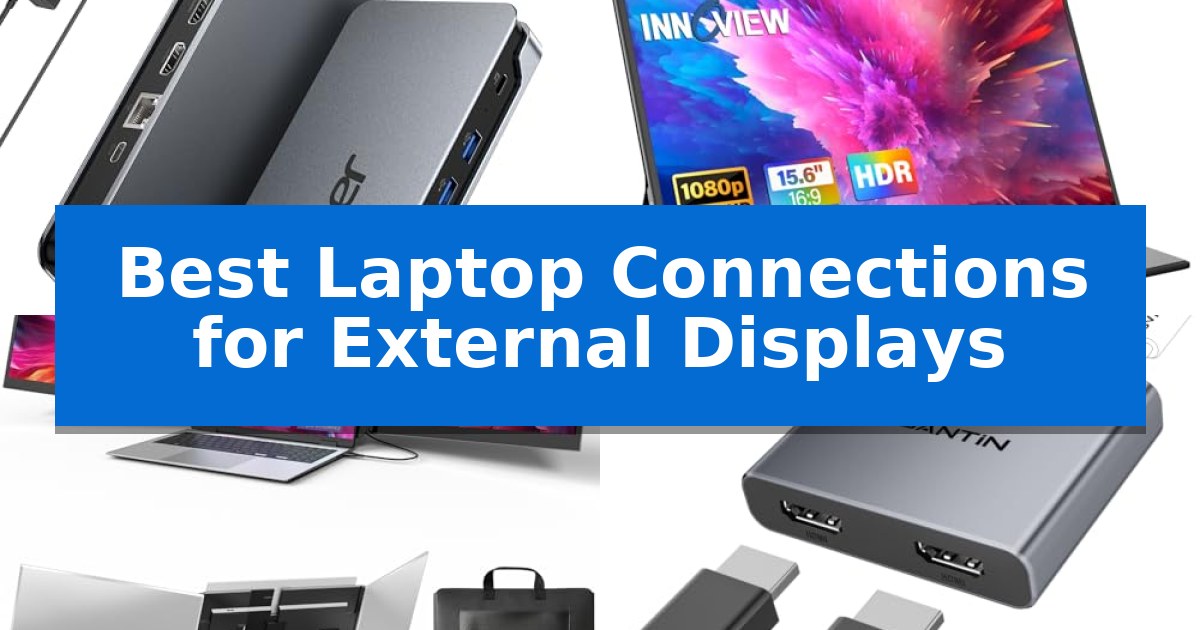
Managing multiple screens is essential for modern productivity, whether you are analyzing complex data sets, coding, or managing creative projects. Finding the Best Laptop Connections for External Displays requires balancing your computer's specific port capabilities with the resolution and refresh rate requirements of your monitors.
Our guide evaluates various hardware solutions, from high-capacity docking stations to compact portable adapters. We focus on how these devices handle signal transmission and power delivery to ensure your workstation remains stable and efficient throughout the workday.
Best Laptop Connections for External Displays in 2026
Quick Comparison
| Product | Best For | Key Strength | Score |
|---|---|---|---|
| Acer 13-in-1 Laptop Docking Station | Best Overall | 100W Power Delivery via included 110W adapter keeps the host laptop charged under load. | 4.9 |
| InnoView Portable Monitor | Plug-and-Play Travel Screen | Single-cable connectivity via USB-C for compatible devices. | 4.6 |
| Rizpak Triple Portable Monitor | Triple Screen Productivity | Single-cable connection reduces desk clutter and simplifies setup. | 4.8 |
| UANTIN USB-A to Dual HDMI Adapter | Dual Monitor Converter | Dual HDMI output from a single USB-A port | 4.8 |
| StarTech.com USB-C to 4-HDMI Adapter | Quad Monitor Support | Quad-monitor support at 1080p 60Hz resolution. | 4.9 |
How We Chose
- Interface Compatibility: Assessing whether the device supports USB-C, USB-A, or Thunderbolt standards to ensure it fits your specific laptop.
- Display Output Capacity: Evaluating the number of supported monitors and the maximum resolution or refresh rate each connection can maintain.
- Power Delivery: Checking if the hardware provides sufficient charging power to the host laptop to maintain performance during heavy tasks.
- Port Versatility: Reviewing the inclusion of additional data, audio, and networking ports that contribute to a cleaner desk setup.
- System Requirements: Identifying specific driver or OS limitations to ensure seamless integration with Windows or macOS environments.
1 Acer 13-in-1 Laptop Docking Station — Triple Display Expansion Hub
The Acer 13-in-1 Laptop Docking Station serves as a comprehensive hub for users needing to manage multiple peripherals and displays through a single connection. By utilizing a USB-C host port, this device consolidates networking, audio, storage, and video output into a compact, aluminum-bodied unit designed to dissipate heat during extended operation.
For Windows users, the dock enables triple display expansion via two HDMI ports and one DisplayPort 1.4, supporting MST technology. When paired with compatible hardware that supports Display Stream Compression (DSC), the station can output triple 4K resolution at 30Hz. Note that macOS users are limited to SST (mirroring) across multiple displays, as extended desktop mode is not supported on that platform.
Power delivery is a primary focus, with an included 110W power adapter that provides 100W of charging power directly to the host laptop. This ensures the computer remains powered during heavy workflows. The station also features an integrated security slot for physical theft deterrence, allowing the dock to be secured to a desk with a standard cable lock.
Connectivity options are extensive, including three USB-A ports, two USB-C ports, a Gigabit Ethernet port, a 3.5mm AUX jack, and a built-in SD/TF card reader for simultaneous data transfer. The rear USB-C port is dedicated to data transfer and does not support video output or power delivery, ensuring users can organize their workspace while maintaining stable performance.
Best for: Windows laptop users who require a high-capacity docking solution to manage triple-monitor setups and multiple peripherals simultaneously.
Skip if: Users operating macOS who require extended desktop mode across multiple external monitors, as this device only supports mirroring on that system.
PROS
- 100W Power Delivery via included 110W adapter keeps the host laptop charged under load.
- Triple display support for Windows via MST (2x HDMI + 1x DP 1.4).
- Integrated security slot for physical workspace protection.
- Aluminum housing designed for efficient heat dissipation.
CONS
- macOS limitation restricts multi-monitor output to mirroring (SST) only.
- Rear USB-C port is restricted to data transfer and lacks video or power support.
2 InnoView Portable Monitor — Plug-and-Play Travel Screen
Expanding your digital workspace often requires a reliable bridge between your primary device and a secondary screen. The InnoView Portable Monitor simplifies this by offering a versatile 15.6-inch display that connects via a single USB-C cable, provided your laptop supports Thunderbolt 3.0/4.0 or USB 3.1 Type-C DP ALT-MODE.
This monitor is designed for mobile efficiency, featuring an A+ IPS screen with a 1920×1080 resolution and a 178-degree viewing angle. It includes HDR support for enhanced color detail and low blue light technology to minimize eye strain during extended work sessions. For those without USB-C, the unit also provides an HDMI port, though this requires a separate power cable.
Usability is enhanced by the included scratch-resistant PU leather cover, which doubles as an adjustable stand with two viewing grooves. The monitor is lightweight at 2.65 pounds, making it a practical choice for travelers or students needing to expand their screen real estate without adding significant bulk to their gear.
Connectivity is a primary focus, with two full-function Type-C ports supporting power pass-through reverse charging. This allows you to power the monitor and your laptop simultaneously, reducing cable clutter on your desk. If you encounter flickering, the device supports external power input to ensure stable performance across various hardware setups.
Best for: Travelers, students, and professionals needing a lightweight, plug-and-play secondary display for remote work or multi-tasking.
Skip if: Users whose laptops lack Thunderbolt 3.0/4.0 or USB 3.1 Type-C DP ALT-MODE, as they will need to manage additional HDMI and power cabling.
PROS
- Single-cable connectivity via USB-C for compatible devices.
- Power pass-through capability for charging connected laptops.
- Portable design with a protective cover that doubles as a stand.
- IPS FHD display with wide viewing angles and HDR support.
CONS
- Requires external power for non-USB-C connections or devices with insufficient output.
- HDMI setup necessitates an additional power cable not included in the package.
3 Rizpak Triple Portable Monitor — Triple Screen Productivity
Expanding a mobile workstation often requires balancing screen real estate with portability, and the Rizpak One Cable Laptop Screen Extender addresses this by offering a 15.6-inch triple-display system that connects via a single USB-C or USB-A cable. This setup is designed to minimize cable clutter while providing a significant boost to multitasking efficiency for professional workflows.
The hardware features two 1080P FHD IPS screens with a 100% sRGB color gamut, ensuring accurate color reproduction and consistent image quality across a 178-degree wide viewing angle. At only 0.2 inches thick, the displays are housed in an aerospace-grade aluminum alloy body that prioritizes durability and heat dissipation without adding excessive bulk to a travel kit.
Usability is enhanced by a reinforced metal stand that supports the screens independently, effectively removing weight from the host laptop's hinge. The system is compatible with 13–17.3 inch laptops and supports various operating systems including Windows, macOS, Chrome OS, Android, and Linux. Users can utilize extended, mirrored, or presentation modes to suit different office or meeting environments.
While the device offers a streamlined, plug-and-play experience after the initial driver installation, it requires a dedicated connection to a power adapter via the PD port to maintain optimal brightness and stability. This ensures that the monitors remain powered during intensive tasks, making it a reliable choice for users who need a high-capacity, portable multi-screen setup.
Best for: Professionals who need a portable, high-resolution triple-monitor setup for multitasking on 13-17.3 inch laptops.
Skip if: Users who require a device compatible with gaming consoles or non-computer hardware, or those who prefer a solution that does not require driver installation.
PROS
- Single-cable connection reduces desk clutter and simplifies setup.
- Aerospace-grade aluminum housing provides durable, lightweight protection.
- 100% sRGB color gamut ensures high-quality, accurate visuals for professional work.
- Independent metal stand prevents stress on the laptop's display hinge.
CONS
- Driver installation required for initial setup.
- External power adapter recommended for optimal brightness and stability.
4 UANTIN USB-A to Dual HDMI Adapter — Dual Monitor Converter
Expanding your workspace beyond a single laptop screen often requires specialized hardware, especially when your device lacks native dual-output ports. The UANTIN USB-A to Dual HDMI Adapter addresses this by converting a standard USB 3.0 port into two independent HDMI outputs, enabling users to bridge the gap between compact laptops and multi-monitor setups.
This adapter is built with a durable aluminum housing that assists in heat dissipation, paired with a nylon braided cable for increased longevity. Its compact form factor makes it a practical addition for those who need to maintain a multi-display environment while traveling or working in limited desk spaces.
Functionality varies by operating system: Windows users can leverage MST (Multi-Stream Transport) to extend their desktop across two independent monitors, while macOS users are limited to screen mirroring. The device requires a one-time driver installation to function, after which it operates as a plug-and-play solution for subsequent connections.
To ensure consistent signal integrity, the unit includes a USB-C PD 5V/1A port for supplemental power. This feature is particularly useful when driving high-resolution monitors that might otherwise strain the power output of a standard laptop USB port, helping to prevent flickering or connection drops.
Best for: Users needing to add two HDMI displays to a laptop that only has USB-A ports available.
Skip if: Mac users who require independent extended displays rather than screen mirroring, or those who prefer a driverless setup.
PROS
- Dual HDMI output from a single USB-A port
- Durable aluminum alloy construction
- Supplemental power input for stable performance
- Compact and portable design
CONS
- One-time driver installation required
- macOS limited to mirroring only
5 StarTech.com USB-C to 4-HDMI Adapter — Quad Monitor Support
Expanding a workstation to accommodate multiple displays requires reliable hardware, and the StarTech.com USB-C to 4-HDMI Adapter provides a specialized solution for users needing to drive four additional monitors from a single port. This device acts as an external video graphics card, specifically engineered to manage a quad-monitor setup at 1080p resolution and 60Hz refresh rates.
The adapter connects via a 1.6ft (50cm) USB-A cable, offering flexibility in positioning the unit away from the host computer. It is entirely USB bus-powered, eliminating the need for an external power supply and reducing cable clutter at the desk. The unit supports 2-channel audio, which is replicated across all connected HDMI displays.
Designed for productivity, the included software facilitates advanced window management, allowing users to drag, drop, split, and scale applications across the extended desktop. When combined with the host laptop screen, this setup enables a total of five active displays.
Compatibility is a critical consideration for this device, as it is restricted to Windows-based systems only. It functions across various Windows X86, X64, and ARM platforms, including Intel, AMD, and Snapdragon X Copilot+ PCs, provided that the user has administrator rights to install the necessary drivers. It does not support macOS, ChromeOS, or Linux.
Best for: Windows users who need to drive four additional 1080p monitors from a single USB port for enhanced multitasking.
Skip if: Users operating on macOS, ChromeOS, or Linux, as this device is strictly limited to Windows environments.
PROS
- Quad-monitor support at 1080p 60Hz resolution.
- USB bus-powered design removes the need for extra power bricks.
- Includes multi-tasking software for window arrangement and scaling.
- Long 50cm attached cable for flexible workspace placement.
CONS
- Windows-only compatibility prevents use on Mac or Linux systems.
- Requires administrator rights for driver installation.
Best Laptop Connections for External Displays Buying Guide
Understanding Display Standards
The Best Laptop Connections for External Displays often depend on the underlying video protocols like DisplayPort Alt Mode or DisplayLink. Understanding these standards is critical because not all USB-C ports are created equal; some only support data transfer, while others are designed for full video output and power delivery.
When choosing an adapter or dock, verify your laptop's port specifications. A full-featured USB-C port is typically required for high-resolution output. If your laptop lacks this, you may need an adapter that utilizes specialized software drivers to convert data signals into video output.
Power Delivery and Stability
Running multiple external monitors can be power-intensive for your laptop. Many modern docking stations include Power Delivery (PD), which allows the dock to charge your laptop while simultaneously driving your displays. This simplifies your cable management by requiring only one connection to your computer.
Always check the wattage rating of the power adapter included with your dock. If the wattage is lower than what your laptop requires for peak performance, you may experience slower charging or system throttling during intensive tasks.
The Role of MST and SST
Multi-Stream Transport (MST) is a technology that allows a single connection to support multiple independent displays on Windows systems. This is ideal for users who need to extend their desktop across three or more screens for complex multitasking.
Conversely, Single-Stream Transport (SST) or mirroring mode is often the default limitation on macOS. If you are a Mac user, be aware that most third-party docks will only mirror your primary screen across all connected external displays rather than extending them independently.
Portability vs. Desktop Permanence
Consider whether you need a permanent desk solution or a travel-friendly tool. Docking stations are typically larger, stationary units that offer a wide array of ports, including Ethernet and SD card readers, making them perfect for a professional home office.
Portable monitors and compact adapters are designed for mobile professionals. These devices prioritize a slim form factor and plug-and-play functionality, allowing you to quickly set up a secondary screen in a coffee shop or a temporary workspace without carrying bulky equipment.
Driver Requirements and Compatibility
Some adapters, particularly those converting USB-A to HDMI, require a one-time driver installation to function correctly. While this adds a step to the setup process, it enables video output on older laptops that lack modern video-capable ports.
Always confirm the OS compatibility listed for your chosen device. Some quad-monitor adapters are strictly limited to Windows environments and will not function on macOS, Linux, or ChromeOS, regardless of the physical connection.
Frequently Asked Questions
Can I use a docking station with any laptop?
Not necessarily. Most docking stations require a laptop with a full-featured USB-C port that supports DisplayPort Alt Mode and Power Delivery. Always check your laptop's manual to confirm port capabilities.
Why does my Mac only mirror my screen instead of extending it?
macOS has inherent limitations regarding MST (Multi-Stream Transport). Most standard USB-C docks will only support mirroring (SST) on Mac, meaning all external monitors will show the same image.
Do I need to install drivers for all display adapters?
No, only specific types of adapters—usually those converting USB-A to HDMI—require driver installation. Many USB-C based hubs are true plug-and-play devices.
Will a docking station charge my laptop?
If the docking station includes Power Delivery (PD) and comes with a high-wattage power adapter, it can charge your laptop. Ensure the dock's output wattage meets your laptop's charging requirements.
What is the difference between HDMI and DisplayPort for monitors?
Both are digital standards for video, but DisplayPort is often preferred for high-refresh-rate gaming and daisy-chaining multiple monitors, while HDMI is the standard for TVs and general office displays.
Conclusion: Our Top Pick
Choosing the right connection depends on your specific hardware and productivity goals. For users seeking a robust, all-in-one solution that manages power, data, and triple-display output, the Acer 13-in-1 Laptop Docking Station stands out as a highly capable choice for Windows-based workstations.
This docking station provides the necessary power delivery and port variety to consolidate your cables into a single, efficient hub. While macOS users should note the mirroring limitations, the device remains a reliable tool for those needing to expand their screen real estate and maintain a clutter-free desk.