
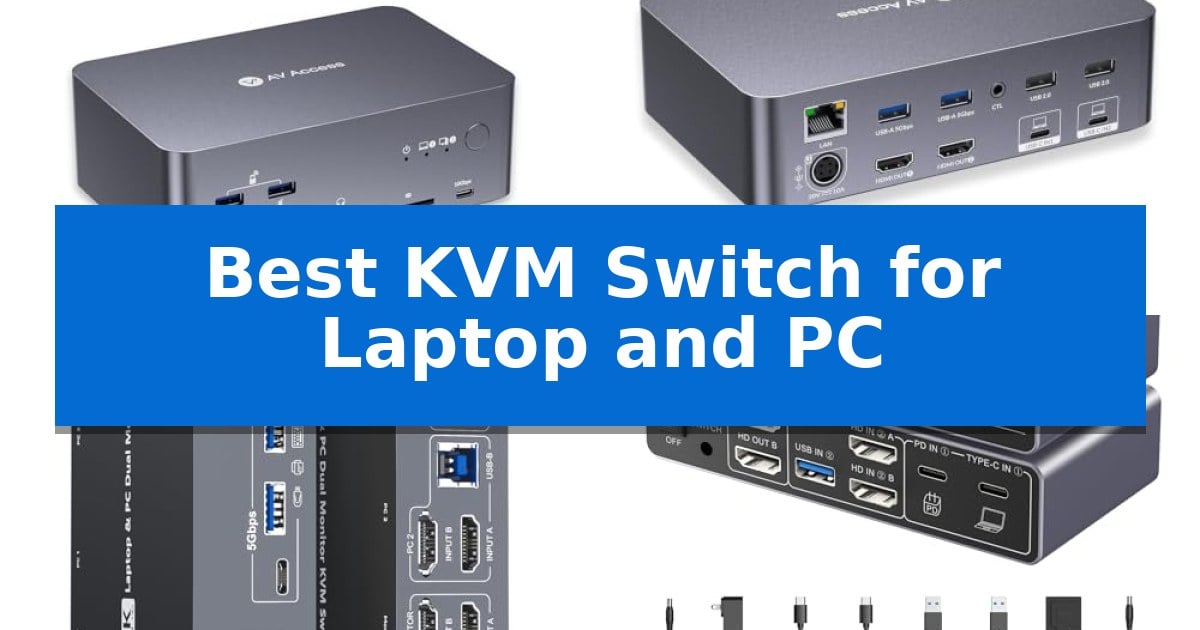
Managing a professional workspace often involves juggling multiple devices, from high-performance desktop PCs to portable laptops. Finding the Best KVM Switch for Laptop and PC is essential for anyone looking to consolidate their peripherals, monitors, and data connections into a single, efficient hub without the frustration of constant cable swapping.
Whether you are a creative professional, a developer, or a hybrid worker, the right switch transforms your desk into a unified command center. By integrating video, data, and power delivery, these devices allow you to transition between systems with a single click, ensuring your workflow remains uninterrupted and your workspace stays organized.
Best KVM Switch for Laptop and PC in 2026
Quick Comparison
| Product | Best For | Key Strength | Score |
|---|---|---|---|
| AV Access iDock B23 KVM Switch | Best Overall | 100W Power Delivery via a single USB-C cable for efficient laptop charging. | 4.9 |
| AV Access iDock C20 KVM Dock | Dual Laptop Workflow Efficiency | 12-in-1 connectivity including Ethernet, SD card, and multiple USB ports. | 4.8 |
| DXchip USB-C Dual Monitor KVM Switch | Seamless Laptop Docking Integration | 100W PD charging keeps laptops powered during use. | 4.3 |
| Ouluoa 8K USB-C KVM Switch | Next-Gen Visual Clarity | 100W PD charging keeps your laptop powered through the USB-C connection. | 4.3 |
| MINIX K2 8K KVM Switch | Compact Single Monitor Control | 100W PD pass-through charging keeps laptops powered via a single USB-C connection. | 4.4 |
How We Chose
- Display Compatibility: Assessing support for high-resolution, multi-monitor setups and refresh rates.
- Connectivity Standards: Evaluating USB-C power delivery, data transfer speeds, and peripheral port counts.
- Switching Efficiency: Analyzing the reliability of physical controls and the speed of signal transition between computers.
- Build and Integration: Considering the physical footprint, cable management capabilities, and overall desk-space optimization.
- Operating System Versatility: Reviewing support for cross-platform environments including Windows, macOS, and Linux.
1 AV Access iDock B23 KVM Switch — Triple Monitor Powerhouse
Managing a multi-computer workspace often leads to cable clutter and redundant hardware, but the AV Access iDock B23 KVM Switch simplifies this by integrating a high-performance docking station with triple-monitor control. This device allows users to share three displays, a keyboard, a mouse, and other USB peripherals between a desktop PC and a USB-C laptop using a single, streamlined interface.
The AV Access iDock B23 KVM Switch stands out for its versatility in handling high-resolution and high-refresh-rate displays. The desktop PC connection supports up to 8K@60Hz or 4K@165Hz, while the USB-C laptop connection provides up to 4K@60Hz or 1440p@165Hz. With 100W Power Delivery via a single USB-C cable, the dock keeps your laptop charged while simultaneously handling video, data, and network traffic.
Connectivity is a major strength, featuring three 10Gbps USB ports for fast data transfers to external drives and three additional 5Gbps USB-A ports for standard peripherals. The inclusion of a 1Gb Ethernet port ensures that both the laptop and desktop remain connected to the network even when the KVM focus is switched to the other machine, preventing interruptions to background tasks or downloads.
Designed for demanding workflows, the unit includes an SDXC card reader and a 3.5mm headset jack, reducing the need for extra adapters on your desk. Users can switch between systems using a top-mounted button or the included wired remote, making it a practical solution for professionals and gamers who require a clean, efficient multi-computer setup.
Best for: Professionals and gamers who need to share a triple-monitor setup and high-speed peripherals between a desktop PC and a USB-C laptop.
Skip if: Users who require independent extended display support on MacBooks, as this device only supports mirrored displays for macOS.
PROS
- 100W Power Delivery via a single USB-C cable for efficient laptop charging.
- Triple-monitor support with high refresh rates up to 4K@165Hz for desktop PCs.
- 1Gb Ethernet passthrough keeps both computers online during switching.
- 10Gbps USB data transfer speeds for high-performance peripherals.
CONS
- Limited MacBook compatibility as it only supports mirrored displays for macOS.
- Requires USB-C video output support on the host laptop to function as intended.
2 AV Access iDock C20 KVM Dock — Dual Laptop Workflow Efficiency
Managing a dual-laptop workspace often requires constant cable adjustments, but the AV Access iDock C20 KVM Dock streamlines this by integrating a high-performance KVM switch with a 12-in-1 docking station. This device allows users to control two computers through a single set of peripherals and dual monitors, utilizing EDID emulation and automatic PC wake-up to ensure switching between systems occurs in just 2-3 seconds.
The unit supports advanced connectivity through dual full-featured USB-C ports (20Gbps), enabling 4K UHD video input and data transfer speeds up to 5Gbps. It serves as a power hub, providing 60W Power Delivery to each connected laptop simultaneously. The inclusion of a 1G Ethernet port, multiple USB 3.0 and 2.0 ports, and an SD card slot makes it a comprehensive solution for engineers, developers, and creators who need to maintain a clutter-free desk.
Designed for versatility, the AV Access iDock C20 KVM Dock is a Plug & Play solution that requires no additional software or drivers. It is specifically optimized for workflows involving mixed systems, such as a laptop for daily office tasks paired with a Mac Mini for specialized coding or debugging. The package includes the necessary power adapter and two USB-C cables to get the workstation running immediately.
Compatibility is a primary consideration for this device. It is engineered for USB-C laptops that support DP Alt Mode and DP MST for extended dual displays. Users should note that macOS limitations restrict Mac models to mirrored displays, and the device is not compatible with FreeSync, G-Sync, or 5K monitors. For those managing ultrawide displays, the maximum supported resolution is 3840×1080.
Best for: Professionals and developers managing two laptops or a laptop and a desktop who require a unified, high-speed dual-monitor workstation.
Skip if: Users with Mac-only setups requiring extended dual-monitor support or those using high-refresh-rate gaming monitors with G-Sync/FreeSync technology.
PROS
- 12-in-1 connectivity including Ethernet, SD card, and multiple USB ports.
- 60W Power Delivery to both connected laptops simultaneously.
- Fast switching (2-3 seconds) via EDID emulation and automatic wake-up.
- Plug & Play design requiring no software or driver configuration.
CONS
- macOS limitations restrict Mac users to mirrored displays rather than extended desktops.
- Incompatibility with G-Sync, FreeSync, and 5K monitor standards.
3 DXchip USB-C Dual Monitor KVM Switch — Seamless Laptop Docking Integration
The DXchip USB-C Dual Monitor KVM Switch simplifies complex multi-computer setups by integrating a full-featured docking station with a dual-input switcher. This device allows users to share two 4K displays, a keyboard, and a mouse between a laptop and a desktop PC using a single, streamlined interface.
Engineered for high-resolution workflows, the unit supports dual 4K@60Hz output with 4:4:4 color accuracy, ensuring sharp text and fluid motion for professional tasks. It also provides 100W Power Delivery (PD), which charges your connected laptop while you work, effectively reducing cable clutter and eliminating the need for separate power bricks.
Connectivity is handled through a 4-port USB 3.0 hub that delivers 5Gbps data transfer speeds, suitable for external drives and peripherals. Users can toggle between systems using either the built-in panel button or the included wired remote controller, with clear LED indicators providing instant status confirmation.
Compatibility extends across Windows, macOS, Linux, and Chrome OS, though users should note that Mac systems with M1/M2 chips are limited to Mirror mode or extending to one screen due to architectural constraints. For optimal performance, the laptop's USB-C port must support DP Alt Mode for video, data, and power transfer.
Best for: Professionals and home office users who need to share dual monitors and peripherals between a USB-C laptop and a desktop PC.
Skip if: Users with M1/M2 Mac systems who require independent dual-monitor extension, as this hardware does not support MST for those specific devices.
PROS
- 100W PD charging keeps laptops powered during use.
- Dual 4K@60Hz support ensures high-resolution display quality.
- Integrated 4-port USB 3.0 hub for efficient peripheral management.
- Wired remote control included for convenient switching.
CONS
- Limited dual-monitor support for M1/M2 Mac architectures.
- Requires specific DP Alt Mode support on the laptop's USB-C port.
4 Ouluoa 8K USB-C KVM Switch — Next-Gen Visual Clarity
Managing multiple devices often leads to a cluttered desk, but the Ouluoa 8K USB-C KVM Switch simplifies this by allowing you to control one desktop and one laptop using a single keyboard, mouse, and peripheral set. This compact docking station serves as a central hub, enabling seamless switching between your systems while maintaining connectivity for your essential hardware.
The device supports dual HDMI monitors, offering flexibility for extended or mirrored display modes. For high-resolution requirements, the desktop connection supports up to 8K@60Hz output, while the laptop connection via USB-C delivers a crisp 4K@60Hz. This ensures that your visual workspace remains sharp for both professional multitasking and high-definition media consumption.
Power and data management are handled through a robust interface, including a 100W PD charging port that keeps your laptop powered during use. The inclusion of three USB 3.0 ports and one USB-C port provides 5Gbps data transfer speeds, allowing you to share external hard drives, printers, or webcams across both computers without the need to constantly unplug and reconnect cables.
Designed for convenience, the unit includes a wired remote for quick input switching and comes with all necessary cables to get started immediately. While the switch provides efficient peripheral sharing, users should note that MST display mode is exclusive to Windows, whereas macOS devices are limited to SST mode, which may impact multi-monitor configurations for Apple users.
Best for: Users who need to share dual monitors and multiple USB peripherals between a desktop and a laptop while keeping their laptop charged via a single cable.
Skip if: Users who require MST (Multi-Stream Transport) support on macOS, as this device is limited to SST mode for Apple computers.
PROS
- 100W PD charging keeps your laptop powered through the USB-C connection.
- Supports high-resolution 8K@60Hz output for desktop configurations.
- Includes three USB 3.0 ports for high-speed peripheral sharing.
- Comes with a wired remote for easy input switching.
CONS
- macOS limited to SST mode, restricting multi-monitor flexibility compared to Windows.
- Requires HDMI cables under 6.56 feet for optimal signal stability.
5 MINIX K2 8K KVM Switch — Compact Single Monitor Control
Managing multiple devices on a single desk often leads to a tangle of cables and inefficient workspace organization. The MINIX K2 8K KVM Switch addresses this by enabling seamless control of one USB-C laptop and one HDMI-equipped PC using a single monitor, keyboard, mouse, and printer. Its design prioritizes stability by utilizing a physical button or a dedicated desktop controller, avoiding the potential connectivity issues sometimes associated with hotkey-only switching systems.
Designed for high-resolution workflows, the MINIX K2 8K KVM Switch supports 8K@60Hz clarity and HDR output. This makes it a viable solution for designers and gamers who require high visual fidelity and low latency. To achieve these specifications, the setup requires an HDMI 2.1 host PC, a compatible HDMI 2.1 monitor, and certified HDMI 2.1 cabling, ensuring the hardware chain supports the necessary bandwidth.
A standout feature for mobile professionals is the 100W PD pass-through charging capability. By connecting a wall charger to the rear-mounted PD IN port, the device delivers power directly to a laptop via the Host A USB-C connection. This configuration keeps the laptop charged without requiring a separate power adapter at the workstation, effectively turning the KVM into a central docking hub.
The device offers broad cross-platform compatibility, integrating with Windows, macOS, Linux, and Android systems without the need for additional drivers. While it simplifies connectivity, users should note that it supports only one HDMI monitor and requires the USB-C host device to support full-featured USB-C or Thunderbolt 4 protocols. The package includes the necessary USB-C and USB-A data cables, though HDMI cables must be sourced separately.
Best for: Remote workers and gamers who need to share a single high-resolution monitor and peripherals between a USB-C laptop and an HDMI desktop PC.
Skip if: Users who require dual-monitor support or those who rely on Apple Studio Display hardware, as this unit is limited to a single HDMI output.
PROS
- 100W PD pass-through charging keeps laptops powered via a single USB-C connection.
- Supports 8K@60Hz resolution for high-fidelity visual output.
- Includes a dedicated desktop controller for convenient, stable switching.
- Plug-and-play compatibility across major operating systems without driver installation.
CONS
- Single monitor limitation prevents multi-display setups.
- HDMI cables not included in the box, requiring separate purchase for full functionality.
Best KVM Switch for Laptop and PC Buying Guide
Understanding Display and Resolution Requirements
The primary function of a KVM switch is to manage visual output across your devices. Before selecting a model, verify that your monitors and computers support the required display standards, such as HDMI 2.1 or DisplayPort 1.4. High-resolution workflows, particularly those involving 8K or 4K at high refresh rates, require switches that explicitly state these capabilities to avoid signal degradation or flickering.
Compatibility is equally critical when using laptops. Many modern devices rely on USB-C with DP Alt Mode for video output. Ensure your laptop's port supports the necessary bandwidth for your specific monitor configuration, as some systems may be limited to mirrored displays rather than extended desktops.
Power Delivery and Cable Management
A major advantage of modern KVM docking stations is the ability to charge your laptop through the same cable used for data and video. Look for Power Delivery (PD) ratings that match or exceed your laptop's requirements, typically ranging from 60W to 100W. This feature eliminates the need for a separate power brick, significantly reducing desk clutter.
Effective cable management is not just about aesthetics; it ensures signal integrity. High-quality, shielded cables are necessary for maintaining stable connections, especially when dealing with high-speed data transfers or high-bandwidth video signals. Always prioritize using the cables provided by the manufacturer to ensure optimal performance.
Peripheral Connectivity and Data Speed
Beyond monitors, your KVM switch acts as a central hub for your keyboard, mouse, and external storage. Check the number and type of USB ports available, specifically looking for USB 3.2 or 3.0 for faster file transfers. These ports are vital for connecting high-speed SSDs or professional-grade peripherals that require consistent bandwidth.
Some advanced models include additional features like SD card readers or Ethernet ports. An integrated 1GbE LAN port is particularly useful for maintaining a stable network connection on both computers, allowing for background tasks like software updates or cloud syncing to continue even when the computer is not currently selected.
Switching Mechanisms and User Control
The ease of switching between your PC and laptop is a defining factor in daily usability. Most high-quality switches offer a physical button on the unit or a wired remote controller. These physical controls are generally more reliable than software-based hotkeys, which can sometimes conflict with operating system shortcuts or require specific driver installations.
Look for devices that include EDID emulation or automatic wake-up functions. These features ensure that your computer recognizes the monitors and peripherals instantly upon switching, preventing the common issue of windows being rearranged or devices failing to reconnect when you toggle between systems.
Operating System Compatibility
While most KVM switches are plug-and-play, compatibility can vary significantly between operating systems. Windows environments typically support MST (Multi-Stream Transport), which allows for extended displays across multiple monitors. Conversely, macOS often limits external monitor support to mirrored displays when using certain docking configurations.
Always check the manufacturer's compatibility notes regarding specific hardware, such as M1/M2 chips or proprietary charging protocols. Understanding these limitations before purchase will save you from potential setup frustrations and ensure that your chosen KVM switch integrates perfectly with your existing hardware ecosystem.
Frequently Asked Questions
Can I use a KVM switch with a MacBook and a Windows PC?
Yes, most modern KVM switches are cross-platform compatible. However, be aware that macOS may have limitations regarding extended display modes compared to Windows, often supporting mirrored displays instead.
Does the KVM switch provide enough power to charge my laptop?
Many KVM docking stations feature Power Delivery (PD) ranging from 60W to 100W. Check your laptop's power requirements to ensure the switch can provide sufficient wattage for your specific model.
Do I need to install software to use these switches?
Most of these devices are plug-and-play and do not require additional drivers. They rely on physical buttons or wired remotes for switching, which ensures high stability across different operating systems.
Will my USB peripherals work at high speeds?
If your switch features USB 3.0 or 3.2 ports, you can expect data transfer speeds up to 5Gbps or 10Gbps, which is sufficient for most external drives, keyboards, and mice.
What should I do if my monitors are not displaying correctly?
Ensure that your cables are high-quality and within the recommended length. Also, verify that your laptop's USB-C port supports DP Alt Mode, as this is required for video output in many KVM docking configurations.
Conclusion: Our Top Pick
Selecting the right hardware for your desk setup depends on your specific display needs and the number of devices you manage. For those requiring a robust, all-in-one solution that handles triple monitors and high-speed data, the AV Access iDock B23 KVM Switch stands out as a versatile powerhouse. Its ability to provide 100W power delivery while maintaining high-refresh-rate visuals makes it an excellent choice for demanding professional and gaming environments.
While other models offer specific benefits for dual-monitor or compact setups, the AV Access iDock B23 KVM Switch provides the most comprehensive feature set for users looking to consolidate their entire workspace. Always verify your laptop's port capabilities and monitor resolution requirements to ensure the best possible performance for your specific hardware configuration.