
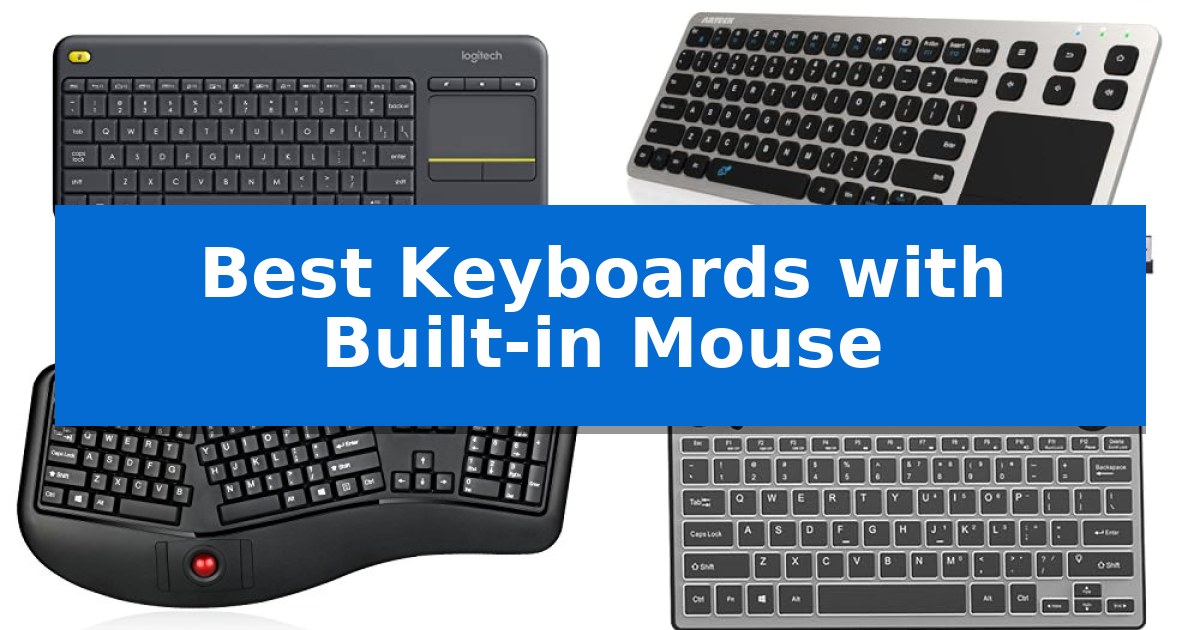
Managing a cluttered desk often means finding ways to combine essential peripherals without sacrificing functionality. The Best Keyboards with Built-in Mouse offer a streamlined approach to navigation, integrating pointing devices directly into the chassis to save space and reduce the need for extra cables.
Whether you are setting up a media center in your living room or optimizing a compact workstation, these all-in-one devices provide a cohesive experience. By consolidating your input methods, you can simplify your environment while maintaining precise control over your computer or smart TV.
Best Keyboards with Built-in Mouse in 2026
Quick Comparison
| Product | Best For | Key Strength | Score |
|---|---|---|---|
| Logitech K400 Plus Wireless Touch Keyboard | Best Overall | Integrated touchpad removes the need for a separate mouse. | 4.9 |
| Arteck 2.4G Wireless Touch Keyboard | Slim Design for Smart TVs | Integrated touchpad mouse eliminates the need for a separate surface or device. | 4.9 |
| Adesso 2-in-1 Wireless Ergonomic Keyboard | Built-in Trackball for Comfort | Integrated trackball reduces the need for a separate mouse. | 4.7 |
| JOMAA Wired Trackball Keyboard | Compact Layout for Tight Spaces | Integrated 19mm trackball eliminates the need for a separate mouse. | 4.6 |
How We Chose
- Pointing Device Precision: We assessed whether the integrated trackpad or trackball offers reliable cursor tracking for its intended use case.
- Connectivity Reliability: We examined the wireless range and connection stability, prioritizing plug-and-play USB receiver implementations.
- Space Efficiency: We measured the overall footprint to ensure the device effectively reduces desk clutter compared to standard keyboard-and-mouse setups.
- Build and Ergonomics: We reviewed the key switch feel and the physical layout to determine suitability for extended typing sessions.
- System Compatibility: We verified support for common operating systems like Windows, Chrome OS, and Android to ensure broad usability.
1 Logitech K400 Plus Wireless Touch Keyboard — Ideal for Living Room Media
Managing entertainment from the comfort of a couch requires a streamlined approach, and the Logitech K400 Plus Wireless Touch Keyboard addresses this by integrating a built-in touchpad directly into the chassis. This design choice eliminates the need for a separate mouse, providing a unified interface for navigating PC-connected TVs or home theater setups.
The device utilizes a plug-and-play setup via a Unifying receiver that connects to a USB port, ensuring immediate functionality across Windows, Android, and Chrome OS systems. With a wireless range of up to 33 feet, it offers the flexibility to control media from across a room without the clutter of additional peripherals.
Built for longevity, the keyboard features an on/off button and power management that supports up to 18 months of battery life. The hardware is also designed with a spill-resistant construction to handle accidental mishaps, while the quiet keys ensure that navigation remains unobtrusive during media playback.
Users can further customize their experience by adjusting controls through the Logitech Options Software. Whether browsing the web on a large screen or managing streaming services, this keyboard provides a compact, all-in-one solution for living room computing.
Best for: Users looking to control a PC-connected TV or home theater system from their couch without the clutter of a separate mouse.
Skip if: Users who require a full-sized keyboard with a dedicated number pad or those who prefer mechanical switches for heavy typing tasks.
PROS
- Integrated touchpad removes the need for a separate mouse.
- Long battery life of up to 18 months.
- 33-foot wireless range for flexible room placement.
- Spill-resistant design for increased durability.
CONS
- Compact layout lacks a dedicated numeric keypad.
- Touchpad size is optimized for navigation rather than precision work.
2 Arteck 2.4G Wireless Touch Keyboard — Slim Design for Smart TVs
Navigating a computer or smart TV from the comfort of a couch requires a streamlined input solution that eliminates the need for a separate desk surface. The Arteck 2.4G Wireless Touch TV Keyboard addresses this by integrating a full-size keyboard with a built-in touchpad mouse, allowing users to manage cursors and typing from a single, compact peripheral.
Designed for versatility, this device connects via a nano USB receiver that provides a 10-meter (33-foot) wireless range. This connectivity standard ensures reliable operation across a room, making it suitable for HTPC setups or living room media management. The inclusion of media hot keys further simplifies navigation, providing quick access to volume and playback controls without requiring additional software configuration.
The hardware features a solid stainless steel construction, balancing durability with a slim, portable profile measuring just 0.67 inches in height. Measuring 14.65 inches in length, it offers a full-size layout that maintains a familiar typing experience while remaining lightweight at one pound. It is powered by two AAA batteries and includes a 24-month manufacturer warranty.
Compatibility is broad, supporting Windows 10, 8, 7, and Chrome OS, making it a practical choice for users switching between TV-connected computers and home theater systems. By combining mouse and keyboard functions into one chassis, it reduces clutter and simplifies the setup process for media-centric environments.
Best for: Users who need an all-in-one input solution for controlling smart TVs, HTPCs, or living room computers from a distance.
Skip if: Users who require a high-precision mouse for gaming or professional design work, as the integrated touchpad is optimized for media navigation rather than granular cursor control.
PROS
- Integrated touchpad mouse eliminates the need for a separate surface or device.
- 10-meter wireless range provides flexibility for couch-based operation.
- Solid stainless steel construction offers a durable and slim design.
- Wide compatibility across Windows and Chrome OS platforms.
CONS
- No rechargeable battery; requires two AAA batteries for operation.
- Touchpad precision is designed for general navigation rather than high-accuracy tasks.
3 Adesso 2-in-1 Wireless Ergonomic Keyboard — Built-in Trackball for Comfort
The Adesso 2-in-1 Wireless Ergonomic Keyboard integrates a built-in trackball with an optical sensor, allowing users to navigate and type without moving their hands to a separate mouse. This design choice aims to reduce muscle movement and provide a more streamlined workspace for those prioritizing efficiency and comfort.
Designed with an ergonomic contour and a split key layout, the keyboard encourages a more natural position for hands, wrists, and forearms. The inclusion of an integrated palm rest further supports the wrists during extended typing sessions. It features a full-size 105-key US layout using membrane switches, which are rated for a 5 million keystroke lifecycle to ensure a quiet typing experience.
Connectivity is handled via a small USB dongle that utilizes wireless technology with a range of up to 30 feet. The system operates on 12 different channels with 65,536 unique IDs to minimize interference. To help manage power, the device includes an auto sleep function and a physical power on/off switch, which can extend battery life up to 6 months.
Measuring 20.5 inches in length and 9.3 inches in width, this device provides a substantial footprint suitable for desktop use. It is a practical solution for users seeking to combine input devices into a single, cohesive unit while maintaining a focus on ergonomic posture.
Best for: Users seeking to minimize desk clutter and reduce repetitive hand movement by combining a full-size keyboard and trackball into one ergonomic unit.
Skip if: Users who require a compact or portable keyboard, as the 20.5-inch width and integrated design are optimized for stationary desktop environments.
PROS
- Integrated trackball reduces the need for a separate mouse.
- Ergonomic split design promotes natural hand and wrist positioning.
- Wireless connectivity with a 30-foot range and interference-reducing channel technology.
- Integrated palm rest enhances comfort during prolonged use.
CONS
- Large footprint may not fit on smaller desks or limited workspaces.
- Membrane switches may not provide the tactile feedback preferred by mechanical keyboard enthusiasts.
4 JOMAA Wired Trackball Keyboard — Compact Layout for Tight Spaces
The JOMAA Wired Trackball Keyboard integrates a 19mm trackball directly into its chassis, allowing for precise cursor control without requiring additional desk space for a traditional mouse. This design choice makes it a practical solution for users operating in constrained environments, such as media centers, industrial stations, or medical setups where surface area is at a premium.
Beyond its integrated pointing device, the keyboard features a 78-key compact layout equipped with scissor switch keys. This mechanism is engineered to provide quiet, tactile typing, which is well-suited for extended work sessions. For users working in low-light conditions, the adjustable 3-level backlight offers visibility, controlled easily via dedicated hotkeys.
Compatibility is handled through a USB plug-and-play interface, ensuring immediate functionality across Windows, Mac, iOS, and Android systems without the need for additional drivers. Productivity is further supported by Fn key combinations for functions like Scroll Lock, alongside CPI switching that allows users to adjust cursor speed to match their specific workflow requirements.
While the compact form factor saves space, it is important to note that the device relies on a wired connection. This ensures a consistent link for the trackball and keys, though it necessitates proximity to a USB port. The unit is designed to balance essential input functions within a single, streamlined footprint.
Best for: Users in tight workspaces or specialized industrial environments who need an all-in-one input solution to reduce wrist strain and save desk space.
Skip if: Users who require a wireless connection or a full-sized keyboard layout with a dedicated number pad.
PROS
- Integrated 19mm trackball eliminates the need for a separate mouse.
- Scissor switch keys provide a quiet and comfortable typing experience.
- Adjustable 3-level backlight improves visibility in dim environments.
- Plug-and-play USB compatibility across multiple operating systems.
CONS
- Wired-only connection limits placement flexibility compared to wireless models.
- Compact 78-key layout lacks a dedicated number pad.
Best Keyboards with Built-in Mouse Buying Guide
Understanding Integrated Pointing Devices
Keyboards with built-in mice generally feature either a touchpad or a trackball. Touchpads are typically found on media-focused keyboards, providing a flat surface similar to a laptop for gesture-based navigation. These are ideal for casual browsing or controlling a living room PC from a couch.
Trackballs, by contrast, use a stationary ball that you rotate with your thumb or fingers. This design is often preferred for ergonomic setups because it minimizes the need for wrist movement, potentially reducing strain during long periods of use in professional or industrial environments.
Connectivity and Wireless Range
Most of these devices utilize a 2.4GHz USB receiver for a stable, plug-and-play connection. This method is generally more reliable for media centers than Bluetooth, as it avoids pairing issues and provides an immediate link to your device.
When choosing a model, consider your distance from the screen. Many wireless units offer a range of up to 33 feet, which is sufficient for most living rooms. Always ensure your USB port is unobstructed to maintain the strongest possible signal.
Ergonomics and Layout
The layout of an all-in-one keyboard often differs from a standard desktop board. Compact designs may omit a dedicated number pad to save space, which is a necessary trade-off for portability. Look for models with scissor-switch keys if you prefer a quiet, tactile typing experience.
If you suffer from wrist discomfort, look for keyboards that include an integrated palm rest or a split-key design. These features help maintain a more natural hand position, which is critical if you plan to use the device as your primary keyboard for daily tasks.
Durability and Maintenance
Because these keyboards contain moving parts like trackballs or touchpads, they require occasional maintenance. Trackballs should be removed and cleaned to prevent dust buildup that can affect tracking accuracy. Touchpads are generally easier to maintain but should be kept free of oils and debris.
Look for spill-resistant designs if you plan to use your keyboard in a casual setting like a living room. While no keyboard is truly waterproof, a spill-resistant chassis can protect internal electronics from minor accidents, extending the lifespan of your device.
OS Compatibility
Before purchasing, verify that the keyboard supports your specific operating system. While most models are compatible with Windows and Chrome OS, support for Android or macOS can vary regarding specific media hotkeys or gesture functionality.
Some advanced models include proprietary software that allows you to customize the touchpad sensitivity or reassign media buttons. If you require a specific workflow, check if the manufacturer provides software support for your primary platform.
Frequently Asked Questions
Can I use these keyboards for gaming?
While these keyboards are excellent for media control and productivity, they are generally not designed for high-performance gaming. The tracking speed and polling rates are optimized for navigation rather than the rapid, precise movements required in competitive gaming.
Do I need to install drivers?
Most of these devices are true plug-and-play. Simply inserting the USB receiver into an available port is usually sufficient for the keyboard and mouse functions to work immediately on Windows, Android, and Chrome OS.
How do I clean the trackball?
Most trackball keyboards allow you to pop the ball out from the top or bottom of the housing. Use a soft, dry cloth to wipe the sensor and the ball itself, then snap it back into place.
Are these keyboards compatible with smart TVs?
Yes, most smart TVs that support USB input devices will work with these keyboards. However, functionality can vary by TV brand, so ensure your TV supports external keyboards via its USB ports.
What is the benefit of a 2.4GHz receiver over Bluetooth?
A 2.4GHz receiver typically offers a more stable connection with lower latency and no pairing process, making it ideal for devices that you might move between different computers or TVs frequently.
Conclusion: Our Top Pick
Choosing the right integrated keyboard depends on your primary workspace needs. For those seeking a reliable, media-friendly solution that balances comfort with a compact footprint, the Logitech K400 Plus Wireless Touch Keyboard stands out as the most versatile option. Its combination of a large, responsive touchpad and long battery life makes it an excellent choice for living room entertainment setups.
If you require a more ergonomic approach for desk work, consider the trackball-based alternatives which prioritize wrist health. Regardless of your choice, these all-in-one keyboards effectively eliminate the need for a separate mouse, helping you maintain a cleaner and more efficient workspace.