
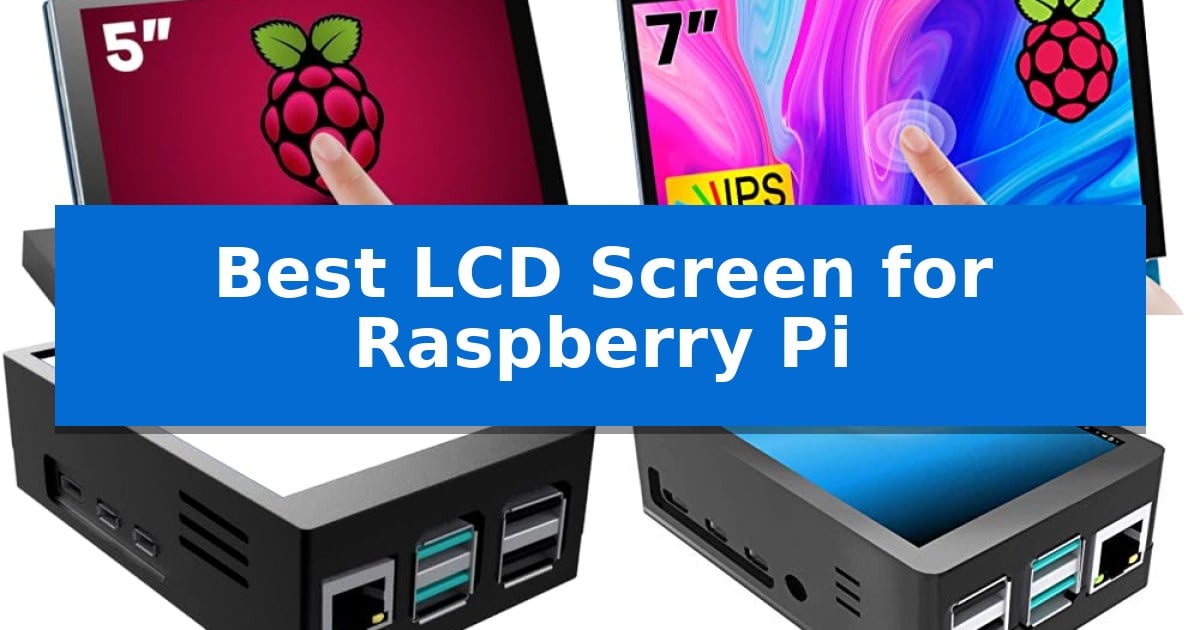
Finding the Best LCD Screen for Raspberry Pi requires balancing your specific project requirements with the hardware interface of your board. Whether you are building a portable console, a desktop monitoring station, or a dedicated home automation dashboard, the display you choose dictates your interaction with the system.
Our guide focuses on practical display solutions that integrate seamlessly with various Raspberry Pi models. We examine key factors like connection types—such as DSI versus HDMI—and physical form factors to ensure you select a screen that provides the clarity and responsiveness your specific application demands.
You may also want to compare Best LCD Reference Monitors for Video Editing, Best LCD Projectors with Wireless Connectivity, and Best LCD Projectors Under $700.
Best LCD Screen for Raspberry Pi
Quick Comparison
| Product | Best For | Key Strength | Score |
|---|---|---|---|
| Hosyond 5 Inch IPS Touchscreen Display | Best Overall | Plug-and-play MIPI DSI interface requires no driver installation. | 4.9 |
| Hosyond 7 Inch IPS HDMI Monitor | Versatile multi-point touch | Capacitive 5-point touch support for interactive projects. | 4.8 |
| CUQI 3.5 Inch Touchscreen Case Kit | Integrated cooling for Pi 5 | Integrated cooling system with included mini fan and heat sink. | 4.4 |
| JUN-ELECTRON 3.5 Inch Touchscreen Case | Built-in fan for cooling | Built-in fan provides active cooling for the Raspberry Pi 4. | 4.9 |
| OSOYOO 3.5 Inch HDMI Touchscreen | Compact high-resolution support | No external power supply required for operation. | 4.8 |
How We Chose
- Interface Compatibility: Assessing whether the display uses DSI for direct output or HDMI for broader versatility.
- Resolution and Clarity: Comparing pixel density and screen size to ensure text and graphics remain legible.
- Touch Responsiveness: Evaluating the type of touch technology—capacitive versus resistive—and its impact on user interaction.
- Physical Integration: Checking for included cases, cooling solutions, and mounting hardware that simplify the assembly process.
- Driver Requirements: Determining if the display is plug-and-play or requires specific software configuration for optimal performance.
1 Hosyond 5 Inch IPS Touchscreen Display — Driver-free DSI interface
Integrating a display directly into a Raspberry Pi project is streamlined by the Hosyond 5 Inch IPS Touchscreen Display, which utilizes a native MIPI DSI interface to eliminate the need for extra cables or complex driver installations. By connecting directly to the DSI port on supported Raspberry Pi models, this screen offers a plug-and-play experience that simplifies the setup process for hobbyists and developers alike.
The display features a 5-inch IPS panel with a resolution of 800×480 pixels, providing consistent color and viewing angles suitable for compact interface projects. As a capacitive touchscreen, it supports multi-touch input on Raspbian OS, while maintaining compatibility with Ubuntu, Kali, and Win10 IoT for single-touch applications. Users can also adjust the PWM backlight brightness to suit different lighting environments.
Designed specifically for the Raspberry Pi ecosystem, this screen is compatible with a wide range of boards, including the Raspberry Pi 5, 4B, 3B+, 3B, 3A+, 2B, 1B+, and 1A+. It is a dedicated DSI-based solution, meaning it does not rely on HDMI, which keeps the HDMI port free for other peripherals or secondary displays.
While this display excels in ease of use, it is a specialized component that requires a direct DSI connection. It does not support non-Raspberry Pi hardware, making it a purpose-built tool rather than a universal monitor. The package includes detailed documentation to assist with configuration, ensuring that new systems can be operational with minimal effort.
Best for: Users seeking a compact, driver-free touchscreen interface for Raspberry Pi projects that utilizes the DSI port instead of HDMI.
Skip if: Users who require an HDMI-based display or need a screen compatible with devices other than Raspberry Pi boards.
PROS
- Plug-and-play MIPI DSI interface requires no driver installation.
- IPS panel technology ensures clear viewing angles.
- Capacitive touch support allows for intuitive interaction.
- PWM backlight control provides adjustable brightness.
CONS
- Limited compatibility exclusively to Raspberry Pi models.
- No HDMI input restricts use with other hardware.
2 Hosyond 7 Inch IPS HDMI Monitor — Versatile multi-point touch
Integrating a dedicated display into a compact computing project requires a balance of resolution and physical footprint, which is where the Hosyond 7 Inch IPS HDMI Monitor provides a clear advantage. This unit features a 7-inch IPS LCD panel that delivers a hardware resolution of 1024 × 600, ensuring crisp visuals for desktop environments or custom interface dashboards.
Designed with versatility in mind, the monitor supports capacitive 5-point touch input, allowing for interactive control of your projects. Users can manage power consumption effectively through the backlight control feature, which enables the backlight to be turned off independently when the screen is not in use.
Compatibility is a core strength of this display, as it functions as a plug-and-play device for the Raspberry Pi series, including the Pi5, Pi4, Pi3, and Zero W. Beyond the Raspberry Pi ecosystem, it supports other mini PCs like the BB Black and Banana Pi, and can even function as a secondary HDMI monitor for standard desktop computers.
The display is compatible with a wide range of operating systems, including Raspbian, Ubuntu, Kali-Linux, and Kodi, without requiring additional drivers. For those using it as a PC monitor, it maintains touch functionality across Windows 10, 8, and 7, making it a flexible solution for both embedded systems and general-purpose computing tasks.
Best for: Users seeking a versatile, plug-and-play touchscreen display for Raspberry Pi projects and secondary PC monitoring.
Skip if: Users requiring a high-definition 1080p native resolution or a larger screen size for primary workstation tasks.
PROS
- Capacitive 5-point touch support for interactive projects.
- Plug-and-play compatibility with major Raspberry Pi models and operating systems.
- Power-saving backlight control to reduce energy consumption.
- Versatile utility as both a dedicated mini-PC display and a secondary computer monitor.
CONS
- Hardware resolution is limited to 1024×600, with higher resolutions requiring software configuration.
3 CUQI 3.5 Inch Touchscreen Case Kit — Integrated cooling for Pi 5
The CUQI 3.5 Inch Touchscreen Case Kit provides a specialized hardware solution for Raspberry Pi 5 users by integrating a compact display directly into a protective housing. This kit is engineered to streamline the setup process by including both the 3.5-inch TFT LCD and a dedicated case, ensuring a secure fit for the single-board computer.
Designed for visual feedback and touch interaction, the screen features a 480 x 320 resolution and supports a 60 FPS refresh rate via an SPI signal input. The inclusion of a mini fan and heat sink addresses thermal management requirements, allowing the Raspberry Pi 5 to maintain stable operation during intensive tasks.
The system is compatible with Raspbian, Ubuntu, Kali, and RetroPie, with the manufacturer providing driver installation tutorials to assist with configuration. While the display is compatible with both the Raspberry Pi 4 and 5, the included case is specifically tailored to the dimensions and port layout of the Raspberry Pi 5.
This all-in-one package includes essential assembly components such as a pen, screwdriver, rubber feet, and metal braces. By combining the display, cooling, and housing into one kit, it simplifies the build for users who require a small-form-factor interface for their projects.
Best for: Users seeking a compact, integrated touchscreen and cooling solution specifically for the Raspberry Pi 5.
Skip if: Users who require a high-resolution display for detailed desktop work or those using a Raspberry Pi model other than the 5 who do not need the included case.
PROS
- Integrated cooling system with included mini fan and heat sink.
- All-in-one kit includes necessary assembly tools and hardware.
- 60 FPS refresh rate provides smooth visual feedback for the display size.
- Dedicated case ensures a secure and stable fit for the Raspberry Pi 5.
CONS
- Case compatibility is limited exclusively to the Raspberry Pi 5.
- Lower resolution of 480×320 is optimized for small-scale interfaces rather than high-definition media.
4 JUN-ELECTRON 3.5 Inch Touchscreen Case — Built-in fan for cooling
Maintaining optimal operating temperatures during intensive tasks is a primary concern for Raspberry Pi 4 users, and the JUN-ELECTRON 3.5 Inch Touchscreen Case addresses this by integrating a built-in fan directly into its housing. This design choice ensures active cooling for the board while providing a compact, all-in-one display solution for projects requiring a local interface.
The display features a physical resolution of 320×480 pixels and utilizes resistive touch control for user input. It connects to the Raspberry Pi 4 via an SPI interface, supporting a 125MHz SPI signal input. This configuration allows for a refresh rate of approximately 50fps, which is sufficient for basic video playback and game display applications without noticeable flicker.
Installation requires specific software configuration, as the screen necessitates a driver to function correctly. Users who prefer a streamlined setup can utilize the provided Pre-install Driver System image, which simplifies the process of getting the display operational. The case is specifically engineered to fit the Raspberry Pi 4, ensuring that the cooling fan and screen assembly align with the board's ports and layout.
This unit is a practical choice for those who need a portable, integrated monitor and cooling solution. Because it relies on the SPI interface, it is best suited for users comfortable with managing driver installations or utilizing pre-configured system images to ensure compatibility.
Best for: Users seeking a compact, integrated display and active cooling solution for a Raspberry Pi 4 project.
Skip if: Users who require high-resolution displays for detailed graphical work or those who prefer a plug-and-play experience without driver installation.
PROS
- Built-in fan provides active cooling for the Raspberry Pi 4.
- Compact 3.5-inch form factor integrates the screen and case.
- Stable 50fps refresh rate suitable for basic gaming and video.
- Direct SPI connection eliminates the need for additional power sources.
CONS
- Requires driver installation to function properly.
- Resistive touch technology may be less responsive than capacitive alternatives.
5 OSOYOO 3.5 Inch HDMI Touchscreen — Compact high-resolution support
Integrating a display directly into a Raspberry Pi project often requires balancing physical footprint with visual clarity. The OSOYOO 3.5 Inch HDMI Touchscreen provides a compact 3.5-inch interface that connects via HDMI, offering a straightforward way to add visual output without needing an external power supply.
This resistive touch screen features a native resolution of 480320, which is suitable for small-scale monitoring or interactive DIY projects. While its native resolution is fixed, the display supports input resolutions up to 19201280. When higher resolutions are sent to the device, the screen compresses the image to fit its 480*320 matrix, which can alter the display ratio.
Compatibility is a primary consideration for this device. It is designed to work with Raspberry Pi 2B, 3B, 4, and 5 models. Users should note that while it supports various operating systems like Raspbian, Kali, Ubuntu, and Windows 10, a driver installation is required. For those using Raspberry Pi 4B or 5B, the display requires switching from the default Wayfire graphics system to X11 to function correctly.
The unit is designed for versatility in DIY environments, supporting both video playback and touch-based interactions. By including a stylus pen and clear setup instructions, it aims to simplify the integration process for hobbyists looking to add a tactile interface to their existing hardware setups.
Best for: DIY enthusiasts and hobbyists needing a compact, integrated touch display for Raspberry Pi projects.
Skip if: Users requiring high-definition native resolution or those who prefer a plug-and-play experience without driver installation or graphics system configuration.
PROS
- No external power supply required for operation.
- Compact 3.5-inch form factor ideal for small-scale projects.
- Broad OS support including Raspbian, Ubuntu, and Windows 10.
- Includes stylus pen for precise touch interaction.
CONS
- Requires driver installation for proper functionality.
- Graphics system configuration needed for Raspberry Pi 4B and 5B.
- Resolution compression may alter aspect ratios when using high-resolution inputs.
Best LCD Screen for Raspberry Pi Buying Guide
Understanding Display Interfaces
The connection method is the most critical factor when selecting a screen. DSI (Display Serial Interface) offers a direct, driver-free connection that leaves your HDMI port free for other peripherals, making it ideal for compact, dedicated builds. It is often the preferred choice for those who want a streamlined setup without complex software configuration.
Alternatively, HDMI displays provide greater flexibility. They are generally compatible with a wider range of devices beyond the Raspberry Pi, allowing you to repurpose the monitor for other computers or media players. However, they typically require an HDMI cable and sometimes additional power, which can increase the footprint of your project.
Touchscreen Technology Differences
You will primarily encounter two types of touch technology: capacitive and resistive. Capacitive screens are similar to modern smartphone displays, offering multi-touch support and high sensitivity. They are generally more durable and provide a smoother user experience for navigation and gesture-based control.
Resistive touchscreens require a bit more pressure to register an input, often utilizing a stylus. While they may feel less responsive than capacitive models, they are highly reliable in industrial or DIY environments where precision is more important than fluid multi-touch gestures. Choosing between them depends on whether your project requires frequent, rapid interaction or occasional, precise input.
Resolution and Aspect Ratio
For small screens, resolution directly impacts how much information you can display. A 3.5-inch screen with a 480×320 resolution is compact but may feel cramped for desktop environments. Conversely, a 7-inch display with 1024×600 resolution offers significantly more screen real estate, making it better suited for multitasking or viewing detailed interfaces.
Always consider the aspect ratio and how your software handles it. Some displays may compress higher resolutions to fit their native pixel count, which can distort images or text. If your project involves high-definition video or complex graphical interfaces, prioritize a display that offers a native resolution matching your content.
Cooling and Case Integration
Raspberry Pi boards, especially the newer models, generate significant heat during operation. Many display kits now include integrated cooling solutions, such as built-in fans or dedicated heatsinks, which are essential for maintaining performance during long-term use. A display that comes with a matching case not only protects your board but also ensures proper airflow.
If you are planning a portable build, look for kits that consolidate the Pi and the screen into a single, rigid frame. This reduces the risk of loose connections and makes your device much easier to handle and transport without damaging the sensitive ribbon cables or HDMI ports.
Software and Driver Support
Ease of setup is a major differentiator. Some displays are driver-free, meaning they work immediately upon connection. These are excellent for beginners or projects where you want to avoid troubleshooting kernel configurations or editing boot files.
Other displays require specific driver installations or system image modifications to function correctly. While this may add time to your initial setup, it often provides more granular control over features like backlight brightness, touch calibration, and resolution scaling. Always check if the manufacturer provides clear, up-to-date documentation for your specific OS.
Frequently Asked Questions
Can I use a DSI display with any Raspberry Pi model?
No, DSI compatibility depends on the specific board's DSI port. Always verify that your Raspberry Pi model has the required DSI interface before purchasing a DSI-specific screen.
Do all touchscreens require a stylus?
No, capacitive touchscreens work with your fingers, similar to a smartphone. Resistive touchscreens are the ones that typically benefit from or require a stylus for accurate input.
Will a 3.5-inch HDMI screen work with a standard PC?
Most HDMI-based Raspberry Pi screens function as general-purpose monitors, but you may need to adjust the resolution settings on your PC to ensure the image displays correctly.
Do I need an external power supply for these screens?
It depends on the model. Many smaller DSI and some HDMI screens draw power directly from the Raspberry Pi, while larger displays may require a separate power source to function reliably.
How do I fix a white screen on boot?
A white screen often indicates that the necessary drivers are not installed or configured correctly. Check the manufacturer's documentation to ensure you have applied the correct drivers for your operating system.
Conclusion: Our Top Pick
For most users, the Hosyond 5 Inch IPS Touchscreen Display stands out as the most practical choice due to its driver-free DSI interface. This design eliminates the complexity of software configuration, allowing for a true plug-and-play experience that is ideal for both beginners and experienced makers.
While other options offer larger screens or integrated cases, the Hosyond 5-inch model provides a reliable balance of screen size and ease of installation. It is an excellent fit for projects where you want to maximize performance without the hassle of managing external cables or complex driver dependencies.