
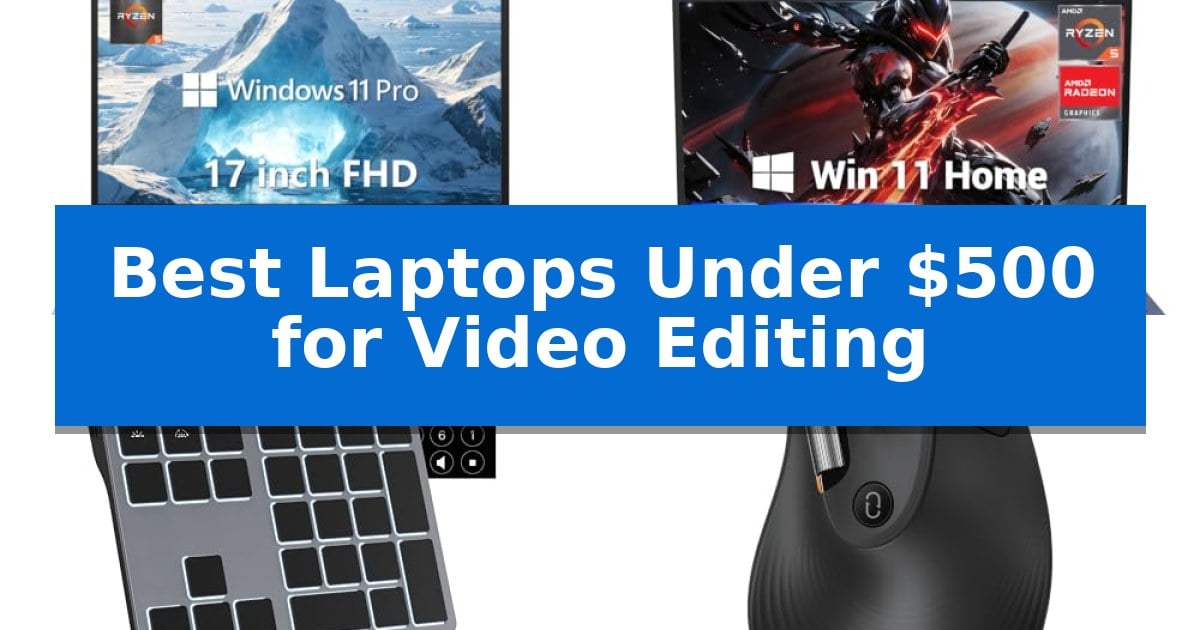
Finding a reliable machine for creative work on a tight budget can be challenging. When searching for the Best Laptops Under $500 for Video Editing, the goal is to balance processing power, memory, and display quality to ensure your timeline remains responsive during edits.
Beyond the laptop itself, your setup often requires specific peripherals to maintain efficiency. We have analyzed several budget-friendly options, including laptops and productivity-enhancing accessories, to help you build a capable workstation that fits your financial constraints.
Best Laptops Under $500 for Video Editing in 2026
Quick Comparison
| Product | Best For | Key Strength | Score |
|---|---|---|---|
| HP 17 Laptop | Best Overall | 17.3-inch Full HD display provides an expansive view for editing timelines. | 4.9 |
| NIMO N152 Laptop | Upgradable Memory for Creative Projects | Extensive upgradeability with support for up to 64GB RAM and 4TB storage. | 4.7 |
| Doohoeek Macro Keypad | Custom Shortcuts for Faster Editing | 25 fully programmable keys for custom macro assignment | 4.4 |
| ProtoArc EM11 Pro Mouse | Side Scroll for Timeline Navigation | Dedicated side scroll wheel for efficient timeline and spreadsheet navigation. | 4.7 |
| KLIM Wind Cooling Pad | Prevents Thermal Throttling Under Load | Four high-speed fans spinning at 1200 RPM for effective heat dissipation. | 4.4 |
How We Chose
- Processor capability for handling multi-core editing workloads.
- Memory and storage configurations that support smooth file access and multitasking.
- Display clarity and screen real estate for accurate timeline management.
- Ergonomic and functional design features that reduce fatigue during long sessions.
- Connectivity options for integrating external peripherals and displays.
1 HP 17 Laptop — Expansive Screen for Editing Timelines
The HP 17 Laptop provides an expansive 17.3-inch Full HD anti-glare display, offering a wide, distortion-free workspace that is particularly useful for managing complex video editing timelines. Its narrow-bezel architecture maximizes the available screen real estate, allowing for detailed frame-by-frame adjustments without the constant need for window resizing.
Under the hood, the device is powered by an AMD Ryzen 5 7520U processor, which features 4 cores and 8 threads capable of reaching speeds up to 4.3GHz. This architecture is engineered to handle multi-core workloads, providing the necessary efficiency for video editing tasks, high-bitrate streaming, and multitasking across professional applications.
System responsiveness is supported by 8GB of LPDDR5 memory and a 512GB PCIe NVMe M.2 SSD. This combination is designed to accelerate boot times and facilitate quick access to large media files, ensuring that the system remains stable when running memory-intensive software. The inclusion of Windows 11 Pro adds enterprise-level security features, while the integrated 720p privacy camera includes a physical shutter for secure conferencing.
The laptop is designed for a functional mobile workstation setup, featuring Wi-Fi 6 and Bluetooth 5.3 for reliable connectivity. It includes a versatile port selection with one USB-C 3.0, two USB-A 3.0 ports, and an HDMI 1.4 output for external display support. The package also includes a mouse and tablet stand, providing immediate utility for users looking to organize their editing environment.
Best for: Editors who require a large, high-definition screen and reliable multi-core processing for mobile video workflows.
Skip if: Users who require high-end dedicated graphics or massive RAM upgrades for 4K rendering, as this model is optimized for standard efficiency tasks.
PROS
- 17.3-inch Full HD display provides an expansive view for editing timelines.
- AMD Ryzen 5 7520U processor offers efficient multi-core performance.
- 512GB PCIe NVMe SSD ensures fast access to large media files.
- Included accessories like a mouse and tablet stand enhance the mobile workstation setup.
CONS
- 8GB of RAM may limit performance in extremely complex, multi-layered video projects.
- 17.3-inch form factor results in a larger footprint compared to standard 15-inch laptops.
2 NIMO N152 Laptop — Upgradable Memory for Creative Projects
The NIMO N152 Laptop is built for users who need a flexible foundation for creative tasks, featuring an AMD Ryzen 5 6600H processor that provides 4 cores and 8 threads for handling multitasking and AI-assisted workflows. Its design prioritizes long-term utility by offering significant hardware expansion, including the ability to upgrade the 8GB DDR4 RAM up to 64GB and the 256GB PCIe SSD up to 4TB, ensuring the machine can grow alongside your project requirements.
Visual and physical comfort are central to its design, centered around a 15.6-inch FHD IPS anti-glare display that provides a wide workspace for editing timelines or managing multiple windows. The inclusion of a 180-degree lay-flat hinge and a backlit keyboard makes it practical for collaborative work or late-night editing sessions in various environments.
Connectivity is streamlined through a versatile port selection, including USB-C, USB-A, HDMI 2.0, and a Micro SD slot, allowing you to connect external drives and monitors without relying on multiple dongles. Power management is handled by 65W PD fast charging, which supports quick top-ups during busy schedules, while a physical webcam shutter and fingerprint reader add layers of privacy and security to your daily workflow.
This laptop is backed by a 2-year manufacturer warranty and dedicated US-based support, providing a clear path for assistance with setup or technical issues. By balancing core processing power with extensive upgrade paths, it offers a functional starting point for students and creators who need a reliable, adaptable device for video editing and productivity.
Best for: Students and creators who need an affordable, highly upgradeable laptop for video editing and multitasking.
Skip if: Users who require a dedicated high-end GPU for intensive 4K rendering or professional-grade color grading will find this integrated graphics-based system limiting.
PROS
- Extensive upgradeability with support for up to 64GB RAM and 4TB storage.
- 65W PD fast charging provides up to 2 hours of use from a 15-minute charge.
- Physical webcam shutter and fingerprint reader for enhanced security.
- 180-degree hinge design facilitates easy screen sharing and collaboration.
CONS
- Integrated Radeon Vega 8 graphics are optimized for casual editing rather than professional-grade rendering.
- 256GB base storage will require an immediate upgrade for users with large video project files.
3 Doohoeek Macro Keypad — Custom Shortcuts for Faster Editing
Streamlining complex creative workflows is often hindered by the physical limitations of standard keyboards, but the Doohoeek Tri-Mode Programmable Macro Keypad offers a dedicated solution for power users. By providing 25 fully programmable keys, this device allows editors to map repetitive tasks like undo, redo, or specific app shortcuts directly to a tactile interface, significantly reducing the need for cumbersome menu navigation.
The keypad is engineered for Windows compatibility and features tri-mode connectivity, allowing users to switch between three devices via Bluetooth 5.0, 2.4GHz wireless, or a wired connection. This flexibility ensures that whether you are working on a desktop, a laptop, or a tablet, your custom macro layouts remain accessible. For added convenience, the device supports up to four virtual keyboard layers, which can be toggled instantly to adapt the hardware for different software environments like Premiere Pro or Excel.
Reliability is central to the design, with all macro configurations stored on onboard memory. While initial programming must be performed in wired mode to ensure stability and prevent wireless interference, the device retains these settings for use in wireless modes. The inclusion of vibrant 7-color backlighting with adjustable brightness levels ensures that the keypad remains functional and easy to navigate in low-light studio environments.
To assist with organization, the package includes customizable shortcut stickers, enabling users to label each key according to their specific macro assignments. This visual aid is particularly useful when managing multiple layers, ensuring that complex workflows remain intuitive even during intensive editing sessions.
Best for: Windows users seeking to accelerate video editing and productivity tasks through customizable macro assignments and multi-device connectivity.
Skip if: Users who require macOS or Linux compatibility, or those who prefer a full-sized keyboard layout for general typing rather than a dedicated macro controller.
PROS
- 25 fully programmable keys for custom macro assignment
- Tri-mode connectivity supporting Bluetooth, 2.4GHz, and wired operation
- Onboard memory stores up to 4 distinct key layouts
- Dynamic 7-color backlighting with adjustable brightness
CONS
- Wired-only programming required for initial setup
- Windows-exclusive compatibility
4 ProtoArc EM11 Pro Mouse — Side Scroll for Timeline Navigation
Navigating wide video editing timelines and complex spreadsheets requires precision that standard flat mice often struggle to provide. The ProtoArc EM11 Pro Mouse addresses this with a dedicated side scroll wheel, allowing for effortless horizontal navigation without the need to drag on-screen scroll bars. This design choice is specifically intended to keep your hand in a stable, ergonomic position while you manage wide workspaces, helping to maintain your focus during intensive editing sessions.
Beyond its specialized scrolling capabilities, the ProtoArc EM11 Pro Mouse features a vertical ergonomic design that promotes a natural handshake-style grip. By reducing wrist twisting, this layout is engineered for comfort during extended periods of use. The mouse is tailored for users with hand lengths between 19.0 and 21.5 cm, ensuring a more complete palm support that prevents the cramped grip often associated with smaller, traditional peripherals.
Customization and connectivity are central to its utility. With browser-based button configuration, you can assign shortcuts like copy and paste to any of the six buttons without installing additional software. Furthermore, the device supports multi-device connectivity, allowing you to switch between three separate computers or tablets via two Bluetooth 5.0 channels and a 2.4 GHz USB-A receiver. Precision is managed through an adjustable sensor that reaches up to 7200 DPI, providing the flexibility to transition between high-speed navigation and detailed work.
The inclusion of a 500mAh rechargeable lithium-ion battery ensures a cleaner desk setup by eliminating the need for disposable batteries, with charging handled via an included USB Type-C cable. While the vertical orientation may require a brief adjustment period of one to two weeks, the device offers a robust solution for those seeking to combine ergonomic support with productivity-enhancing features for professional workflows.
Best for: Video editors and spreadsheet power users who require horizontal scrolling and ergonomic support for large hands.
Skip if: Users with smaller hand sizes or those who prefer the traditional, flat posture of a standard computer mouse.
PROS
- Dedicated side scroll wheel for efficient timeline and spreadsheet navigation.
- Vertical ergonomic shape designed to reduce wrist strain during long sessions.
- Multi-device support allows switching between three connected computers.
- Browser-based customization eliminates the need for software installations.
- Rechargeable 500mAh battery removes the need for disposable batteries.
CONS
- Requires an adjustment period of 1-2 weeks for users accustomed to traditional flat mice.
- Specific size requirements (19.0–21.5 cm hand length) may not suit all users.
5 KLIM Wind Cooling Pad — Prevents Thermal Throttling Under Load
Maintaining consistent performance during intensive tasks like video editing requires effective thermal management, and the KLIM Wind Cooling Pad addresses this by utilizing four fans that spin at up to 1200 RPM. By actively dissipating heat, this cooling stand helps prevent thermal throttling, ensuring your hardware maintains its intended operating efficiency during demanding workloads.
Designed for versatility, this cooling pad accommodates a wide range of laptop sizes, from 11 inches up to 16 inches, with support for larger models up to 19 inches that remain stable despite extending over the edges. The unit features two rear legs for adjustable inclination and frontal pegs to keep your device securely in place during use.
The KLIM Wind Cooling Pad is built with a focus on durability and includes two integrated USB ports, allowing you to maintain connectivity for peripherals while the pad is in use. Its design is intended to provide cooling across the entire surface area of your laptop, making it a functional accessory for various setups, including gaming consoles like the PS4.
Backed by a 5-year assurance, this cooling solution is engineered to be a long-term investment for your hardware. Whether you are editing video or running intensive applications, the consistent airflow provided by the four quiet fans helps keep your system at reasonable temperatures, potentially extending the lifespan of your components.
Best for: Users who need to prevent thermal throttling on laptops during intensive tasks like video editing or gaming.
Skip if: Users who require a highly portable, ultra-compact cooling solution, as the 1.6-pound weight and dimensions are designed for stability rather than travel.
PROS
- Four high-speed fans spinning at 1200 RPM for effective heat dissipation.
- Wide compatibility supporting laptops from 11 inches up to 19 inches.
- Integrated USB ports to maintain peripheral connectivity.
- 5-year assurance provided by the manufacturer.
CONS
- Physical footprint may be larger than necessary for smaller laptops.
- Weight of 1.6 pounds adds bulk to a mobile workstation setup.
Best Laptops Under $500 for Video Editing Buying Guide
Processor and Performance
The CPU is the engine of your video editing workflow. For budget laptops, look for processors with multiple cores and threads, as these handle the heavy lifting of rendering and timeline playback more effectively than single-core alternatives.
Sustained performance is key. If your processor struggles under load, you may experience thermal throttling, which slows down your export times and makes the editing interface feel sluggish.
Memory and Storage
RAM acts as your workspace. Having at least 8GB of modern memory, such as DDR5, allows you to keep multiple applications open and handle high-bitrate footage without constant stuttering.
SSD storage is non-negotiable for modern editing. It significantly reduces boot times and allows for near-instant access to large video files, which is essential when scrubbing through a timeline.
Display Considerations
A Full HD (1920 x 1080) resolution is the standard for clear, distortion-free viewing. A larger screen size provides more room for your editing tools, effects panels, and preview windows.
Look for anti-glare coatings if you work in bright environments. This feature helps maintain visibility and reduces eye strain during long editing sessions.
Connectivity and Peripherals
Video editing often requires external drives, monitors, or specialized input devices. Ensure your laptop has a variety of USB-A and USB-C ports to accommodate your gear without needing a constant stream of dongles.
Accessories like macro keypads and ergonomic mice can drastically speed up your workflow by allowing you to map complex shortcuts to a single click or navigate timelines with dedicated side-scroll wheels.
Thermal Management
Video editing is a resource-intensive task that generates heat. If your laptop lacks adequate cooling, it will automatically slow down to protect its internal components.
Using a cooling pad can help maintain optimal temperatures, ensuring that your hardware performs at its peak for longer periods during heavy rendering or encoding tasks.
Frequently Asked Questions
Can I really edit video on a laptop under $500?
Yes, provided you manage your expectations. These laptops are excellent for 1080p projects, student work, and social media content, though they may struggle with complex 4K multi-cam timelines.
Is it better to upgrade RAM or storage first?
For video editing, prioritize RAM if your system feels slow during multitasking. If you find yourself constantly waiting for files to load, an SSD upgrade or a larger capacity drive is the better investment.
Why does my laptop slow down while editing?
This is often due to thermal throttling or insufficient RAM. Using a cooling pad can help with heat, while closing background browser tabs can free up memory for your editing software.
Do I need a dedicated graphics card for budget editing?
While dedicated GPUs are powerful, many modern integrated graphics solutions, such as those found in Ryzen processors, are more than capable of handling standard FHD video editing tasks.
How can I make my editing workflow faster without a new computer?
Investing in a programmable macro keypad or an ergonomic mouse with a side-scroll wheel can significantly reduce the time you spend navigating timelines and executing repetitive commands.
Conclusion: Our Top Pick
When selecting a machine for your creative projects, the HP 17 Laptop stands out as the most balanced choice for those requiring a larger display and reliable multi-core performance. Its combination of a 17.3-inch FHD screen and efficient Ryzen processor makes it a practical workstation for managing timelines and professional office tasks.
While other accessories like macro keypads or cooling pads can enhance your efficiency, the HP 17 Laptop provides the necessary foundation for a capable editing setup. It is an ideal solution for users who prioritize screen real estate and consistent performance within a modest budget.