
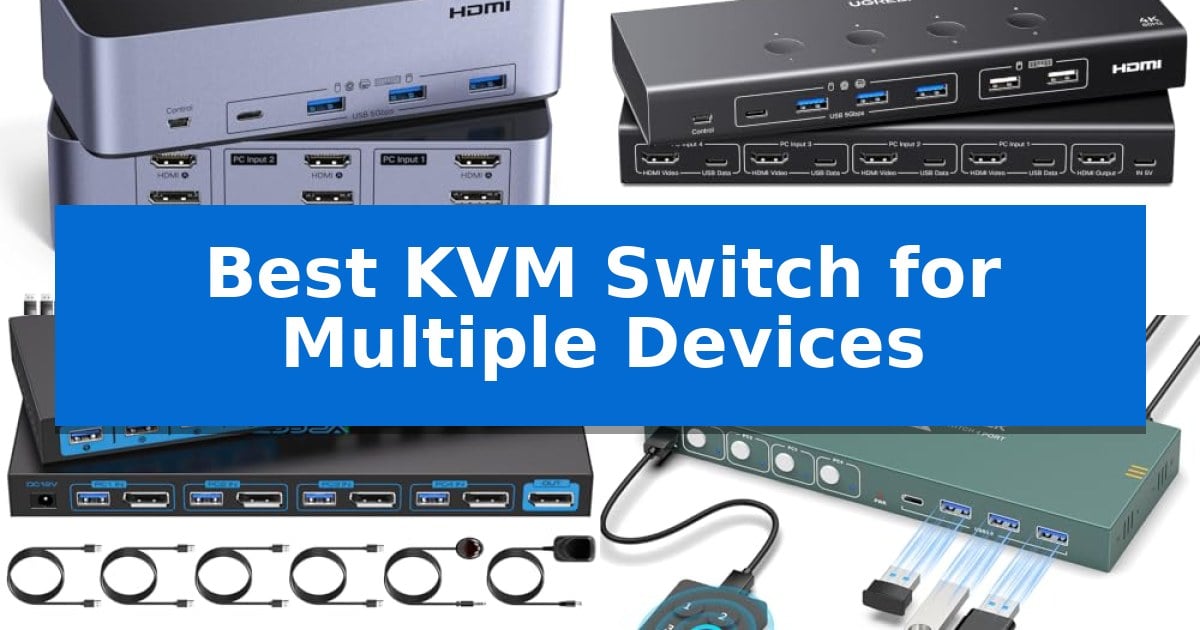
Managing multiple computers often leads to a cluttered desk filled with redundant keyboards, mice, and tangled cables. Finding the Best KVM Switch for Multiple Devices is the most effective way to streamline your workspace, allowing you to control several systems with a single set of peripherals while maintaining high-resolution display output.
Whether you are a content creator managing triple monitor rigs or an office professional juggling four separate workstations, the right hardware makes all the difference. We have analyzed the latest switching solutions to help you identify which device offers the connectivity, resolution support, and switching convenience required for your specific hardware configuration.
Best KVM Switch for Multiple Devices in 2026
Quick Comparison
| Product | Best For | Key Strength | Score |
|---|---|---|---|
| UGREEN Triple Monitor KVM Switch | Best Overall | Supports high-resolution output up to 8K@60Hz and 4K@240Hz. | 4.9 |
| UGREEN 4-Port HDMI KVM Switch | Efficient Four-Computer Control | EDID Emulation prevents display flickering and window rearrangement when switching sources. | 4.8 |
| TIGKTING 8K DisplayPort KVM Switch | High-Resolution Display Support | Supports high-resolution output up to 8K@60Hz and 4K@120Hz. | 4.7 |
| GREATHTEK 4-Port HDMI KVM Switch | Fast Four-System Switching | Supports high-resolution 4K@60Hz output for crisp display quality. | 4.9 |
| CMSTEDCD 2-Port HDMI KVM Switch | Compact Dual-PC Solution | Wired desktop controller for convenient, clutter-free switching | 4.9 |
How We Chose
- Resolution and Refresh Rate Support: We verified the maximum supported display standards, ensuring compatibility with 4K and 8K setups.
- Peripheral Connectivity: We assessed the number and type of USB ports available to ensure support for high-speed data transfer and input devices.
- Switching Mechanism: We prioritized units offering both physical buttons and external controllers for flexible desktop placement.
- System Compatibility: We checked for broad OS support and the necessity of specific cable configurations for stable operation.
- Build Quality and Form Factor: We considered the physical footprint and material construction to ensure long-term durability on your desk.
1 UGREEN Triple Monitor KVM Switch — Best for Triple Monitor Setups
Managing multiple displays across different workstations requires a reliable interface that maintains signal integrity without constant cable swapping. The UGREEN Triple Monitor KVM Switch addresses this by allowing users to control two computers while sharing three monitors and four USB 3.0 peripherals through a single, centralized hub.
This device supports high-bandwidth video output, featuring two DisplayPort 1.4 ports and one HDMI 2.1 port. It is capable of handling resolutions up to 8K@60Hz or 4K@240Hz, providing compatibility for high-refresh-rate gaming and professional design workflows. The switch also integrates support for HDR10+, VRR, FreeSync, and G-Sync to ensure smooth visual performance across all three connected screens.
Usability is enhanced by the inclusion of a dedicated desktop controller, which allows for quick switching between computers without needing to reach for the main unit. The setup is entirely driver-free, utilizing a plug-and-play design that works across Windows and Linux systems. Users can choose between Mirror mode for identical outputs or Extend mode for expanded desktop space.
To maintain stable operation, the unit requires a consistent power supply via the included adapter. It is important to note that this switch does not support EDID emulation or keyboard hotkey toggles, meaning users must rely on the physical button or the external controller to switch inputs. Furthermore, both connected computers must natively support triple-monitor output to utilize all three displays simultaneously.
Best for: Professionals and gamers who need to share three high-resolution monitors and multiple USB peripherals between two computers.
Skip if: Users who require keyboard hotkey switching or those whose computers do not support triple-monitor output configurations.
PROS
- Supports high-resolution output up to 8K@60Hz and 4K@240Hz.
- Includes a desktop controller for convenient input switching.
- Features four USB 3.0 ports for seamless peripheral sharing.
- Provides driver-free, plug-and-play installation.
CONS
- Does not support keyboard hotkey switching.
- Lacks EDID emulation capabilities.
2 UGREEN 4-Port HDMI KVM Switch — Efficient Four-Computer Control
Managing multiple computer inputs on a single display requires a reliable interface, and the UGREEN 4-Port HDMI KVM Switch simplifies this by allowing four distinct hosts to share one monitor and six USB peripherals. By centralizing control, this device eliminates the need for redundant hardware, helping to maintain a clean and organized workspace.
The unit supports Ultra HD 4K resolution at 60Hz, ensuring that visual output remains crisp and color-accurate for high-resolution displays. It is also backward compatible with lower resolutions and refresh rates, such as 1080P at 240Hz, providing flexibility for different monitor setups. The inclusion of HDMI 2.0 and HDCP 2.2/1.4 support ensures compatibility with a wide range of modern media standards.
For peripheral management, the switch features four USB 3.0 ports capable of data transfer speeds up to 5Gbps, alongside two USB 2.0 ports for slower devices like mice or keyboards. The EDID Emulation feature is a significant addition, as it allows connected computers to retain display configuration and resolution settings during switching, preventing the common issue of window rearrangement or screen flickering.
Usability is enhanced by two switching methods: a simple button on the unit or an included wired desktop controller. This allows for convenient placement of the switch box away from the primary work area. While the device is plug-and-play compatible with Windows, MacOS, and Linux, it requires a dedicated power supply for stable operation and specific USB A to C cables for data transfer from each host.
Best for: Users who need to centralize control of four computers using a single monitor and multiple USB peripherals without the hassle of manual cable swapping.
Skip if: Users who require docking station integration or those who do not have the necessary USB A to C data cables and HDMI cables available for each connected host.
PROS
- EDID Emulation prevents display flickering and window rearrangement when switching sources.
- High-speed connectivity via four USB 3.0 ports supporting up to 5Gbps data transfer.
- Flexible switching options including a physical button and a convenient wired desktop controller.
- Broad resolution support up to 4K at 60Hz for high-definition display requirements.
CONS
- Requires external power and specific USB A to C data cables for proper functionality.
- Not compatible with docking stations.
- Cables not included in the package, requiring additional purchases for a full setup.
3 TIGKTING 8K DisplayPort KVM Switch — High-Resolution Display Support
Managing multiple workstations from a single console requires reliable hardware that maintains signal integrity across high-resolution displays. The TIGKTING 8K DisplayPort KVM Switch addresses this by enabling a single set of keyboard, mouse, and peripheral devices to control four distinct computers while sharing one monitor, significantly streamlining complex desk setups.
This device supports high-bandwidth video output, capable of handling resolutions up to 8K@60Hz or 4K@120Hz. To ensure consistent performance, the unit includes a 12V 1A external power supply, which provides the necessary stability for connected high-power USB devices. It is important to note that this model requires a direct DisplayPort cable connection; conversion cables are not supported for video output.
Connectivity is handled via four USB 3.0 ports, offering data transfer speeds of up to 5Gbps. This allows for efficient sharing of peripherals like printers, scanners, and keyboards across all four connected systems. The switch is designed for straightforward operation, providing two primary switching modes: a physical panel button or the included infrared remote control.
When integrating this switch into a professional or gaming environment, users should ensure their graphics cards and monitors are compatible with the desired refresh rates. Because the unit relies on a dedicated power adapter and specific cable requirements, it is best suited for users who prioritize a stable, permanent desktop configuration over portable or minimalist setups.
Best for: Users who need to manage four high-performance computers with a single high-resolution monitor and multiple USB 3.0 peripherals.
Skip if: Users who require hotkey-based switching or those who rely on video conversion adapters for their monitor connections.
PROS
- Supports high-resolution output up to 8K@60Hz and 4K@120Hz.
- Includes four USB 3.0 ports for fast 5Gbps data transfer.
- Provides stable power via an included 12V 1A external adapter.
- Offers flexible switching via infrared remote control or panel button.
CONS
- Does not support hotkey switching.
- Requires direct DisplayPort cables without conversion adapters.
4 GREATHTEK 4-Port HDMI KVM Switch — Fast Four-System Switching
Managing multiple computer systems often leads to desk clutter and inefficient workflows, but the GREATHTEK 4-Port HDMI KVM Switch provides a centralized solution by allowing four computers to share a single monitor, keyboard, and mouse. This device streamlines your workspace by eliminating the need for redundant peripherals, enabling seamless transitions between systems with a simple press of a button.
Designed for high-resolution setups, this KVM switch supports output up to 3840×2160@60Hz, ensuring that your visual clarity remains sharp whether you are working on detailed creative projects or standard office tasks. It features adaptive EDID technology, which automatically identifies connected display devices to maintain compatibility across different hardware configurations.
Connectivity is a primary focus, as the unit includes three USB 3.0 ports and one USB-C port, allowing you to share essential peripherals like flash drives, cameras, and input devices across all four connected computers. The inclusion of a wired remote keypad adds a layer of convenience, letting you switch between systems without reaching for the main unit, while clear LED indicators provide instant visual confirmation of the active computer.
Installation is straightforward with a plug-and-play design that requires no complex configuration. The package comes as an upgraded kit, including an HDMI cable, four USB 3.0 cables, a power cable, and the remote controller, providing everything necessary to integrate the switch into an existing multi-device environment immediately.
Best for: Users who need to manage up to four distinct computer systems from a single workstation using one monitor and one set of input devices.
Skip if: Users who require hotkey-based switching, as this model relies exclusively on physical buttons and the included wired remote.
PROS
- Supports high-resolution 4K@60Hz output for crisp display quality.
- Includes three USB 3.0 ports for fast peripheral sharing.
- Features a wired remote controller for convenient one-touch switching.
- Comprehensive upgraded kit includes all necessary cables for immediate setup.
CONS
- Does not support hotkey switching functionality.
- Requires physical interaction with the unit or remote for system changes.
5 CMSTEDCD 2-Port HDMI KVM Switch — Compact Dual-PC Solution
Managing multiple computers with a single set of peripherals is simplified by the CMSTEDCD 2-Port HDMI KVM Switch, which allows users to toggle between two PCs using a dedicated wired desktop controller. This design choice enables users to tuck the main unit away, keeping the workspace organized while maintaining convenient access to switching functions.
The device supports 4K@60Hz resolution, ensuring high-definition video output for compatible monitors. It functions as a plug and play solution, requiring no external power supply or drivers, which facilitates a straightforward setup process. Users can connect a keyboard and mouse via the integrated USB 2.0 ports, which offer data transfer speeds up to 480Mbps.
For visual feedback, the unit features LED indicators (green for PC1 and blue for PC2) to clearly identify the active computer. The switch is hot-swappable, allowing for the connection of USB devices without the need to reboot the connected computers. Its compact dimensions and lightweight construction make it a practical addition to space-constrained desks.
Compatibility is a key consideration, as the manufacturer notes this switch is not recommended for use with Mac devices. Optimal performance requires high-quality HDMI 2.0 standard cables that are no longer than 3.3 feet. Users should avoid using conversion cables or adapters, as these may lead to unstable transmission or intermittent signal loss.
Best for: Users needing a space-saving way to share a single keyboard, mouse, and 4K monitor between two Windows-based PCs.
Skip if: Users who require compatibility with Mac devices or those who prefer keyboard hotkey switching instead of a wired remote.
PROS
- Wired desktop controller for convenient, clutter-free switching
- Supports 4K@60Hz resolution for high-quality visuals
- Plug and play operation with no external power required
- Hot-swappable USB 2.0 ports for flexible peripheral use
CONS
- Not recommended for Mac devices
- Does not support hotkey switching
- Requires short, high-quality HDMI 2.0 cables to prevent signal issues
Best KVM Switch for Multiple Devices Buying Guide
Understanding Video Standards
The video standard supported by your KVM switch—whether HDMI or DisplayPort—is the most critical factor for display quality. High-resolution monitors require specific bandwidths; using an incompatible switch can lead to reduced refresh rates or flickering. Always verify that your cables meet the same HDMI 2.1 or DisplayPort 1.4 specifications as the switch itself.
If you are using a triple monitor setup, ensure your computers have the necessary output ports. Many switches require a specific number of inputs per computer to function correctly. Using adapters or docking stations can often introduce compatibility issues or signal degradation, so direct connections are always preferred.
Peripheral and USB Connectivity
Modern KVM switches often include USB 3.0 ports, which are essential for high-speed peripherals like external hard drives, webcams, and high-polling-rate gaming mice. Check the total number of ports to ensure you have enough room for your entire setup without needing an additional USB hub.
Pay attention to the data transfer speeds provided by the ports. While USB 3.0 offers up to 5Gbps, some older or secondary ports may be limited to USB 2.0 speeds (480Mbps). If you frequently move large files between systems, prioritize a switch with multiple USB 3.0 connections.
Switching Methods and Desk Ergonomics
The way you switch between systems significantly impacts your workflow. While push-button switching on the unit is standard, many users prefer a wired desktop controller. This allows you to tuck the main KVM unit out of sight behind your monitors while keeping the control button within easy reach.
Some advanced models offer hotkey switching, but this is not universal. If you rely on keyboard shortcuts, ensure the specific model you choose explicitly supports them. Otherwise, you will need to rely on the physical buttons provided.
EDID Emulation Explained
EDID (Extended Display Identification Data) emulation is a feature that allows the KVM switch to 'remember' the display configuration of each connected computer. Without this, switching sources can cause your operating system to treat the monitor as if it were disconnected, leading to window rearrangement and resolution drops.
Models with robust EDID support provide a much smoother experience, especially when using multiple monitors. This feature ensures that your desktop layout remains consistent even after you switch back and forth between different systems throughout the day.
Power Requirements and Stability
Many high-performance KVM switches require an external power adapter to maintain signal stability, especially when powering multiple USB devices or high-resolution displays. Relying solely on bus power from your computers can lead to intermittent disconnections or failure to detect peripherals.
Always use the provided power supply to ensure your setup remains reliable. If you are connecting high-power devices like mechanical keyboards with RGB lighting or external webcams, a dedicated power source is non-negotiable for consistent performance.
Frequently Asked Questions
Can I use a docking station with these KVM switches?
Most manufacturers advise against using docking stations or signal converters between the computer and the KVM switch, as these can cause compatibility issues, signal flickering, or complete loss of video transmission.
Do I need special cables for 8K resolution?
Yes, to achieve 8K resolution, both your computer's output and your monitor must support the standard, and you must use high-quality, short-length cables (typically under 2 meters) that are rated for the required bandwidth.
Why does my screen flicker when I switch?
Flickering is often caused by cable length, the use of adapters, or insufficient power. Ensure you are using high-quality cables within the recommended length and that the KVM switch is connected to its external power adapter.
Are these switches compatible with Mac computers?
Compatibility varies by model. Some compact switches specifically note that they are not recommended for Mac devices due to hardware handshake differences. Always check the product specifications for your specific operating system.
What is the difference between Mirror and Extend mode?
Mirror mode displays the same image across all connected monitors, while Extend mode allows you to treat your monitors as a single, large desktop space, which is ideal for multitasking and professional workflows.
Conclusion: Our Top Pick
When selecting the right hardware for your desk, the UGREEN Triple Monitor KVM Switch stands out as the most capable solution for users who require multi-monitor support. Its ability to handle high-resolution signals across three displays while providing four USB 3.0 ports makes it an excellent choice for content creators and IT professionals who need to manage complex, multi-system environments without sacrificing visual fidelity.
While this unit is highly effective, remember that your computers must natively support triple-monitor output for all screens to function simultaneously. By ensuring your hardware meets these requirements and using the included power adapter for stability, you can achieve a seamless and highly efficient workstation setup.