
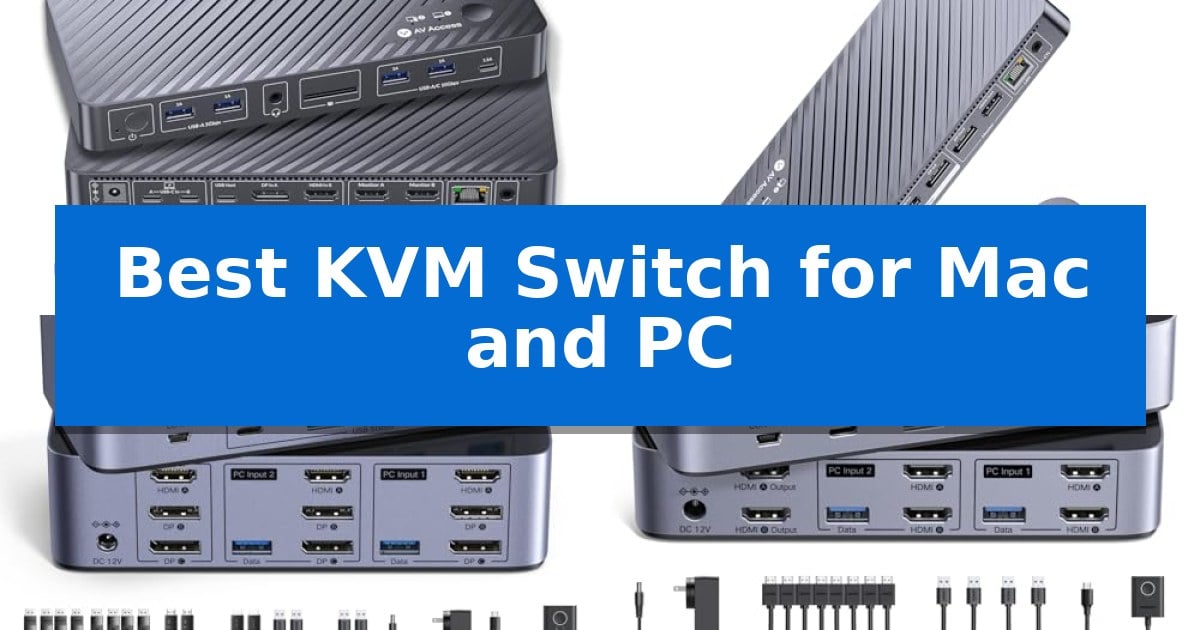
Managing a workstation that includes both a MacBook and a desktop PC often leads to a cluttered desk filled with redundant cables and peripherals. Finding the Best KVM Switch for Mac and PC is the most effective way to consolidate your setup, allowing you to share monitors, keyboards, and mice across two distinct operating systems without the hassle of constant unplugging.
Our guide focuses on high-performance solutions that prioritize stable video output, peripheral connectivity, and seamless switching. Whether you need to maintain high-refresh rates for gaming or require a reliable docking hub for professional productivity, these selections help you regain control of your workspace efficiency.
Best KVM Switch for Mac and PC in 2026
Quick Comparison
| Product | Best For | Key Strength | Score |
|---|---|---|---|
| AV Access iDock M10 KVM Dock | Best Overall | 100W USB-C Power Delivery for continuous MacBook charging. | 4.9 |
| AV Access iDock B10 KVM Dock | High-Refresh Gaming and Work Hub | 100W Power Delivery via a single USB-C cable. | 4.9 |
| UGREEN 8K Triple Monitor KVM Switch | Supports Three-Display Workstations | Supports high-resolution output up to 8K@60Hz and 4K@240Hz. | 4.5 |
| UGREEN 4K Dual Monitor KVM Switch | Reliable Dual-Screen Switching | Supports dual-monitor extended or mirror modes for efficient multitasking. | 4.8 |
| Unitek 4K Dual Monitor KVM Switch | Fast USB 3.0 Peripheral Sharing | Dual monitor support for expanded screen real estate. | 4.9 |
How We Chose
- Compatibility with macOS and Windows hardware configurations.
- Support for high-resolution and high-refresh-rate display standards.
- Integration of USB 3.0 or higher for fast peripheral data transfer.
- Availability of dedicated switching controls like wired remotes.
- Power delivery capabilities for laptop charging and cable management.
1 AV Access iDock M10 KVM Dock — Best for MacBook and PC Integration
Managing a professional workspace often requires juggling multiple peripherals between a MacBook and a desktop PC. The AV Access iDock M10 KVM Dock streamlines this by consolidating two HDMI displays, keyboard, mouse, and other USB devices into a single, switchable interface. By utilizing EDID emulation, this dock maintains consistent monitor resolution and arrangement when switching, preventing the common frustration of screen flickering or window displacement.
Beyond simple switching, the AV Access iDock M10 KVM Dock functions as a comprehensive docking station. It provides 100W USB-C Power Delivery to keep a MacBook charged, while an always-on Gigabit Ethernet port ensures both computers remain connected to the network even when not currently selected. This allows for background tasks like system updates or cloud synchronization to continue without interruption.
The device is designed for a true plug-and-play experience, requiring no DisplayLink software or drivers. It features a robust selection of ports, including two USB 3.2 ports, two USB 3.0 ports, an SDXC card reader, and 3.5mm audio, effectively replacing the need for multiple hubs. Users can toggle between systems using either the top-mounted button or the included wired remote.
Compatibility is a key consideration for this unit. It is specifically engineered for a one MacBook and one desktop PC configuration. While it supports dual 4K@60Hz displays, users should note that performance varies based on the specific Mac chip; for instance, base M1 and M2 models support only one external display, while base M3 models require the laptop lid to be closed for dual-monitor output.
Best for: Users needing to integrate one MacBook and one desktop PC into a single dual-monitor workstation with high-speed peripheral and power expansion.
Skip if: Users who need to switch between two laptops or a MacBook and a Windows laptop, as this device is specifically configured for a MacBook and desktop PC combination.
PROS
- 100W USB-C Power Delivery for continuous MacBook charging.
- EDID emulation ensures stable display switching without re-detection.
- No DisplayLink software or drivers required for setup.
- Always-on Gigabit Ethernet maintains network connectivity for both systems.
CONS
- Specific hardware compatibility requirements for Mac chips and computer types.
- Dual-monitor support limitations on certain base-model MacBooks.
2 AV Access iDock B10 KVM Dock — High-Refresh Gaming and Work Hub
Managing a dual-computer workstation often requires juggling cables and peripherals, but the AV Access iDock B10 KVM Dock simplifies this by integrating KVM switching with an 11-in-1 docking station. This unit allows you to share two monitors, a keyboard, mouse, and other USB devices between a laptop and a desktop PC, utilizing a single button or a wired remote for seamless transitions.
Designed for high-performance needs, the AV Access iDock B10 KVM Dock supports up to dual 8K@60Hz or dual 4K@165Hz displays on the desktop side. It features 100W Power Delivery via a single USB-C cable, which simultaneously handles video, data transfer up to 10Gbps, and laptop charging. This reduces desk clutter by eliminating the need for separate hubs or power bricks.
Connectivity is a primary focus, offering 4x 10Gbps USB ports and 2x 5Gbps ports to accommodate high-speed gear like SSDs and cameras alongside standard peripherals. Additionally, the device maintains Gigabit Ethernet connectivity for both computers, ensuring that background tasks like downloads or remote sessions remain active even when a computer is not currently selected as the primary input.
While highly versatile, users should note that on macOS, the device supports dual monitor mirroring rather than extended displays due to MST limitations. For those requiring independent extended displays on a MacBook, the manufacturer suggests the AV Access iDock M10. The package includes essential cables, including HDMI 2.1 and DP 1.4a, to facilitate an immediate setup.
Best for: Hybrid workers and power users who need to switch peripherals and dual monitors between a USB-C laptop and a desktop PC.
Skip if: Mac users who require two independently extended external displays for their professional workflow.
PROS
- 100W Power Delivery via a single USB-C cable.
- Supports high-refresh rates up to 4K@165Hz or 8K resolution.
- Integrated 11-in-1 docking station functionality.
- Maintains Gigabit Ethernet connection for both computers simultaneously.
CONS
- macOS MST limitation results in mirrored rather than extended dual displays.
3 UGREEN 8K Triple Monitor KVM Switch — Supports Three-Display Workstations
Managing a multi-monitor workstation across two different computers requires a reliable way to route high-resolution signals without constant cable swapping. The UGREEN 8K Triple Monitor KVM Switch addresses this by allowing users to share three displays and four USB 3.0 peripherals between two systems using a single desktop controller or a physical button on the unit.
This KVM switch is built for high-bandwidth setups, featuring two DisplayPort 1.4 ports and one HDMI 2.1 port per channel. It supports resolutions up to 8K@60Hz or 4K@240Hz, making it suitable for high-refresh-rate gaming or professional creative workflows that demand fluid motion and color accuracy. It also includes compatibility with HDR10+, VRR, FreeSync, and G-Sync to maintain visual integrity across all three connected screens.
Usability is enhanced by the included desktop controller, which allows for remote switching without needing to reach for the main unit. The device operates as a plug-and-play solution, requiring no drivers for Windows or Linux systems. It also ships with a comprehensive set of cables, including four DisplayPort cables, two HDMI cables, and two USB-A cables, providing the necessary infrastructure for a triple-monitor configuration right out of the box.
Potential users should note that this device requires a specific hardware setup to function as intended. Each connected computer must support triple-monitor output, and the user must connect two DisplayPort cables and one HDMI cable per computer to the switch. Additionally, the unit does not support keyboard hotkey switching or EDID emulation, meaning window positions may reset when switching between inputs.
Best for: Content creators and IT professionals who need to share a triple-monitor setup and USB peripherals between two high-performance computers.
Skip if: Users who rely on keyboard hotkeys for switching or those whose computers lack the required triple-output port configuration.
PROS
- Supports high-resolution output up to 8K@60Hz and 4K@240Hz.
- Includes a dedicated desktop controller for convenient input switching.
- Comprehensive cable kit included with DP, HDMI, and USB cables.
- Features four USB 3.0 ports for high-speed peripheral sharing.
CONS
- Does not support keyboard hotkey switching.
- Lacks EDID emulation, which may affect window management when switching.
- Requires specific triple-output hardware on both connected computers.
4 UGREEN 4K Dual Monitor KVM Switch — Reliable Dual-Screen Switching
Managing multiple displays and peripherals across two distinct workstations is simplified by the UGREEN 4K Dual Monitor KVM Switch, which allows users to toggle a single keyboard, mouse, and two monitors between two computers. This device eliminates the need for redundant hardware, enabling a streamlined workspace where peripherals are shared instantly via a physical button or the included desktop controller.
The unit supports 4K@60Hz resolution, ensuring that high-definition visual output is maintained across both connected monitors. It is equipped with four USB 3.0 ports—three USB-A and one USB-C—providing 5Gbps data transfer speeds for external drives, printers, or webcams. This connectivity suite is designed to handle demanding office peripherals without significant bottlenecks.
Compatibility is broad, supporting Windows, MacOS, and Linux systems without requiring additional software or driver installations. The plug-and-play design makes it accessible for various setups, including gaming consoles like the PS5 or Xbox, provided the host computers support dual-screen output. Users should note that the device requires a stable power supply via the included adapter to ensure all USB ports function reliably.
While the switch offers robust functionality, it lacks EDID emulation and does not support keyboard hotkey toggles, relying instead on physical switching methods. Users must ensure their HDMI cables are within the recommended 3-meter length to maintain signal integrity. For those with modern laptops lacking HDMI ports, an external adapter will be necessary to bridge the connection to the switch's USB-A ports.
Best for: Professionals and home office users who need to share two monitors and multiple USB 3.0 peripherals between two computers.
Skip if: Users who require keyboard hotkey switching or advanced EDID emulation for specific multi-monitor configurations.
PROS
- Supports dual-monitor extended or mirror modes for efficient multitasking.
- Includes four USB 3.0 ports for high-speed peripheral sharing.
- Features a convenient desktop controller for easy switching outside the main unit.
- Maintains high visual fidelity with 4K@60Hz resolution support.
CONS
- Does not support keyboard hotkey toggles for switching.
- Lacks EDID emulation, which may affect window placement on some systems.
5 Unitek 4K Dual Monitor KVM Switch — Fast USB 3.0 Peripheral Sharing
Managing multiple workstations often leads to cluttered desks and constant cable swapping, but the Unitek 4K Dual Monitor KVM Switch simplifies this by allowing you to control two desktop computers using a single set of peripherals. This unit stands out for its ability to support dual monitor setups, ensuring you can maintain a consistent workspace across two distinct machines without needing to manually reconnect your display cables.
Designed for efficiency, this switch features three USB 3.0 ports that deliver data transfer speeds up to 5Gbps. This high-speed connectivity is ideal for sharing external hard drives, printers, or flash drives between your PC and Mac, making it a practical choice for users who frequently move files between systems. The inclusion of a dedicated desktop controller allows for convenient switching between inputs, even if the main unit is tucked away in a hidden or distant location.
The device supports resolutions up to 4K@60Hz, providing clear visual output for both monitors. It is built to handle HDMI 2.0 and HDCP 2.2 standards, ensuring compatibility with a variety of modern displays. To maintain stable performance, especially when using power-hungry USB devices, the package includes a DC 5V 2A power adapter, which is essential for consistent operation.
Installation is straightforward with a plug-and-play design that requires no driver software. While it is highly capable for desktop environments, it is important to note that this specific model is not compatible with laptops. For users with two desktop hosts, the provided USB A-to-B cables ensure a reliable connection, provided all necessary video and data cables are properly seated.
Best for: Desktop users who need to share dual monitors and high-speed USB 3.0 peripherals between two separate PC or Mac desktop towers.
Skip if: Users who primarily work with laptops or require a single-monitor switching solution.
PROS
- Dual monitor support for expanded screen real estate.
- High-speed USB 3.0 connectivity with 5Gbps transfer rates.
- Wired remote controller for convenient input switching.
- Plug-and-play installation with no driver requirements.
CONS
- Not compatible with laptops, limiting its use to desktop-only setups.
- Requires specific cable connections for both hosts to enable simultaneous dual-monitor output.
Best KVM Switch for Mac and PC Buying Guide
Understanding KVM Compatibility
The most critical factor when selecting a switch is ensuring it supports your specific computer hardware. Many devices are designed exclusively for desktop PCs, while others offer specialized USB-C host support for MacBooks. Always verify if your Mac requires specific display adapters or if the switch supports the necessary video protocols for your monitor setup.
Check the port requirements for both your computers. Some switches require a combination of HDMI and DisplayPort connections, while others rely on a single USB-C cable to handle video, data, and power. Ensuring your computers have the necessary output ports is essential for a successful installation.
Display Resolution and Refresh Rates
If you are a gamer or a creative professional, the resolution and refresh rate capabilities of the switch are paramount. Look for devices that explicitly state support for 4K at 60Hz or higher if you use high-definition monitors. Some advanced models support 8K or ultra-high refresh rates, which are necessary for competitive gaming.
Be aware that using a switch can sometimes introduce limitations if the device does not support the full bandwidth of your monitor. Always match the switch's technical specifications with the capabilities of your monitors and graphics cards to avoid visual degradation or stuttering during use.
Peripheral Connectivity and USB Standards
A KVM switch acts as a central hub for your workspace. Look for models that offer multiple USB 3.0 or 3.2 ports to ensure your keyboard, mouse, and external storage devices function at full speed. Faster USB standards are particularly important if you frequently transfer large files between your computers.
Consider the number of available ports. Having extra USB-A or USB-C ports allows you to keep printers, webcams, and microphones permanently connected. This eliminates the need for additional hubs, keeping your desk clean and organized.
Switching Mechanisms and Convenience
How you switch between computers significantly impacts your daily workflow. Most modern switches offer a physical button on the unit, but many also include a wired remote controller. A remote is highly recommended if you prefer to hide the main KVM unit behind your monitors to maintain a minimalist aesthetic.
Some users prefer hotkey switching, but be aware that this feature is not universal and may not be supported by all KVM models. If you rely on keyboard shortcuts, verify that the specific switch you are considering supports this functionality before purchasing.
Power Delivery and Cable Management
For laptop users, a KVM switch that provides Power Delivery (PD) is a major convenience. This feature allows the switch to charge your MacBook through the same USB-C cable used for video and data, reducing the number of power bricks cluttering your floor or desk.
Effective cable management is a byproduct of a well-designed KVM. Look for units that include the necessary cables in the box. This not only saves money but also ensures that the provided cables are tested and compatible with the switch's specific bandwidth requirements.
Frequently Asked Questions
Can I use a KVM switch with two laptops?
Most KVM switches are designed for a specific combination of one laptop and one desktop PC. Always check the manufacturer's compatibility notes, as many models are not designed to handle two laptops simultaneously.
Do I need special software to use these switches?
Most of the high-quality switches featured here are plug-and-play devices that do not require proprietary drivers or DisplayLink software, ensuring broad compatibility across Windows and macOS.
Why is my monitor not displaying when I switch computers?
This is often due to a cable bandwidth issue or a lack of power. Ensure all cables are securely connected and that you are using the power adapter provided with the switch to maintain signal stability.
Will a KVM switch affect my gaming performance?
If you choose a switch that supports your monitor's resolution and refresh rate, the impact on performance is negligible. Look for models that explicitly mention VRR, G-Sync, or FreeSync support for gaming setups.
Can I use a wireless keyboard and mouse with these switches?
Yes, most KVM switches support wireless peripherals. Simply plug the wireless USB receiver into one of the switch's USB ports, and it will be shared between both computers.
Conclusion: Our Top Pick
Selecting the right hardware to bridge your Mac and PC is essential for a productive environment. After reviewing the available options, the AV Access iDock M10 KVM Dock stands out as the most versatile choice for users who need a seamless, all-in-one docking solution that handles both power delivery and dual-monitor support without requiring complex software installations.
While other models offer specific advantages for high-refresh gaming or triple-monitor setups, the M10 provides the most reliable balance of features for standard professional workflows. Ensure you verify your specific Mac chip compatibility before purchase to guarantee the best possible experience with your extended display setup.