
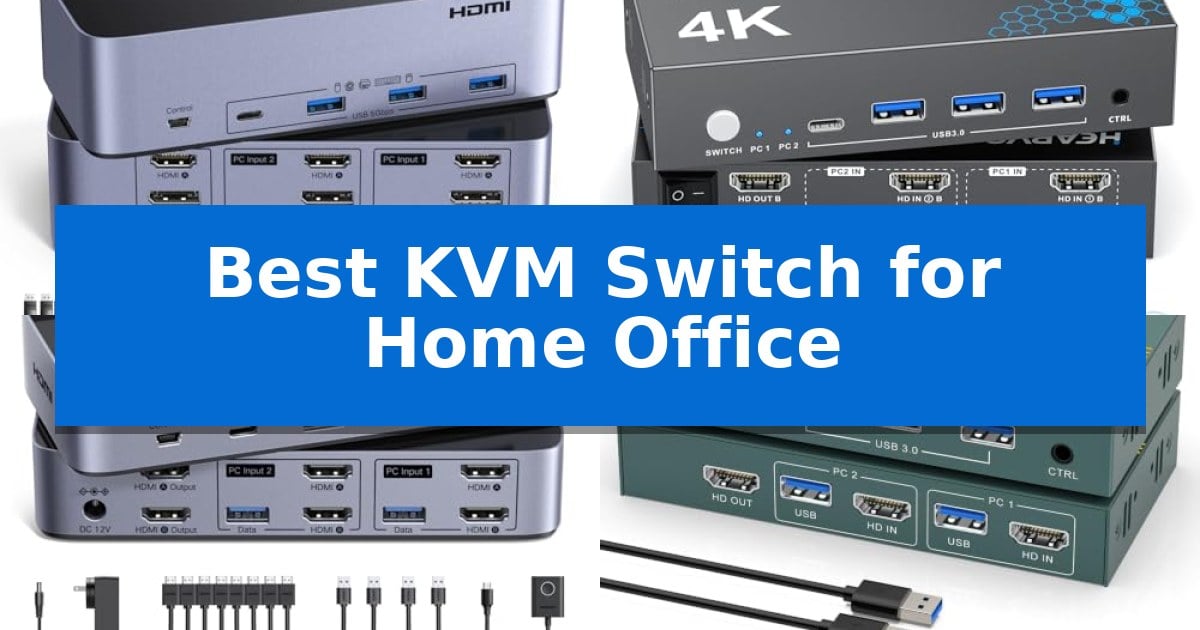
Managing multiple computers at a single desk often leads to a tangled mess of cables and constant peripheral swapping. Finding the Best KVM Switch for Home Office setups is the most effective way to regain control, allowing you to share your monitors, keyboard, and mouse across different systems with a single click.
Whether you are a professional balancing a work laptop and a personal PC, or a creator managing complex multi-monitor workflows, the right switch eliminates redundant hardware. We have evaluated the latest options to help you identify which device best fits your specific display requirements and connectivity needs.
Best KVM Switch for Home Office in 2026
Quick Comparison
| Product | Best For | Key Strength | Score |
|---|---|---|---|
| UGREEN Triple Monitor KVM Switch | Best Overall | Supports 8K@60Hz and 4K@240Hz resolutions for high-fidelity displays. | 4.9 |
| Heravo Dual Monitor KVM Switch | Seamless Dual Display Productivity | Dual monitor support for efficient multitasking across two computers. | 4.3 |
| UGREEN Dual Monitor KVM Switch | Reliable Dual Screen Switching | Supports dual-monitor extended or mirror modes for two computers. | 4.6 |
| GREATHTEK 8K HDMI KVM Switch | High Resolution Single Monitor Setup | Supports high-resolution output up to 8K@30Hz and 4K@240Hz. | 4.9 |
| CMSTEDCD 4K HDMI KVM Switch | Compact Pick for Basic Setups | 4K@60Hz support for high-resolution displays. | 4.7 |
How We Chose
- Display Compatibility: Assessing support for HDMI and DisplayPort standards to ensure high-resolution and high-refresh-rate output.
- Peripheral Connectivity: Evaluating the number and speed of USB ports to ensure seamless sharing of keyboards, mice, and external drives.
- Switching Convenience: Comparing physical button controls against desktop remote controllers for better cable management and accessibility.
- System Integration: Verifying plug-and-play functionality across common operating systems without the need for complex driver installations.
- Build and Form Factor: Considering the physical footprint and material quality to ensure the device remains stable and unobtrusive on your desk.
1 UGREEN Triple Monitor KVM Switch — Best for Triple Monitor Workflows
Managing a multi-monitor workstation often requires complex cable swapping, but the UGREEN Triple Monitor KVM Switch simplifies this by allowing two computers to share three displays and four USB 3.0 devices through a single, one-click interface. This hardware solution is designed for professionals who need to toggle between systems without manually disconnecting peripherals.
The device supports high-bandwidth video output, featuring two DisplayPort 1.4 ports and one HDMI 2.1 port. It is capable of delivering 8K@60Hz or 4K@240Hz resolution, ensuring compatibility with high-refresh-rate gaming or high-resolution creative workflows. It also supports HDR10+, VRR, FreeSync, and G-Sync to maintain visual fidelity across all three connected screens.
Usability is enhanced by an included desktop controller, which allows users to switch between computers without reaching for the main unit. The switch offers two display modes: Mirror mode, which duplicates the same image across all three monitors, and Extend mode, which provides an expanded desktop across the triple-monitor setup. It is a driver-free, plug-and-play solution compatible with Windows and Linux.
To ensure stable performance, the unit requires a dedicated power supply via the included adapter. Users should note that this switch does not support keyboard hotkey toggles or EDID emulation, meaning the system relies on physical button or controller inputs. Proper setup requires that both connected computers possess the necessary ports to support a triple-monitor configuration.
Best for: Professionals and creators who need to switch a triple-monitor setup and four USB peripherals between two computers.
Skip if: Users who require keyboard hotkey switching or EDID emulation, or those whose computers do not support triple-monitor output.
PROS
- Supports 8K@60Hz and 4K@240Hz resolutions for high-fidelity displays.
- Includes a dedicated desktop controller for convenient switching.
- Features four USB 3.0 ports for seamless peripheral sharing.
- Compatible with VRR, FreeSync, and G-Sync for smooth visual output.
CONS
- Does not support keyboard hotkey toggles.
- Lacks EDID emulation capabilities.
2 Heravo Dual Monitor KVM Switch — Seamless Dual Display Productivity
Managing multiple systems requires a reliable way to consolidate your workspace, and the Heravo Dual Monitor KVM Switch provides a dedicated solution for toggling between two computers while maintaining a dual-display setup. By centralizing control over two monitors, a keyboard, and a mouse, this device helps minimize hardware redundancy and desk clutter for remote workers and IT professionals.
The unit supports 4K@60Hz resolution with HDCP 2.2 compatibility, ensuring that high-definition visual output remains clear and consistent across both connected displays. Its adaptive EDID technology is a critical feature, as it automatically manages display recognition to prevent common issues like screen flickering or resolution resets when switching between systems.
Connectivity is handled through four USB 3.0 ports, including three USB-A and one USB-C port, which offer data transfer speeds up to 5Gbps. This allows for the efficient sharing of peripherals such as printers, webcams, and external storage drives across both workstations without needing to unplug and reconnect hardware.
Usability is enhanced by the inclusion of a wired remote controller, which provides a convenient alternative to the built-in switch button. This is particularly useful for setups where the KVM switch is tucked away behind monitors or under a desk, allowing for quick, seamless transitions between tasks without disrupting your workflow.
Best for: Home office users and professionals who need to share two monitors and multiple USB 3.0 peripherals between two distinct computer systems.
Skip if: Users who require support for more than two computers or those who do not have the six HDMI 2.0 cables required for a full dual-monitor configuration.
PROS
- Dual monitor support for efficient multitasking across two computers.
- Four USB 3.0 ports providing high-speed peripheral sharing up to 5Gbps.
- Adaptive EDID technology for stable display recognition and reduced flickering.
- Wired remote controller included for flexible placement and easy switching.
CONS
- Requires six HDMI 2.0 cables for a complete dual-monitor setup, which are not included.
- Limited to two computers, making it unsuitable for larger multi-system environments.
3 UGREEN Dual Monitor KVM Switch — Reliable Dual Screen Switching
Managing multiple devices across two workstations often leads to a cluttered desk and constant cable swapping. The UGREEN Dual Monitor KVM Switch simplifies this workflow by allowing a single set of keyboard, mouse, and peripheral devices to control two computers while supporting dual-monitor setups.
This device features 4 USB 3.0 ports—comprising three USB-A and one USB-C—which facilitate data transfer speeds up to 5Gbps. This connectivity allows for the efficient sharing of printers, webcams, and external drives between systems. To ensure stable operation of these peripherals, the unit includes a dedicated power adapter.
Visual output is handled through HDMI 2.0, supporting resolutions up to 4K@60Hz. The switch is compatible with HDR, HDR10+, and 3D content, ensuring high-fidelity display quality. For optimal performance, the manufacturer specifies that HDMI cables connected to the output should not exceed 3 meters in length.
Users can toggle between computers using a physical button on the unit or the included desktop controller, which helps keep the main switch tucked away for a cleaner workspace. The device is plug-and-play, requiring no software or driver installation, and maintains compatibility across Windows, MacOS, and Linux systems.
Best for: Professionals and home office users who need to share a dual-monitor setup and multiple USB peripherals between two computers.
Skip if: Users who require DisplayPort connectivity or rely on keyboard hotkey shortcuts to switch between inputs.
PROS
- Supports dual-monitor extended or mirror modes for two computers.
- Includes four USB 3.0 ports for high-speed peripheral sharing.
- Features a convenient external desktop controller for easy switching.
- Provides 4K@60Hz resolution support for high-definition displays.
CONS
- Does not support keyboard hotkey toggles.
- Lacks EDID emulation.
- Requires HDMI-only connections.
4 GREATHTEK 8K HDMI KVM Switch — High Resolution Single Monitor Setup
Managing multiple computers at a single workstation requires a reliable way to toggle peripherals without constant cable swapping. The GREATHTEK 8K HDMI KVM Switch addresses this by allowing users to control two computers through one HDMI monitor, keyboard, and mouse, utilizing a dedicated wired remote control for seamless transitions.
This unit is built for high-performance visual setups, supporting resolutions up to 8K@30Hz and 4K@240Hz/144Hz/120Hz. With its adaptive EDID technology and HDMI 2.1 compliance, it ensures stable image transmission, making it a suitable choice for users who prioritize display clarity and high refresh rates in their home office or gaming environment.
Beyond display management, the device includes three USB 3.0 ports to share essential peripherals like scanners, printers, and flash drives between two systems. This integration helps reduce desk clutter by consolidating connections into a single hub, and the plug-and-play design eliminates the need for complex driver installations or external power sources.
Installation is straightforward, though users must provide their own HDMI cables to connect the two computers and the monitor. While the switch provides convenient physical and remote control, it does not support hotkey switching, which is a trade-off to consider for those who prefer keyboard-based input commands.
Best for: Users needing to share high-resolution monitors and USB 3.0 peripherals between two computers in a home office or gaming setup.
Skip if: Users who require hotkey-based switching or those who need to connect more than two computers to a single monitor.
PROS
- Supports high-resolution output up to 8K@30Hz and 4K@240Hz.
- Includes three USB 3.0 ports for efficient peripheral sharing.
- Features adaptive EDID for stable and smooth image transmission.
- Includes a wired remote controller for convenient switching.
CONS
- Does not support hotkey switching.
- Requires users to supply their own HDMI cables.
5 CMSTEDCD 4K HDMI KVM Switch — Compact Pick for Basic Setups
Managing multiple devices in a home office often leads to cable clutter and inefficient workspace usage. The CMSTEDCD 4K HDMI KVM Switch addresses this by allowing users to control two computers with a single monitor, keyboard, and mouse, streamlining the desktop environment through a simple button-press interface.
This device supports 4K@60Hz resolution, ensuring high-quality visual output for monitors that support the standard. It includes a wired desktop controller, which provides the flexibility to hide the main unit while maintaining easy access to switching functions. The unit also features two USB 2.0 ports capable of data transfer speeds up to 480Mbps, making it suitable for connecting peripherals beyond just input devices.
Designed for convenience, the switch is plug and play and requires no external power supply, reducing the number of cables needed under your desk. It is built with a compact, lightweight frame that fits easily into most workspace configurations. LED indicators provide clear visual feedback by showing which computer is currently active, with green for PC1 and blue for PC2.
While the device offers significant utility, users should note that it is not recommended for use with Mac devices due to compatibility constraints. Additionally, the switch does not support hotkey commands, requiring the use of the physical button or the included remote controller. For optimal performance, the manufacturer specifies the use of high-quality HDMI 2.0 cables under 3.3 feet in length.
Best for: Users looking to consolidate their home office peripherals and monitor setup into a single, space-saving interface.
Skip if: Users who rely on Mac computers or require hotkey-based switching functionality for their workflow.
PROS
- 4K@60Hz support for high-resolution displays.
- Wired desktop controller for convenient, hidden placement.
- Plug and play design requiring no external power supply.
- Dual USB 2.0 ports for peripheral sharing.
CONS
- Not recommended for Mac devices due to compatibility limitations.
- No hotkey switching support.
Best KVM Switch for Home Office Buying Guide
Understanding Your Display Requirements
The most critical factor in choosing a switch is matching it to your monitors. If you use a triple-monitor setup, you need a device specifically engineered to handle three video signals simultaneously, such as the UGREEN Triple Monitor KVM Switch. Ensure your computers have the necessary video output ports to support your desired configuration.
For those with dual or single monitor setups, verify the resolution and refresh rate support. High-end displays require switches that comply with modern HDMI or DisplayPort specifications to maintain image clarity and prevent screen tearing or stuttering during high-intensity tasks.
Peripheral Sharing and USB Standards
A KVM switch is more than just a video hub; it is a central point for your peripherals. Look for models featuring USB 3.0 ports, which provide significantly faster data transfer speeds compared to older USB 2.0 standards. This is essential if you frequently move large files between computers using external drives.
Consider how many devices you need to connect. If you use a mechanical keyboard, a high-precision mouse, a webcam, and a printer, ensure the switch provides enough ports to accommodate your entire setup without requiring an additional, separate USB hub.
Switching Mechanisms and Desk Organization
How you switch between systems impacts your daily workflow. Many modern units include a desktop controller, which allows you to hide the main switch unit behind your monitor or under your desk while keeping a small, accessible button within reach.
While some users prefer hotkey switching, many reliable switches rely on physical buttons or wired remotes. This approach is often more stable, as it avoids potential software conflicts or compatibility issues with specific operating systems or keyboard drivers.
Compatibility and EDID Support
Adaptive EDID (Extended Display Identification Data) is a valuable feature that helps your computer recognize your monitor settings instantly. This prevents resolution resets or window-shuffling issues when you switch between computers, ensuring a consistent desktop experience.
Always check if your specific hardware, such as a Mac or a specialized gaming PC, has known compatibility limitations with the switch. Some compact or budget-friendly models may not support certain operating systems or may require specific cable lengths to maintain signal integrity.
Power and Cable Management
Reliable performance often requires stable power. Many high-performance switches include a power adapter to ensure that all connected USB devices receive sufficient voltage. Relying solely on bus power from your computers can lead to intermittent disconnections or performance drops.
Proper cable management is the final step to a clean office. Use the included cables where possible, and ensure your video cables are within the recommended length specifications—typically under 2 to 3 meters—to avoid signal degradation at higher resolutions like 4K or 8K.
Frequently Asked Questions
Do I need special software to use these KVM switches?
Most modern KVM switches are plug-and-play devices that do not require any software or driver installation. They function at the hardware level, making them compatible with Windows, macOS, and Linux.
Can I use a docking station with my KVM switch?
While it is possible, using a docking station can sometimes introduce compatibility issues. It is generally recommended to connect your computers directly to the KVM switch for the most stable video and data performance.
Why does my monitor flicker when I switch computers?
Flickering is often caused by using cables that are too long or do not meet the required HDMI/DisplayPort specifications. Ensure you are using high-quality, short cables and that the switch is receiving adequate power via its power adapter.
Does a KVM switch affect my gaming performance?
High-quality KVM switches that support high refresh rates and features like G-Sync or FreeSync should have minimal impact on gaming performance. However, always verify that the switch's specifications match your monitor's resolution and refresh rate capabilities.
Can I use a wireless keyboard and mouse with these switches?
Yes, most KVM switches support wireless peripherals. You simply plug the wireless receiver into one of the switch's USB ports, and it will be shared across the connected computers just like a wired device.
Conclusion: Our Top Pick
For users who require the most robust solution for managing complex setups, the UGREEN Triple Monitor KVM Switch stands out as the premier choice. Its ability to handle three monitors simultaneously, combined with high-speed USB 3.0 connectivity and support for ultra-high resolutions, makes it an essential tool for power users and content creators.
While it requires that your computers support triple-monitor output, the convenience of a dedicated desktop controller and seamless switching makes it a worthwhile investment for a cleaner, more efficient home office. Always ensure your specific hardware configuration meets the input requirements to fully leverage its capabilities.