
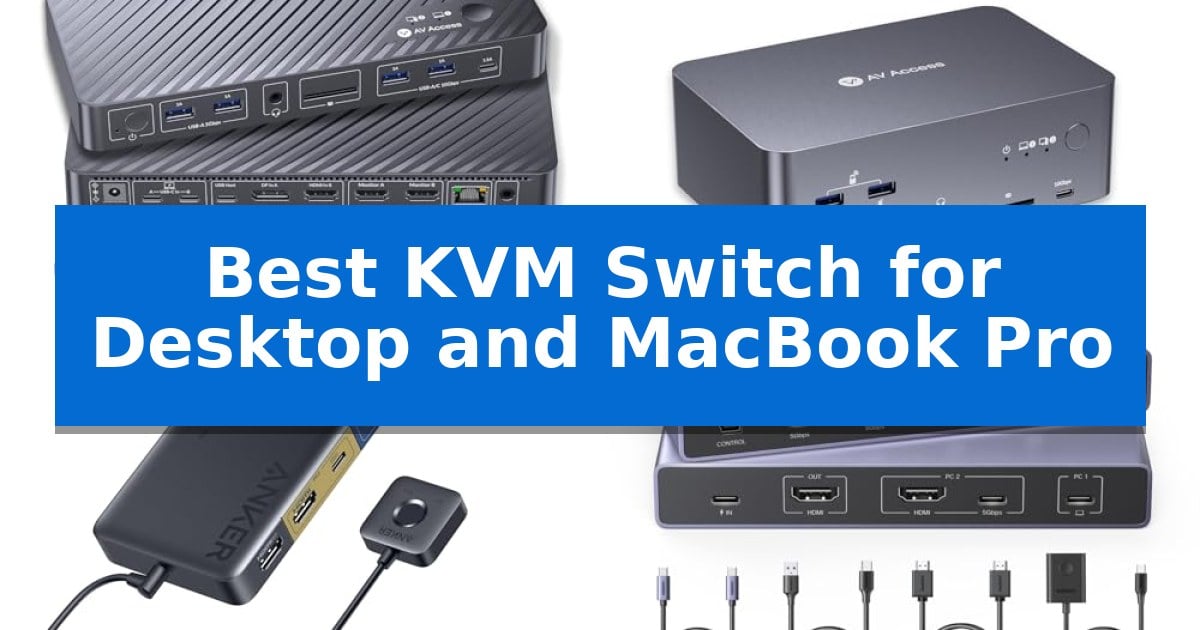
Managing a professional workspace often requires juggling a high-performance desktop and a MacBook Pro simultaneously. Switching between these systems typically involves tedious cable management or cluttered desk space, but the Best KVM Switch for Desktop and MacBook Pro provides a centralized solution to bridge your devices.
By integrating your displays, keyboard, mouse, and other peripherals into one hub, these switches allow for instant transitions between your creative or work environments. We have analyzed the leading options to help you identify the hardware that best supports your specific display requirements and connectivity needs.
Best KVM Switch for Desktop and MacBook Pro in 2026
Quick Comparison
| Product | Best For | Key Strength | Score |
|---|---|---|---|
| AV Access iDock M10 KVM Switch | Best Overall | 100W USB-C Power Delivery keeps MacBooks charged without additional cables. | 4.9 |
| AV Access iDock B23 KVM Switch | Triple-Display Powerhouse | 100W Power Delivery via a single USB-C cable. | 4.3 |
| Anker USB 3.0 KVM Switch | Compact One-Click Switching | Magnetic remote button for convenient one-click switching. | 4.5 |
| UGREEN CM731 KVM Switch | Reliable USB-C and HDMI Integration | Supports 4K@60Hz resolution for clear display output. | 4.7 |
| Ouluoa USB-C KVM Switch | High-Resolution Dual-Monitor Control | 100W PD charging keeps laptops powered during use. | 4.5 |
How We Chose
- Display compatibility and resolution support for both macOS and Windows environments.
- Power delivery capabilities to ensure your MacBook Pro remains charged during operation.
- Peripheral port variety, including USB-A and USB-C speeds for data-heavy tasks.
- Switching mechanism reliability, focusing on physical buttons or remote control accessibility.
- EDID emulation to prevent display re-detection issues when toggling between computers.
1 AV Access iDock M10 KVM Switch — Seamless Dual-Monitor Workflow
Managing a professional workspace often involves juggling multiple peripherals between a MacBook Pro and a desktop PC, a process that can lead to cable clutter and inefficient workflows. The AV Access iDock M10 KVM Switch addresses this by integrating a KVM switch with a full-featured docking station, allowing users to share two 4K HDMI monitors, a keyboard, mouse, and other USB peripherals across two computers using a single, streamlined interface.
Designed for high-productivity environments, this device supports dual 4K@60Hz displays and includes EDID emulation to ensure consistent monitor resolution and window arrangement when switching between systems. This technology effectively prevents the common issues of screen flickering or black screens that often plague standard switching solutions, providing a seamless transition for creative and office tasks.
Beyond its switching capabilities, the unit functions as a comprehensive dock. It features 100W USB-C Power Delivery to keep a MacBook charged during use, along with Gigabit Ethernet that remains active for both connected computers. With a variety of ports including 10Gbps USB 3.2 and an SDXC card reader, it replaces the need for separate hubs, keeping the desk organized while maintaining high-speed connectivity for external storage and peripherals.
The AV Access iDock M10 KVM Switch prioritizes ease of use with a true plug-and-play design that requires no DisplayLink software or complex driver installations. Users can switch between devices via a top-mounted button or the included wired remote. Compatibility is specific: it is engineered for one MacBook and one desktop PC, with support for dual extended displays on most modern Apple Silicon chips, though users should verify their specific Mac model's display capabilities before setup.
Best for: Users who need to consolidate a dual-monitor setup, high-speed peripherals, and MacBook charging into a single, driver-free switching station.
Skip if: Users who require a KVM switch for two laptops or a MacBook and a Windows laptop, as this model is specifically optimized for a one-MacBook and one-desktop PC configuration.
PROS
- 100W USB-C Power Delivery keeps MacBooks charged without additional cables.
- EDID emulation ensures stable, flicker-free display switching.
- Comprehensive port selection includes 10Gbps USB and SDXC card reader.
- Plug-and-play operation eliminates the need for DisplayLink software.
CONS
- Strict compatibility limited to one MacBook and one desktop PC only.
- Display limitations vary based on the specific Apple Silicon chip in the MacBook.
2 AV Access iDock B23 KVM Switch — Triple-Display Powerhouse
Managing a dual-computer workstation often requires juggling multiple cables and peripherals, but the AV Access iDock B23 KVM Switch simplifies this by integrating triple-display control, high-speed data, and 100W power delivery into a single docking solution. By connecting a desktop PC and a USB-C laptop, you can share three monitors, a keyboard, a mouse, and network resources without the need for constant cable swapping.
The device functions as a comprehensive docking station, featuring 100W Power Delivery to keep your laptop charged through a single USB-C connection while simultaneously handling video and data. It supports high-resolution workflows, with the desktop connection capable of 8K@60Hz or 4K@165Hz, while the laptop connection supports up to 4K@60Hz or 1440p@165Hz. For gaming, the unit includes support for VRR, FreeSync, G-Sync, and HDR to maintain visual fidelity.
Connectivity is a major focus, with three 10Gbps USB ports—two USB-A and one USB-C—designed for fast file transfers from external drives. Additionally, three 5Gbps USB-A ports are available for standard peripherals like keyboards and mice. The inclusion of a 1Gb Ethernet port ensures that both computers maintain a stable network connection even when the KVM focus is switched to the other machine, allowing background tasks like downloads or remote access to continue uninterrupted.
While this unit provides extensive connectivity, users should note specific compatibility requirements. Windows laptops utilizing compatible USB-C ports can leverage MST for extended multi-monitor support, whereas MacBooks are limited to mirrored display output when connected to this KVM. Ensuring your laptop's USB-C port supports video output is essential for achieving the intended multi-monitor functionality.
Best for: Users who need to consolidate a desktop PC and a USB-C laptop into a single triple-monitor workstation with high-speed data and charging.
Skip if: MacBook users who require independent extended displays across three monitors, as this device only supports mirrored output for macOS.
PROS
- 100W Power Delivery via a single USB-C cable.
- Triple-monitor support for streamlined multi-display workflows.
- 1Gb Ethernet remains active on both computers during switching.
- High-speed data transfer with 10Gbps USB-A and USB-C ports.
CONS
- Limited to mirrored displays when used with MacBooks.
- Requires USB-C video output compatibility on the host laptop.
3 Anker USB 3.0 KVM Switch — Compact One-Click Switching
Managing a dual-computer workspace becomes significantly more efficient with the Anker USB 3.0 KVM Switch, which utilizes a magnetic remote to toggle between a laptop and a desktop with a single click. This compact hub eliminates the need for constant re-plugging, allowing users to share peripherals and a display across two systems seamlessly.
The device supports 4K@60Hz HDMI output, ensuring high-resolution visuals for both professional and creative tasks. With five USB 3.0 ports capable of 5Gbps transfer speeds, it provides ample connectivity for external drives, keyboards, and mice. The integration of 100W PD-IN charging allows the unit to power a connected laptop, streamlining cable clutter on the desk.
Compatibility is a key consideration for this setup. The Anker USB 3.0 KVM Switch requires the laptop's USB-C port to support DisplayPort Alt Mode and Power Delivery to function as intended. It is specifically engineered for a one-laptop and one-desktop configuration, meaning it is not designed to support two USB-C laptops simultaneously.
Included in the package are a 3.3 ft USB-C to USB-C cable, a 4.9 ft USB-A to USB-C cable, and a 4.9 ft HDMI cable, providing the necessary hardware to begin immediately. The magnetic remote button offers a tactile, convenient way to switch inputs without reaching for the main hub, making it a practical addition for organized desktop environments.
Best for: Users who need to share a single monitor and peripheral set between one desktop computer and one USB-C laptop that supports DisplayPort Alt Mode.
Skip if: Users who require a KVM solution to switch between two USB-C laptops or those whose laptop lacks DisplayPort Alt Mode and Power Delivery support.
PROS
- Magnetic remote button for convenient one-click switching.
- Supports 4K@60Hz resolution for high-quality display output.
- Includes 100W Power Delivery to charge the connected laptop.
- Features five USB 3.0 ports for fast data transfer at 5Gbps.
CONS
- Not compatible with setups involving two USB-C laptops.
- Requires specific DisplayPort Alt Mode support on the laptop's USB-C port.
4 UGREEN CM731 KVM Switch — Reliable USB-C and HDMI Integration
The UGREEN CM731 KVM Switch provides a centralized control solution for users managing both a USB-C laptop and a desktop computer. This device enables two systems to share a single monitor, keyboard, mouse, and other peripherals, streamlining desk space by eliminating the need for redundant hardware.
Equipped with 4 USB 3.0 ports, the switch supports data transfer speeds up to 5Gbps, facilitating efficient file sharing via flash drives or printers. It features a one-button desktop controller for manual switching, which allows for quick transitions between a MacBook Pro and a desktop setup without requiring software or driver installations.
The unit supports resolutions up to 4K@60Hz and is compatible with HDMI 2.0, HDCP 2.2, and HDR 10+. These specifications ensure high-quality video output for both work and media consumption, provided the connected devices and cables meet the necessary input requirements.
Designed for broad compatibility, the UGREEN CM731 KVM Switch works with Windows, macOS, and Linux systems. Users should note that the device requires a manual power connection to ensure stable performance for high-power USB peripherals, and the laptop's USB-C port must support full audio and video transmission for proper functionality.
Best for: Users who need to switch peripherals and a single 4K monitor between a USB-C laptop and a desktop computer.
Skip if: Users requiring automatic switching, hotkey support, or dual-monitor configurations.
PROS
- Supports 4K@60Hz resolution for clear display output.
- Includes four USB 3.0 ports for high-speed peripheral connectivity.
- Features a convenient desktop controller for manual switching.
- Broad compatibility with Windows, macOS, and Linux without drivers.
CONS
- Does not support automatic switching or hotkey commands.
- Requires an external power supply for high-power USB devices.
- Limited to single monitor setups.
5 Ouluoa USB-C KVM Switch — High-Resolution Dual-Monitor Control
Managing multiple displays and peripherals across different computer systems often leads to cable clutter and inefficient workflows. The Ouluoa USB-C KVM Switch addresses this by providing a centralized docking solution that allows users to control one desktop and one laptop using a single keyboard, mouse, and dual monitor setup.
This device supports high-resolution output, capable of 8K@60Hz for desktop connections via dual HDMI, while maintaining 4K@60Hz for laptop connections through USB-C. It includes a 100W PD charging port to power your laptop, ensuring the workstation remains organized without needing additional power bricks for the computer.
Connectivity is handled through three USB 3.0 ports and one USB-C port, facilitating data transfer speeds up to 5Gbps for shared peripherals like printers, webcams, or external drives. The unit is powered by an included 12V adapter, which prevents it from drawing power from the connected computers, ensuring stable operation for high-power peripherals.
Designed for versatility, the switch supports extended or mirrored display modes. While Windows users can utilize MST mode, macOS users are limited to SST mode. The package includes a wired remote for convenient switching, along with the necessary USB-C and USB 3.0 cables to get the system running immediately.
Best for: Users needing to bridge a desktop and a USB-C laptop into a shared dual-monitor and peripheral workstation.
Skip if: Users requiring MST (Multi-Stream Transport) support on macOS, as this device is limited to SST mode for Apple computers.
PROS
- 100W PD charging keeps laptops powered during use.
- Supports 8K@60Hz resolution for high-fidelity desktop displays.
- Includes a wired remote for easy input switching.
- Provides four high-speed USB ports for peripheral sharing.
CONS
- macOS limitation to SST mode only.
- Requires HDMI cables under 6.56 feet for signal stability.
Best KVM Switch for Desktop and MacBook Pro Buying Guide
Understanding Display Compatibility
The most critical factor when selecting a KVM switch is verifying how it handles monitor signals. Many switches are limited by the operating system's native display capabilities; for instance, some MacBook models require specific docking configurations to support extended displays rather than just mirrored output.
Always check if your KVM supports MST (Multi-Stream Transport) for Windows or if it relies on SST (Single-Stream Transport), which is the standard for macOS. Ensuring your monitors match the KVM’s resolution and refresh rate limits, such as 4K@60Hz, is essential for maintaining visual clarity.
Power Delivery and Cable Management
A high-quality KVM switch should function as a docking station, providing USB-C Power Delivery (PD) to your laptop. This eliminates the need for a separate power adapter, allowing you to maintain a clean desk while keeping your MacBook Pro fully charged throughout the day.
Look for units that offer at least 100W PD if you use a high-performance MacBook Pro. This ensures that even under heavy processing loads, your laptop will not experience battery drain or performance throttling due to insufficient power.
Peripheral Connectivity and Data Speeds
Beyond video, your KVM switch acts as a hub for your external drives, printers, and input devices. Prioritize models that feature USB 3.0 or 3.2 ports, which offer data transfer speeds up to 5Gbps or 10Gbps. This is vital for users who frequently move large files between their desktop and laptop.
Consider the number of available ports. If you rely on specialized equipment like high-resolution webcams or external audio interfaces, ensure the KVM provides enough dedicated ports to avoid the need for additional, secondary USB hubs.
Switching Mechanisms and EDID Emulation
The convenience of a KVM switch relies on how easily you can toggle between machines. Most modern units include a top-mounted button or a wired remote, which is often more reliable than software-based switching that can be prone to driver conflicts.
EDID Emulation is a premium feature that keeps your computer 'thinking' the monitor is still connected even when you switch to the other device. This prevents your windows from rearranging or your screen from flickering every time you toggle your input.
Network and Audio Integration
For professional workflows, a stable internet connection is non-negotiable. Many advanced KVM switches include Gigabit Ethernet ports, allowing both your desktop and MacBook Pro to remain online simultaneously, even when one is not the active input.
Integrated 3.5mm audio jacks are also beneficial for those who use wired headsets or desktop speakers. This consolidation ensures that your audio equipment follows your active computer, maintaining a consistent sound profile across your entire workstation.
Frequently Asked Questions
Can I use a KVM switch with two laptops?
Most KVM switches listed here are designed specifically for one desktop PC and one laptop. Using two laptops may result in compatibility issues regarding power delivery and display signal handling.
Do I need to install software for these KVM switches?
The models featured are generally plug-and-play and do not require DisplayLink software or custom drivers, which helps avoid common compatibility frustrations.
Will my MacBook Pro support extended displays through a KVM?
This depends on your specific Mac chip. Base M1 and M2 chips typically support only one external display, while Pro and Max chips support multiple. Always verify your Mac's display output capabilities before purchasing.
What is the benefit of EDID emulation?
EDID emulation prevents your computer from losing the monitor connection when you switch inputs. This keeps your desktop icons and open windows in their correct positions.
Can I use a wireless keyboard and mouse with these switches?
Yes, most KVM switches support wireless peripherals via a USB dongle connected to one of the hub's USB-A ports.
Conclusion: Our Top Pick
Choosing the right hardware is essential for maintaining a productive dual-computer environment. The AV Access iDock M10 KVM Switch stands out as the most versatile option for users who need to balance a MacBook Pro with a desktop PC, offering robust 100W power delivery and reliable dual-monitor support without the need for complex software.
While other models may offer specific advantages for triple-monitor setups or compact desk footprints, the iDock M10 provides the most consistent performance for standard professional workflows. Ensure your specific monitor resolution and Mac chip compatibility align with these specifications to achieve the best results for your unique desk setup.