
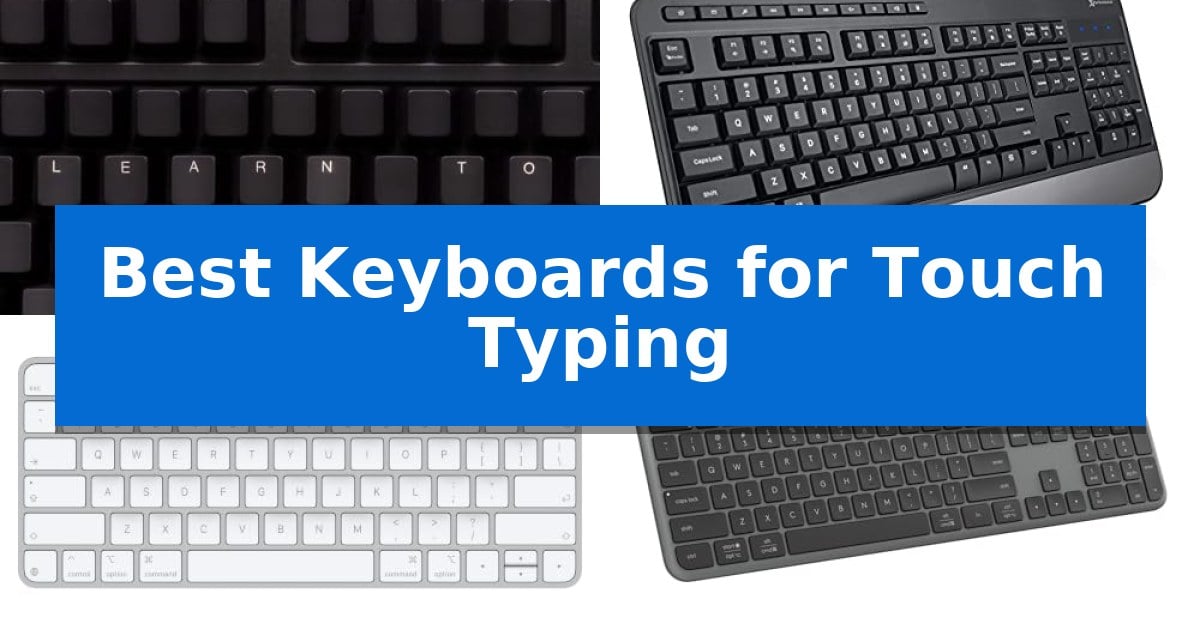
Developing consistent typing speed requires a reliable interface that supports natural hand placement and tactile feedback. Whether you are a student learning the home row or a professional looking to reduce fatigue, finding the right hardware is essential for long-term skill development.
We have evaluated the Best Keyboards for Touch Typing to help you identify which features—such as key resistance, layout, or specialized training tools—best align with your specific goals. This guide focuses on how different designs influence your ability to build rhythm and maintain accuracy during extended sessions.
Best Keyboards for Touch Typing in 2026: Master Muscle Memory
Quick Comparison
| Product | Best For | Key Strength | Score |
|---|---|---|---|
| KeyMaster Electronics Learn to Type Keyboard | Best Overall | On/off backlighting allows for immediate toggling between visible and hidden key labels. | 4.9 |
| X9 Performance Wired Ergonomic Keyboard | Comfortable support for long sessions | Integrated wrist rest for enhanced comfort during long typing sessions. | 4.7 |
| Apple Magic Keyboard with Touch ID | Precise and responsive key feel | Integrated Touch ID for secure, rapid authentication. | 4.5 |
| Logitech Signature Slim K950 Keyboard | Quiet keys for focused work | Multi-device switching allows for seamless transitions between three paired devices. | 4.7 |
| Arteck Universal Backlit Bluetooth Keyboard | Versatile typing across multiple devices | Integrated touchpad eliminates the need for a separate mouse in media setups. | 4.5 |
How We Chose
- Tactile feedback and key responsiveness for consistent registration.
- Ergonomic layout and support features to minimize wrist strain.
- Connectivity options including wired stability and multi-device wireless versatility.
- Specialized training features that assist in developing muscle memory.
- Build quality and keycap stability for long-term reliability.
1 KeyMaster Electronics Learn to Type Keyboard — Builds muscle memory faster
Developing consistent muscle memory for touch typing often requires removing the visual crutch of printed key labels. The KeyMaster Electronics Learn to Type Keyboard addresses this by incorporating on/off backlighting that allows users to instantly show or hide the lettering on the keys. By toggling the visibility, typists can practice finding keys by touch alone, which is intended to accelerate the memorization process and improve overall typing speed.
Designed as a mechanical training tool, this keyboard serves as a dedicated resource for students or anyone looking to transition away from looking down at their hands. The device features a standard layout with dimensions of 18 inches by 7 inches, providing a familiar footprint for most desktop setups. Its black aesthetic and functional design focus on the core objective of building tactile proficiency rather than offering extraneous multimedia controls.
The KeyMaster Electronics Learn to Type Keyboard is built to be a direct replacement for standard input devices during training sessions. Because it functions as a mechanical tool, it avoids the common pitfalls of temporary keyboard covers or skins, which can slip or interfere with the typing feel. With a weight of 1.625 pounds, it remains stable on a desk surface while providing the necessary feedback for consistent practice.
This tool is particularly effective for those who find themselves habitually glancing at their fingers during long typing sessions. By utilizing the backlighting control to obscure the keys, users are forced to rely on home-row positioning and spatial awareness. It is a straightforward, evidence-based approach to skill acquisition that prioritizes the development of touch typing habits over decorative or complex hardware features.
Best for: Students and individuals seeking to improve their typing speed and accuracy by developing touch-typing muscle memory.
Skip if: Users who require a keyboard with advanced multimedia keys, dedicated macro programming, or specialized ergonomic shapes.
PROS
- On/off backlighting allows for immediate toggling between visible and hidden key labels.
- Mechanical training tool design provides a more stable experience than keyboard skins or covers.
- Standard form factor ensures a familiar layout for most computer users.
CONS
- Lacks advanced features such as programmable macros or specialized ergonomic layouts.
2 X9 Performance Wired Ergonomic Keyboard — Comfortable support for long sessions
For those prioritizing comfort during extended typing sessions, the X9 Performance Wired Ergonomic Keyboard offers a dedicated integrated wrist rest designed to provide consistent support. This full-size layout ensures that users have access to a complete set of keys, including a number pad, without needing to adjust to a compact or non-standard configuration.
The keyboard features 114 keys in total, which includes 10 dedicated multimedia keys and 14 shortcut keys. These controls allow for direct management of media playback and volume, streamlining workflows for office environments or general desktop use. The inclusion of an adjustable kickstand allows users to modify the typing angle to better suit their personal desk setup.
Connectivity is handled through a straightforward 5ft USB-A cable, enabling a plug-and-play experience that requires no additional software or driver installation. This makes the device compatible with standard desktop and laptop setups, including Chromebooks, providing a reliable wired connection.
Built for durability and ease of use, the unit is designed to handle high-volume typing tasks. The quiet key switches are intended to minimize noise during operation, while the overall construction supports long-term reliability for professional or home office applications.
Best for: Office professionals and home users who require a full-size, wired keyboard with integrated wrist support for long typing sessions.
Skip if: Users who require wireless connectivity, a compact form factor for travel, or mechanical switches with tactile feedback.
PROS
- Integrated wrist rest for enhanced comfort during long typing sessions.
- Plug and play functionality via USB-A requires no software installation.
- Full-size layout includes a dedicated number pad and 10 multimedia keys.
- Adjustable kickstand allows for customized typing angles.
CONS
- Wired-only connection limits desk placement flexibility.
- Large footprint may not be suitable for smaller workspaces.
3 Apple Magic Keyboard with Touch ID — Precise and responsive key feel
Achieving a consistent typing rhythm requires hardware that minimizes physical resistance and ensures reliable input. The Apple Magic Keyboard with Touch ID addresses this through a low-profile design that delivers a remarkably comfortable and precise typing experience, making it a strong candidate for those prioritizing efficiency and tactile feedback.
Engineered specifically for Mac models with Apple silicon, this keyboard simplifies secure workflows by integrating Touch ID directly into the hardware. This allows for fast, easy, and secure authentication for system logins and online purchases. The integration is seamless, as the device pairs automatically with your Mac, allowing you to begin working immediately upon connection.
The device is both wireless and rechargeable, utilizing an internal battery that provides power for about a month or more between charges. When power runs low, the included woven USB-C Charge Cable allows you to pair and charge simultaneously by connecting directly to your Mac. This wired-to-wireless flexibility ensures your workflow remains uninterrupted during long typing sessions.
With a slim profile measuring only 0.73 inches in height, the keyboard maintains a compact footprint on any desk. While it offers a stable and responsive feel, users should note that its specific layout and feature set are optimized for the Apple ecosystem, ensuring deep integration with macOS features.
Best for: Users of Mac computers with Apple silicon who require secure biometric authentication and a low-profile, reliable typing surface.
Skip if: Users who require a mechanical keyboard with deep key travel or those who use non-Apple operating systems that do not support Touch ID functionality.
PROS
- Integrated Touch ID for secure, rapid authentication.
- Automatic pairing with Apple silicon Mac models.
- Long-lasting rechargeable internal battery.
- Includes a durable woven USB-C Charge Cable.
CONS
- Limited compatibility primarily restricted to Apple silicon Mac models.
- Fixed low-profile design may not suit those preferring mechanical switch travel.
4 Logitech Signature Slim K950 Keyboard — Quiet keys for focused work
Achieving a consistent rhythm during long typing sessions requires a reliable tool that balances tactile feedback with physical comfort. The Logitech Signature Slim K950 Keyboard is engineered for this purpose, featuring a full-size layout that includes a dedicated number pad and laptop-style keys designed to minimize finger fatigue.
This keyboard offers versatile connectivity, allowing users to pair up to three devices simultaneously via Bluetooth or the included Logi Bolt receiver. Switching between a computer, tablet, or phone is handled with a single tap, making it a practical choice for multi-device workflows. Its quiet typing mechanism ensures that keystrokes remain discreet, which is beneficial for shared workspaces.
Customization is managed through the Logi Options+ App, which enables users to assign specific functions to customizable keys for faster access to common tasks. The device is built with a focus on sustainability, incorporating a minimum of 48% certified post-consumer recycled plastic in its construction. It maintains broad compatibility across major operating systems, including Windows, macOS, Chrome OS, and mobile platforms.
While the Logitech Signature Slim K950 Keyboard provides a stable and quiet typing experience, its design prioritizes a low-profile, laptop-like feel. Users who prefer the deep travel and distinct click of mechanical switches may find the membrane-style keys less satisfying for their specific tactile preferences.
Best for: Professionals and students who need a quiet, full-size keyboard that can seamlessly switch between multiple devices and operating systems.
Skip if: Users who specifically require the deep travel, audible click, or customizable switch options found in mechanical keyboards.
PROS
- Multi-device switching allows for seamless transitions between three paired devices.
- Quiet typing design reduces noise, making it suitable for quiet environments.
- Customizable keys via the Logi Options+ App enhance workflow efficiency.
- Broad compatibility across Windows, macOS, Chrome OS, and mobile platforms.
CONS
- Laptop-style keys may not satisfy users who prefer the tactile feedback of mechanical switches.
5 Arteck Universal Backlit Bluetooth Keyboard — Versatile typing across multiple devices
Achieving consistent input speed and accuracy often relies on finding a peripheral that matches your workspace needs, whether you are managing a home theater setup or a mobile workstation. The Arteck Universal Backlit Bluetooth Keyboard simplifies this by integrating a built-in touchpad and media hot keys, allowing you to navigate TV-connected computers or tablets without reaching for a separate mouse.
This keyboard prioritizes visibility and versatility with 7 unique backlight colors and two adjustable brightness levels. To preserve battery life during extended sessions, it features an auto sleep function. Its slim profile, measuring only 0.24 inches in height, makes it a portable solution for users who frequently switch between devices like iPads, MacBooks, and Windows-based desktops.
Connectivity is handled via Bluetooth, providing a 10-meter (33-foot) wireless range that supports reliable input from across a room. The inclusion of a USB-C charging cable ensures you can maintain power without relying on disposable batteries. With its broad compatibility across Windows, macOS, Android, and iOS, it serves as a unified control interface for diverse hardware environments.
While the compact design is ideal for portability and couch-based use, the integrated touchpad and media controls are specifically optimized for navigation rather than high-speed data entry. Users who prioritize a full-sized mechanical layout for heavy-duty typing may find the slim, membrane-style keys a different experience compared to traditional desktop boards.
Best for: Users needing a compact, backlit wireless keyboard with an integrated touchpad for controlling smart TVs, HTPCs, and mobile devices from a distance.
Skip if: Typists who require a full-sized mechanical keyboard layout or deep key travel for professional-grade, high-volume data entry.
PROS
- Integrated touchpad eliminates the need for a separate mouse in media setups.
- 7-color LED backlighting improves visibility in low-light environments.
- Broad compatibility across Windows, Mac, Android, and iOS platforms.
- 10-meter wireless range provides flexibility for living room or office use.
CONS
- Slim membrane keys may not offer the tactile feedback preferred by professional touch typists.
- Compact form factor lacks a dedicated number pad.
Best Keyboards for Touch Typing Buying Guide
Understanding Key Feedback
The feel of a keypress is the most critical factor for touch typists. Mechanical switches or high-quality scissor-switch mechanisms provide a distinct physical response that confirms a character has been registered without requiring you to bottom out the key.
Consistent actuation force across all keys ensures that your fingers do not have to adjust their pressure, which is vital for maintaining a steady rhythm and increasing your words-per-minute (WPM) over time.
Ergonomics and Hand Positioning
A keyboard that promotes a neutral wrist position is essential for preventing discomfort during long typing sessions. Look for models that include an integrated wrist rest or an adjustable kickstand to achieve an optimal typing angle.
The physical layout should be standard, ensuring that your fingers naturally find the home row keys. Avoid unconventional or cramped layouts that force your hands into awkward positions, as these can hinder your ability to develop proper muscle memory.
Connectivity and Workflow Integration
For many users, the ability to switch between devices is a significant productivity booster. Bluetooth multi-device pairing allows you to move from a desktop to a tablet or phone seamlessly, maintaining your typing flow across different platforms.
If you prioritize a zero-latency connection, a wired USB-A or USB-C connection remains the gold standard. Wired keyboards also eliminate the need for battery management, ensuring your tool is always ready when you are.
The Role of Visual Aids
For those currently learning touch typing, visual aids can be a double-edged sword. While seeing the keys helps beginners, it can also encourage 'hunting and pecking' rather than relying on muscle memory.
Some keyboards offer on/off backlighting or specialized key caps that allow you to hide the lettering. This feature forces you to rely on your spatial awareness of the keyboard layout, which is the fastest way to master touch typing.
Build Quality and Durability
A keyboard is a high-use tool, so the quality of materials matters. Look for solidly built frames that do not flex under pressure, as a stable base provides a more predictable typing experience.
Keycap material and coating also play a role in longevity. High-quality finishes resist wear, ensuring that the keys remain readable and maintain their texture even after millions of keystrokes.
Frequently Asked Questions
Does a mechanical keyboard help with touch typing?
Mechanical keyboards often provide superior tactile feedback compared to standard membrane keyboards, which can help many users develop a more consistent typing rhythm.
How can I stop looking at my keyboard while typing?
Using a keyboard with blank key caps or one that allows you to disable backlighting can help you break the habit of looking down, forcing you to rely on muscle memory.
Is a wrist rest necessary for touch typing?
While not strictly necessary, a wrist rest can help maintain a neutral wrist angle, which is important for comfort and preventing strain during long sessions.
Should I choose a wired or wireless keyboard?
Wired keyboards offer a consistent, latency-free connection and no battery concerns, while wireless keyboards provide a cleaner desk setup and multi-device flexibility.
How do I know if a keyboard is right for my hand size?
Look for a standard full-size layout. If you have larger or smaller hands, you may find that specific ergonomic shapes or key spacing preferences become more apparent after a few days of use.
Conclusion: Our Top Pick
Choosing the right tool is the first step toward faster, more accurate typing. For those dedicated to building muscle memory, the KeyMaster Electronics Learn to Type Keyboard stands out as a unique training instrument. Its ability to toggle key lettering on and off provides a practical, evidence-based approach to transitioning from a visual typist to a touch typist.
While other models offer better ergonomics or wireless convenience, the KeyMaster remains the most focused choice for skill acquisition. If your primary goal is to stop looking at the keys and improve your speed, this specialized tool offers the most direct path to achieving that objective.