
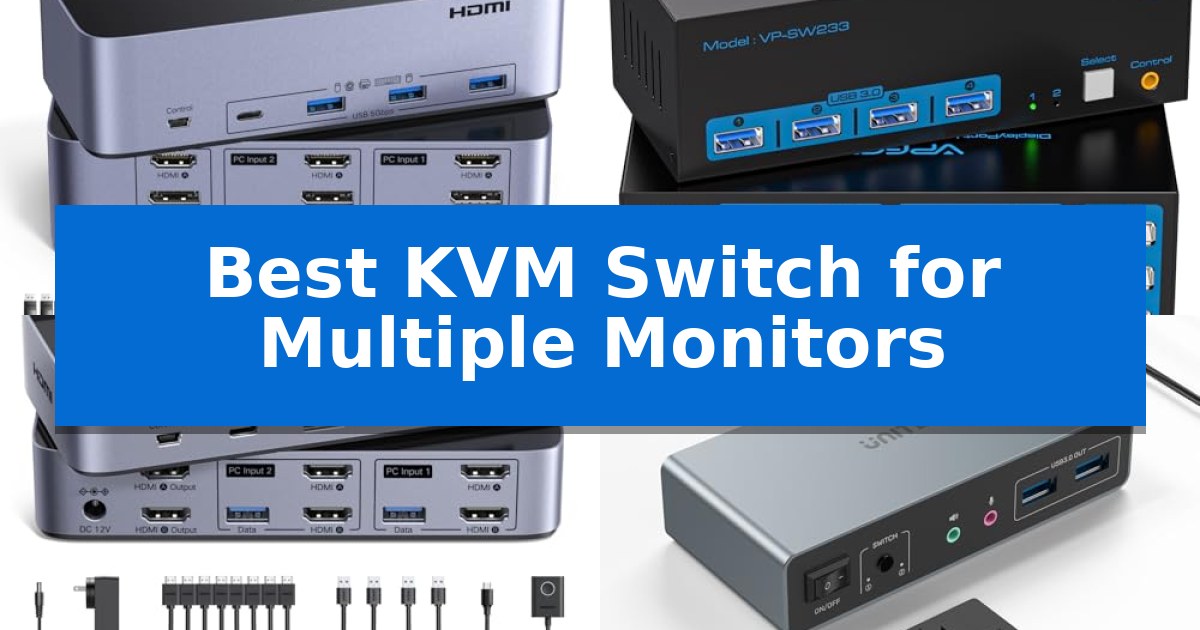
Managing multiple computers with a single set of peripherals can quickly become a cable-management nightmare. If you are looking for the Best KVM Switch for Multiple Monitors to unify your workspace, you need a solution that handles high-resolution video signals and reliable USB data transfer without constant re-plugging.
Whether you are a content creator balancing two workstations or a professional needing to switch between a home PC and a work laptop, the right hardware makes all the difference. We have analyzed the latest switching solutions to help you find a reliable device that keeps your desk organized and your productivity high.
Best KVM Switch for Multiple Monitors in 2026: Triple-Screen Control
Quick Comparison
| Product | Best For | Key Strength | Score |
|---|---|---|---|
| UGREEN 8K Triple Monitor KVM Switch | Best Overall | Supports high-resolution output up to 8K@60Hz and 4K@240Hz. | 4.9 |
| CMSTEDCD 8K Triple Monitor KVM Switch | High Refresh Rate Triple Setup | Supports high-resolution output up to 8K@60Hz and 4K@120Hz. | 4.4 |
| UGREEN 4K Dual Monitor KVM Switch | Efficient Dual Screen Switching | Dual-monitor support for extended or mirrored desktop configurations. | 4.5 |
| Unitek 4K Dual Monitor KVM Switch | Includes Dedicated Audio Ports | Supports 4K@60Hz resolution for high-quality dual-monitor output. | 4.6 |
How We Chose
- Display Compatibility: Ensuring the switch supports the specific video ports (HDMI or DisplayPort) and resolutions required for your monitor setup.
- Peripheral Connectivity: Assessing the number and speed of USB ports available for sharing keyboards, mice, and high-speed storage devices.
- Switching Convenience: Evaluating the inclusion of dedicated desktop controllers or physical buttons for rapid, tactile input changes.
- Build Quality and Stability: Checking for robust construction and the inclusion of necessary power adapters to ensure consistent performance under load.
- System Versatility: Verifying compatibility with common operating systems like Windows and Linux to ensure a seamless plug-and-play experience.
1 UGREEN 8K Triple Monitor KVM Switch — Best for Triple Display Workstations
Managing multiple displays across different systems often results in a tangled mess of cables and constant manual switching. The UGREEN 8K Triple Monitor KVM Switch simplifies this workflow by allowing two computers to share three monitors and four USB 3.0 devices through a single, centralized hub.
This device supports high-bandwidth video output, featuring two DisplayPort 1.4 ports and one HDMI 2.1 port per computer. It is capable of handling resolutions up to 8K@60Hz or 4K@240Hz, ensuring compatibility with high-refresh-rate gaming or professional creative displays. The unit also supports HDR10+, VRR, FreeSync, and G-Sync to maintain visual fidelity and prevent screen tearing across all three connected monitors.
Usability is enhanced by the inclusion of a dedicated desktop controller, which allows for quick switching between systems without needing to reach for the main unit. The switch provides both Mirror and Extend display modes, provided the connected computers support triple-monitor output. It is a driver-free, plug-and-play solution, making it straightforward to integrate into existing Windows or Linux environments.
Potential users should note that this switch does not support EDID emulation or keyboard hotkey toggles. To function correctly, each computer must be connected with two DisplayPort cables, one HDMI cable, and one USB cable. Users must also ensure their host computers are natively capable of driving three displays, as the switch will not bypass hardware limitations.
Best for: Professionals and gamers who need to seamlessly share three high-resolution monitors and multiple USB peripherals between two distinct computer systems.
Skip if: Users who require keyboard hotkey switching or those whose computers lack the necessary triple-video output ports to drive three displays simultaneously.
PROS
- Supports high-resolution output up to 8K@60Hz and 4K@240Hz.
- Includes a convenient desktop controller for easy input switching.
- Features four USB 3.0 ports for sharing peripherals like webcams and printers.
- Compatible with VRR, FreeSync, and G-Sync for smooth visual performance.
CONS
- Does not support keyboard hotkey switching.
- Lacks EDID emulation, which may require re-arranging windows when switching inputs.
2 CMSTEDCD 8K Triple Monitor KVM Switch — High Refresh Rate Triple Setup
Managing a multi-monitor workstation requires hardware that can keep pace with high-resolution demands without sacrificing connectivity. The CMSTEDCD 8K Triple Monitor KVM Switch addresses this by enabling two computers to share three displays and four high-speed USB 3.0 peripherals, effectively consolidating your workspace into a single control hub.
Engineered for high-bandwidth applications, this unit supports DisplayPort 1.4 standards, capable of delivering resolutions up to 8K@60Hz or 4K@120Hz. This makes it a viable choice for users who require high frame rates or ultra-high-definition clarity across their extended or duplicate display setups.
The device prioritizes user convenience through two distinct switching methods. You can toggle between systems using the integrated button on the main panel or utilize the included wired controller, which allows for a cleaner desk layout by keeping the primary switch unit tucked away. The inclusion of four USB 3.0 ports ensures that data transfer rates reach up to 5Gbps, accommodating high-speed storage, webcams, and standard input devices.
Stability is maintained via a dedicated 12V power adapter, which provides the necessary power to drive the switch consistently across various system configurations. While it offers broad compatibility with major operating systems like Windows and Linux, users should verify that their source computers are equipped with three DisplayPort outputs to fully utilize the triple-monitor functionality.
Best for: Professionals and power users who need to switch a triple-monitor setup and multiple USB 3.0 peripherals between two computers.
Skip if: Users whose computers lack three DisplayPort outputs or those who rely exclusively on HDMI or USB-C video connections.
PROS
- Supports high-resolution output up to 8K@60Hz and 4K@120Hz.
- Includes a wired controller for convenient, space-saving switching.
- Features four USB 3.0 ports with 5Gbps transfer speeds.
- Dedicated 12V power adapter ensures stable performance.
CONS
- Requires three DisplayPort connections per computer.
- Does not support non-DisplayPort video interfaces.
3 UGREEN 4K Dual Monitor KVM Switch — Efficient Dual Screen Switching
Managing multiple displays and computers often leads to cluttered workspaces filled with redundant peripherals. The UGREEN 4K Dual Monitor KVM Switch addresses this by enabling a single set of keyboard, mouse, and peripheral hardware to control two separate computers while outputting to two monitors simultaneously. This setup supports both extend and mirror modes, providing a streamlined interface for professional or home office environments.
The device features four USB 3.0 ports, including three USB-A and one USB-C, facilitating data transfer speeds of up to 5Gbps. This connectivity allows for the shared use of printers, flash drives, and webcams across both connected systems. To maintain stable operation for these USB devices, the unit includes a dedicated power adapter, ensuring consistent power delivery during active switching.
Visual fidelity is maintained through support for 4K@60Hz resolution, along with compatibility for HDMI 2.0, HDR10+, and HDCP 2.2/1.4. Users can toggle between computers using either the integrated button or the included desktop controller, which allows for cleaner cable management by moving the switch unit away from the primary workspace. The device is compatible with Windows, MacOS, and Linux systems, offering broad flexibility for diverse computing setups.
Installation is straightforward with a plug-and-play design that requires no additional software or driver installations. The package includes the necessary cabling, specifically four HDMI cables and two USB-A cables, to get started immediately. While the system is highly versatile, users should note that it does not support EDID emulation or keyboard hotkey toggles, and requires that each computer be connected with two HDMI cables and one USB-A cable to function correctly.
Best for: Professionals and home office users who need to share a dual-monitor setup and multiple USB peripherals between two computers.
Skip if: Users who require keyboard hotkey switching, EDID emulation, or DisplayPort connectivity, as this device is HDMI-only.
PROS
- Dual-monitor support for extended or mirrored desktop configurations.
- Four USB 3.0 ports for high-speed peripheral sharing.
- 4K@60Hz resolution support for high-quality display output.
- Desktop controller included for convenient, remote switching.
CONS
- No support for keyboard hotkeys or EDID emulation.
- HDMI-only interface limits compatibility with DisplayPort-native hardware.
4 Unitek 4K Dual Monitor KVM Switch — Includes Dedicated Audio Ports
Managing multiple workstations from a single console requires reliable hardware, and the Unitek 4K Dual Monitor KVM Switch addresses this by allowing users to toggle between two desktop computers while sharing a dual-monitor setup. This device is built for efficiency, featuring a wired remote controller that enables users to switch inputs without reaching for the main unit, keeping workspaces organized.
The switch supports high-definition visuals with resolutions up to 4K@60Hz, ensuring that display quality remains sharp across both screens. It is equipped with three USB 3.0 ports capable of data transfer speeds up to 5Gbps, which facilitates the connection of peripherals such as keyboards, mice, and external hard drives. The inclusion of dedicated mic and headphone jacks adds further utility for users who manage audio equipment alongside their computing tasks.
Installation is straightforward due to its plug-and-play design, which requires no driver software. The unit comes with a DC 5V 2A power adapter to maintain stable performance when multiple high-power USB devices are connected. It is housed in an aluminum chassis, providing a durable build for consistent desktop use.
It is important to note that this switch is engineered exclusively for desktop hosts and is not compatible with laptops. To achieve simultaneous dual-monitor output, users must ensure all required cables—including the provided USB A-to-B cables, HDMI, and DisplayPort cables—are properly connected to both host machines.
Best for: Users with two desktop computers who need to share a dual-monitor display and high-speed USB 3.0 peripherals.
Skip if: Users who need to switch between laptops or mobile devices, as this unit is explicitly designed for desktop hosts only.
PROS
- Supports 4K@60Hz resolution for high-quality dual-monitor output.
- Includes a wired desktop controller for convenient input switching.
- Features USB 3.0 ports with 5Gbps data transfer speeds.
- Durable aluminum construction.
CONS
- Not compatible with laptops.
- Requires specific cable connections for both hosts to enable dual-monitor functionality.
Best KVM Switch for Multiple Monitors Buying Guide
Understanding Video Standards
The Best KVM Switch for Multiple Monitors relies heavily on the video standards it supports. Before purchasing, confirm whether your monitors and computers utilize DisplayPort or HDMI. Mixing these standards or using adapters can often lead to compatibility issues or a failure to achieve the desired resolution and refresh rate.
Always check the resolution and refresh rate capabilities of the switch. High-end setups requiring 8K@60Hz or 4K@240Hz demand cables that meet specific bandwidth requirements. Using cables longer than 2 meters can sometimes degrade signal quality, so keep your cable runs as short as possible for the best results.
Peripheral Sharing and USB Speeds
A primary benefit of a KVM switch is the ability to share USB peripherals like mechanical keyboards, high-DPI mice, and webcams. Look for switches that offer USB 3.0 ports, which provide data transfer speeds up to 5Gbps. This is essential if you frequently move large files between computers using external drives.
Ensure the switch provides enough ports for your specific needs. While four ports are standard, consider whether you need extra connectivity for printers or specialized audio equipment. Always connect the included power adapter to ensure that all connected USB devices receive sufficient power, preventing connection drops.
Switching Methods and Desk Ergonomics
How you switch between computers significantly impacts your workflow. Many modern switches include a desktop controller, which allows you to place the main unit in a hidden location while keeping a small, tactile button within easy reach. This keeps your desk surface clean and reduces cable clutter.
Some users prefer simple button-based switching on the unit itself. While this is reliable, it requires the switch to be placed within arm's reach. Evaluate your desk layout to determine if a wired remote or a front-panel button is more appropriate for your specific setup.
Operating System and Hardware Compatibility
Most KVM switches are driver-free and plug-and-play, making them compatible with Windows, Linux, and macOS. However, always verify if the device supports your specific hardware configuration, such as whether it requires both computers to have specific video outputs to enable triple-monitor support.
Be aware that some switches do not support EDID emulation. This means your computer may treat the monitor connection as if it were unplugged when you switch away, potentially causing your open windows to resize or rearrange. If this is a concern, check the manufacturer's specifications for emulation support.
Power and Stability Requirements
Reliability is the hallmark of a good KVM switch. Always ensure the device is connected to its dedicated power adapter. Relying solely on bus power from the computers is often insufficient for multi-monitor setups and high-speed USB device sharing, which can lead to intermittent signal loss.
If you are using docking stations or signal converters between your computer and the KVM switch, be aware that these can introduce compatibility issues. For the most stable experience, connect your computer's video outputs directly to the switch whenever possible.
Frequently Asked Questions
Can I use a KVM switch with a laptop that only has USB-C ports?
Yes, but you will likely need an adapter. You can use a USB-C to USB-A OTG adapter combined with the provided cables to connect your laptop to the KVM switch's USB-A ports.
Do I need to install software to use these KVM switches?
Most of the models listed are driver-free and support plug-and-play functionality, meaning no software installation is required to begin switching between your computers.
Why are my monitors not showing an image after switching?
Ensure that all required video cables are securely connected to both the computers and the switch. Also, verify that your computers support the multi-monitor output configuration you are attempting to use.
Can I use hotkeys to switch between computers?
Not all KVM switches support keyboard hotkeys. Many of the models featured here rely on physical buttons or dedicated desktop controllers for switching.
Will my window positions be saved when I switch?
This depends on whether the switch supports EDID emulation. Without it, your computer may detect a monitor disconnection when you switch, which can cause windows to shift or resize.
Conclusion: Our Top Pick
Selecting the right hardware is essential for a productive multi-monitor environment. For users who need to manage complex triple-display setups, the UGREEN 8K Triple Monitor KVM Switch stands out for its robust support of high-resolution displays and reliable USB 3.0 connectivity.
This switch provides the necessary bandwidth for 8K and high-refresh-rate gaming, while the included desktop controller ensures your workspace remains tidy. Before purchasing, confirm that your specific computer hardware supports the required triple-monitor output to take full advantage of its capabilities.