
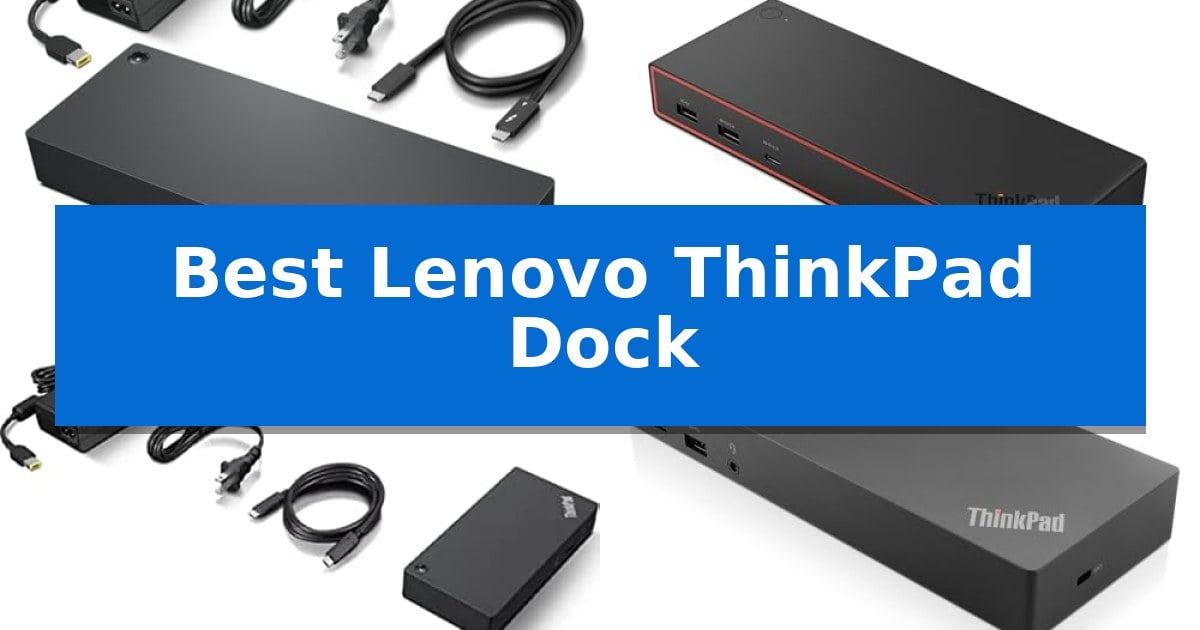
Managing a complex workstation requires reliable hardware that bridges the gap between your laptop and your peripherals. Finding the Best Lenovo ThinkPad Dock is essential for users who need to maintain a clean desk while maximizing their connectivity, whether they are running multiple high-resolution displays or managing a suite of USB accessories.
Our guide evaluates the latest docking solutions from Lenovo, focusing on how different port configurations, power delivery capabilities, and interface standards like Thunderbolt 4 and USB4 impact your daily workflow. By understanding these technical distinctions, you can select a dock that ensures stable performance and seamless integration with your specific ThinkPad model.
You may also want to compare Best Lenovo Tablets, Best Lenovo Student Laptops, and Best Lenovo PCs.
Best Lenovo ThinkPad Dock
Quick Comparison
| Product | Best For | Key Strength | Score |
|---|---|---|---|
| Lenovo ThinkPad Universal Thunderbolt 4 Dock | Best Overall | Supports up to four 4K displays or one 8K display. | 4.9 |
| Lenovo ThinkPad USB4 Smart Dock 5500 | Future-Proof Bandwidth Performance | 40 Gbps bandwidth via USB4 technology for high-speed data and display performance. | 4.8 |
| Lenovo ThinkPad Universal USB-C Dock | Reliable Standard for Modern Workspaces | Enterprise-grade management features including PXE boot and WOL support. | 4.8 |
| Lenovo ThinkPad Hybrid USB-C Dock | Versatile Legacy and Modern Support | Hybrid connectivity supporting both USB-C and USB-A host devices. | 4.9 |
| Lenovo ThinkPad USB-C Dock Gen 2 | Essential Multi-Monitor Connectivity | Supports 4K@60Hz output via DisplayPort 1.4 and HDMI 2.0. | 4.7 |
How We Chose
- Display throughput and resolution support for multi-monitor configurations.
- Power delivery wattage to ensure adequate charging for various laptop models.
- Interface compatibility, including Thunderbolt 4, USB4, and legacy USB-C standards.
- Port variety, specifically the inclusion of high-speed data, video output, and networking options.
- Management features such as firmware update support and PXE boot capabilities for IT environments.
1 Lenovo ThinkPad Universal Thunderbolt 4 Dock — Best for High-Resolution Multi-Display
Managing a high-resolution workspace requires a reliable connection that can handle multiple displays and high-speed data transfer without clutter. The Lenovo ThinkPad Universal Thunderbolt 4 Dock addresses this by consolidating power, video, and data into a single cable solution, designed to support up to four 4K displays at 60 Hz or a single 8K display at 30 Hz.
Engineered for versatility, this dock provides 11 multi-functional ports, including two DisplayPort 1.4, one HDMI 2.1, and a downstream Thunderbolt 4 port. It also features four USB 3.1 Gen 2 ports, one of which is always-on, and a Gigabit Ethernet port for stable wired networking. The inclusion of a 3.5 mm combo audio jack ensures all peripheral needs are met within a compact 1.18" x 3.15" footprint.
The dock is built for 100W dynamic power delivery, ensuring that compatible Windows-based systems—including Thunderbolt 3, Thunderbolt 4, USB 4, and USB-C devices—receive sufficient charge while in use. For IT environments, it supports vPro pass-through and remote firmware updates via Dock Manager, allowing for management without interrupting the end-user.
With a 3-year manufacturer warranty, this unit is a robust choice for professionals who need to maintain a clean desk while maximizing connectivity. It balances high-bandwidth capabilities with broad system compatibility, making it a practical hub for complex workstation setups.
Best for: Professionals requiring a high-bandwidth, single-cable solution to drive multiple 4K displays and manage various peripherals on a Windows-based system.
Skip if: Users with non-Windows systems or those who do not require high-resolution multi-display support may find the premium feature set and Thunderbolt 4 architecture more than they need.
PROS
- Supports up to four 4K displays or one 8K display.
- Provides 100W dynamic power delivery to connected notebooks.
- Features 11 multi-functional ports for extensive peripheral connectivity.
- Includes remote management capabilities via Dock Manager.
CONS
- Requires a specific 135W power adapter for full functionality.
- Designed primarily for Windows-based systems.
2 Lenovo ThinkPad USB4 Smart Dock 5500 — Future-Proof Bandwidth Performance
Modern workspaces often require high-bandwidth connectivity to manage multiple high-resolution displays and rapid data transfers. The Lenovo ThinkPad USB4 Smart Dock 5500 addresses these demands by utilizing USB4 technology, which provides up to 40 Gbps of bandwidth to ensure peripheral responsiveness and efficient data throughput.
This dock serves as a comprehensive hub for complex setups, offering support for either a single 8K 60Hz display or dual 4K 144Hz monitors. Beyond visual output, it simplifies power management through PD 3.1 support, delivering up to 100W of power directly to your laptop, which eliminates the need for bulky, separate power adapters on your desk.
Designed for versatility, the Lenovo ThinkPad USB4 Smart Dock 5500 features universal compatibility across various operating systems and laptop brands. This makes it a practical solution for mixed-device environments where multiple users may need to connect to the same workstation without compatibility hurdles.
For enterprise environments, the dock integrates with the cloud-based Lenovo Accessories Fleet Manager. This allows IT administrators to perform remote updates, configurations, and diagnostics, ensuring that the hardware remains current and functional without requiring physical access to every individual unit in the office.
Best for: Professionals and IT administrators requiring high-bandwidth display support and centralized fleet management for mixed-device office environments.
Skip if: Users who do not require multi-monitor support or high-speed data transfer may find the feature set and cost of this professional-grade dock unnecessary for basic connectivity needs.
PROS
- 40 Gbps bandwidth via USB4 technology for high-speed data and display performance.
- Supports up to 8K 60Hz or dual 4K 144Hz displays for advanced visual setups.
- 100W Power Delivery simplifies cable management by charging the laptop directly.
- Cloud-based fleet management enables remote IT administration and diagnostics.
CONS
- Higher cost compared to standard USB-C hubs that lack USB4 bandwidth and fleet management features.
3 Lenovo ThinkPad Universal USB-C Dock — Reliable Standard for Modern Workspaces
Managing a modern workspace requires a reliable connection that minimizes cable clutter while maintaining high-speed data throughput. The Lenovo ThinkPad Universal USB-C Dock-40AY0090 addresses this by providing a single-cable solution that handles power delivery, display output, and peripheral connectivity simultaneously.
This dock is engineered to integrate seamlessly into managed IT environments. It supports critical enterprise-grade features such as PXE boot, WOL (Wake-on-LAN), and MAC Address Pass Through, ensuring that IT managers can maintain security and network compliance across distributed teams. The device also automates critical firmware updates, reducing the manual overhead typically associated with maintaining docking stations.
Designed for versatility, the unit supports both office-based setups and remote work environments. Users can connect multiple displays and various PC accessories without the need for additional adapters. The compact design, measuring approximately 8.27 by 6.22 inches, helps reclaim valuable desk space while providing the necessary ports for a productive workstation.
The Lenovo ThinkPad Universal USB-C Dock-40AY0090 allows IT administrators to remotely gather information about the dock and its connected peripherals. This capability ensures that technical support can monitor hardware status with minimal interruption to the end user's workflow, making it a practical choice for organizations prioritizing centralized management.
Best for: IT managers and professionals requiring a centrally managed, single-cable docking solution for enterprise-grade environments.
Skip if: Users who do not require enterprise management features like PXE boot or MAC address pass-through may find more cost-effective, consumer-focused hubs.
PROS
- Enterprise-grade management features including PXE boot and WOL support.
- Automated firmware updates simplify long-term maintenance.
- Single-cable design reduces desk clutter while providing power and data.
- Remote monitoring capabilities for IT administrators.
CONS
- Enterprise-focused feature set may be excessive for basic home-office needs.
4 Lenovo ThinkPad Hybrid USB-C Dock — Versatile Legacy and Modern Support
The Lenovo ThinkPad Hybrid USB-C with USB-A Dock US (40AF0135US) provides a versatile bridge for mixed-device environments by supporting both USB-C and USB-A connections. This enterprise-class solution is engineered to maintain productivity across a wide range of hardware, including older ThinkPad models and non-Lenovo laptops, ensuring that legacy systems remain functional alongside modern hardware.
Connectivity is a primary strength of this dock, featuring three USB 3.1 Gen 2 ports capable of 10Gbps data transfer, with one port dedicated to always-on USB charging. The rear panel includes two DisplayPort and two HDMI ports to support multi-monitor configurations, alongside a Gigabit Ethernet port for stable wired networking. A dedicated stereo/mic combo audio port is also integrated for peripheral support.
Designed with workspace efficiency in mind, the unit measures approximately 8.3 by 3.1 by 1.2 inches. It supports ThinkPad RapidCharge technology and can deliver power to mobile devices, providing 15W or 10.5W depending on the specific port used. The dock is backed by a 3-year limited warranty, reflecting its intended use in professional, long-term office deployments.
Compatibility is extensive, covering a broad spectrum of devices such as the X1 Carbon Gen 5 and 6, T480 series, and various L and E series ThinkPads. By offering a hybrid interface, it minimizes the need for multiple adapters, making it a practical choice for offices managing diverse laptop fleets.
Best for: Professional environments that require a single docking solution to support a mix of legacy USB-A and modern USB-C laptops.
Skip if: Users who require high-wattage power delivery for high-performance workstations or those who do not need support for legacy USB-A host connections.
PROS
- Hybrid connectivity supporting both USB-C and USB-A host devices.
- Extensive port selection including 10Gbps USB 3.1 Gen 2 and dual video outputs.
- Enterprise-grade reliability backed by a 3-year limited warranty.
- Always-on charging capability for mobile devices.
CONS
- Limited power delivery compared to dedicated high-wattage USB-C power docks.
- Larger footprint than some modern, minimalist USB-C-only hubs.
5 Lenovo ThinkPad USB-C Dock Gen 2 — Essential Multi-Monitor Connectivity
Managing multiple peripherals and high-resolution displays from a single laptop requires a reliable connection point. The Lenovo ThinkPad USB-C Dock Gen 2 (40AS0090) serves as a central hub designed to streamline workspace connectivity, allowing users to transfer data at 10Gbps speeds while maintaining a stable wired network connection.
This dock supports 4K resolution on a single screen or multiple display configurations, depending on the host system's output capabilities. It utilizes DisplayPort 1.4 and HDMI 2.0 to deliver high-quality video, making it a versatile tool for users who need to expand their visual workspace beyond the limitations of a standard laptop screen.
Beyond display and data, the dock provides enterprise-grade management features. It supports PXE Boot, System Wake-on-LAN, and ThinkPad MAC address pass-through, ensuring that IT administrators can maintain control over connected systems. These features make it a practical choice for professional environments where system security and remote management are prioritized.
Measuring approximately 6.73 by 3.15 inches with a height of 1.18 inches, the unit maintains a compact footprint suitable for crowded desks. It is backed by a 3-year worldwide warranty, providing long-term support for its essential connectivity functions.
Best for: Professionals needing a centralized hub for multi-monitor setups and enterprise-grade network management features.
Skip if: Users requiring specialized high-bandwidth ports like Thunderbolt 3 or 4 for intensive data transfer or specific high-refresh-rate gaming displays.
PROS
- Supports 4K@60Hz output via DisplayPort 1.4 and HDMI 2.0.
- Includes enterprise management features like PXE Boot and MAC address pass-through.
- Enables 10Gbps USB data transfer speeds for connected peripherals.
- Backed by a comprehensive 3-year worldwide warranty.
CONS
- Video output performance is dependent on the host system's capabilities.
- Lacks support for advanced proprietary high-speed protocols like Thunderbolt.
Best Lenovo ThinkPad Dock Buying Guide
Understanding Docking Interfaces
The interface standard is the most critical factor when selecting a dock. Thunderbolt 4 and USB4 offer the highest bandwidth, enabling support for multiple 4K displays and rapid data transfer speeds. These standards are ideal for power users who require a high-performance connection that can handle heavy data loads without latency.
For standard office tasks, USB-C docks remain a reliable and cost-effective choice. While they may have lower bandwidth than Thunderbolt alternatives, they provide sufficient connectivity for dual-monitor setups and essential peripherals, making them a practical solution for most modern workspaces.
Power Delivery Requirements
Power delivery (PD) determines how quickly your laptop charges while connected to the dock. Many Lenovo docks support up to 100W dynamic power delivery, which is sufficient for most ThinkPad models. It is important to verify your laptop's power requirements to ensure the dock provides enough wattage to keep your system charged during intensive tasks.
Using a dock with adequate power delivery eliminates the need for a separate laptop charger, significantly reducing cable clutter. This single-cable solution is a major benefit for hot-desking or maintaining a minimalist desk setup.
Display and Peripheral Connectivity
Consider the number and type of displays you intend to use. High-end docks often feature a mix of DisplayPort 1.4 and HDMI 2.1 ports, allowing for flexible monitor arrangements. Always check the dock's maximum resolution and refresh rate support to ensure it matches your monitors' capabilities.
Beyond video, evaluate the number of USB ports available. A good dock should include a mix of USB 3.1 Gen 2 ports for fast data transfer and at least one always-on USB port for charging mobile devices even when the laptop is disconnected.
IT Management and Security
For enterprise environments, features like PXE boot, Wake-on-LAN, and MAC address pass-through are vital. These tools allow IT administrators to manage the dock and connected devices remotely, ensuring that firmware updates do not interrupt the user's workflow.
Lenovo's management software, such as the Dock Manager, simplifies the deployment of updates across a fleet of devices. If you are setting up a home office or a small business, these features provide peace of mind by keeping your hardware secure and up to date.
Compatibility and Future-Proofing
Compatibility extends beyond just the physical connector. Ensure the dock supports the operating system and specific laptop series you are using. Some hybrid docks are designed to support both older and newer systems, providing a versatile option if you use multiple laptops.
Investing in a dock with higher bandwidth, such as those supporting USB4, provides a degree of future-proofing. As display resolutions increase and peripheral speeds grow, having a dock that can handle these demands will extend the life of your investment.
Frequently Asked Questions
Can I use a Thunderbolt 4 dock with a standard USB-C laptop?
Yes, most Thunderbolt 4 docks are backward compatible with USB-C systems, though you may experience reduced bandwidth or display capabilities depending on the laptop's specific port standard.
Does the dock charge my laptop if it is turned off?
Many Lenovo docks feature an always-on USB port, but the main power delivery to the laptop typically requires the laptop to be connected and receiving a signal through the primary cable.
How many monitors can I connect to these docks?
The number of supported monitors varies by model. High-end docks like the Universal Thunderbolt 4 can support up to four 4K displays, while standard USB-C docks typically support one or two.
What is the benefit of the always-on USB port?
The always-on port allows you to charge devices like smartphones or tablets even when your laptop is disconnected from the dock, providing extra utility for your workspace.
Are firmware updates necessary for my dock?
Yes, firmware updates are important for maintaining compatibility with the latest operating systems and ensuring optimal performance of the dock's ports and features.
Conclusion: Our Top Pick
For users seeking the most robust connectivity and display support, the Lenovo ThinkPad Universal Thunderbolt 4 Dock stands out as the premier choice. Its ability to support up to four 4K displays and provide 100W of dynamic power makes it a versatile centerpiece for any high-performance workstation.
While other models offer specific advantages for legacy support or future-proof bandwidth, this dock provides the best balance of high-speed data transfer and broad compatibility. It is a reliable, long-term solution for professionals who need to streamline their desk setup without compromising on performance.