
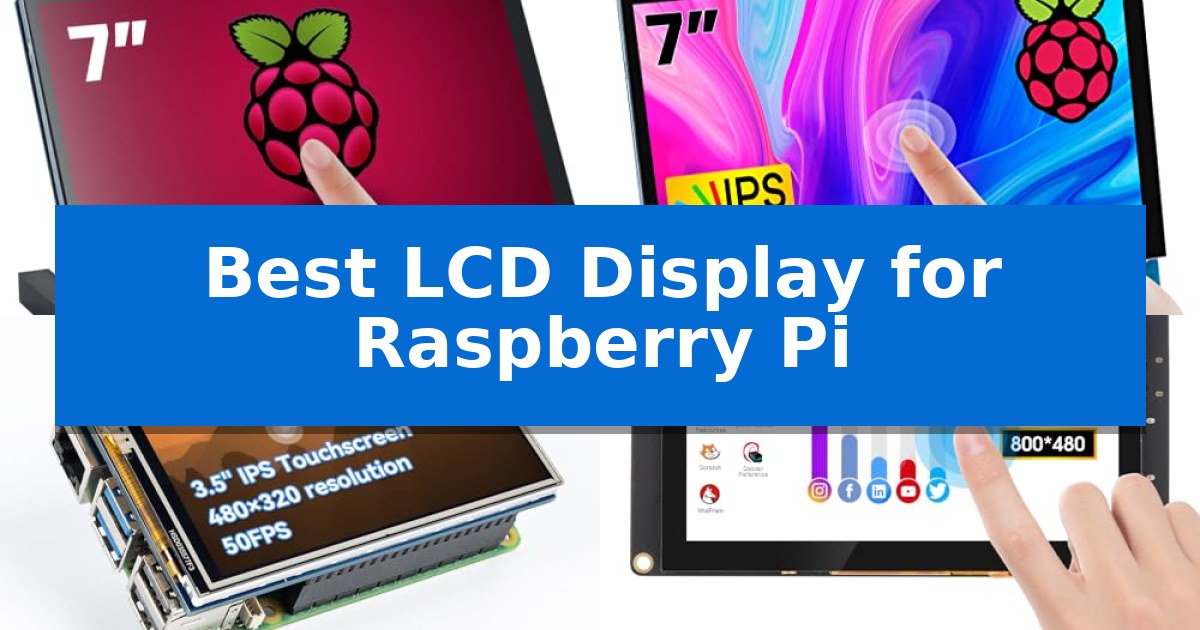
Finding the Best LCD Display for Raspberry Pi requires balancing your specific project requirements with the hardware interface capabilities of your board. Whether you are building a portable handheld console, a smart home dashboard, or a dedicated server monitor, the connection type—ranging from MIPI DSI to HDMI or SPI—significantly impacts both setup complexity and performance.
Selecting the right screen involves more than just size; it requires matching resolution, touch responsiveness, and power requirements to your existing setup. This guide evaluates five distinct display modules to help you identify which hardware interface aligns best with your technical goals and hardware configuration.
You may also want to compare Best LCD Digital Photo Frames, Best LCD Digital Microscopes, and Best LCD Computer Monitors for the Money.
Best LCD Display for Raspberry Pi
Quick Comparison
| Product | Best For | Key Strength | Score |
|---|---|---|---|
| Hosyond 7 Inch DSI Touchscreen | Best Overall | Direct MIPI DSI connection removes the need for HDMI cables. | 4.9 |
| Hosyond 7 Inch IPS HDMI Monitor | Versatile HDMI display for projects | Capacitive 5-point touch interface for interactive applications. | 4.7 |
| SunFounder 3.5 Inch IPS LCD | Smooth 50FPS performance | Direct 40-pin GPIO connection for a secure and cable-free installation. | 4.5 |
| ELECROW 5 Inch Touchscreen Monitor | Driver-free plug and play | Driver-free, plug-and-play setup via HDMI and USB. | 4.6 |
| Waveshare 2 Inch LCD Module | Ultra-compact SPI interface | Compact 2-inch IPS display ideal for small-scale projects. | 4.8 |
How We Chose
- Interface Compatibility: Assessing whether the display utilizes MIPI DSI, HDMI, or SPI to ensure seamless communication with the Raspberry Pi GPIO or video ports.
- Resolution and Clarity: Comparing pixel density and panel technology, such as IPS, to ensure sharp visuals and wide viewing angles for various project environments.
- Touch Functionality: Evaluating the responsiveness and type of touch input, including capacitive versus resistive options, to determine suitability for interactive applications.
- Ease of Setup: Determining if the display is driver-free or requires specific software configurations to function correctly across different operating systems.
- Form Factor and Mounting: Considering the physical dimensions and mounting options to ensure the display fits securely within your specific project enclosure.
1 Hosyond 7 Inch DSI Touchscreen — Direct MIPI interface for Pi
The Hosyond 7 Inch DSI Touchscreen integrates directly with your project via the MIPI DSI interface, eliminating the need for additional HDMI cables or complex wiring. This design choice simplifies the setup process, allowing for a cleaner workspace when working with a Raspberry Pi.
This display features a 7-inch IPS panel with an 800×480 resolution, providing a wide viewing angle and clear visuals for your interface. The integrated capacitive touchscreen supports smooth interaction, while the backlight brightness adjustment allows you to tailor the display output to your specific environment.
Compatibility is a primary focus, as the unit is designed for the Raspberry Pi 5, 4B, 3B+, 3B, 3A+, and 2B. It is a plug-and-play solution for standard Raspbian OS configurations, requiring no additional driver installation. For users running Ubuntu, Kali, or Win10 IoT, the screen supports single-touch functionality.
While the display offers a streamlined connection, it is important to note that it lacks an HDMI port and is strictly limited to the MIPI DSI interface. This makes it a specialized tool for dedicated Raspberry Pi builds rather than a general-purpose monitor for other hardware.
Best for: Users seeking a dedicated, cable-efficient touchscreen interface for Raspberry Pi projects using the MIPI DSI connection.
Skip if: You require a general-purpose monitor with HDMI connectivity or compatibility with devices other than the Raspberry Pi.
PROS
- Direct MIPI DSI connection removes the need for HDMI cables.
- Plug-and-play compatibility with multiple Raspberry Pi models.
- IPS panel provides wide viewing angles and clear image quality.
- Capacitive touchscreen enables smooth and responsive input.
CONS
- No HDMI port limits use to MIPI-compatible devices only.
- Single-touch support on specific operating systems like Ubuntu or Kali.
2 Hosyond 7 Inch IPS HDMI Monitor — Versatile HDMI display for projects
Integrating a dedicated display into a compact computing project requires a balance of resolution and physical footprint. The Hosyond 7 Inch IPS HDMI Monitor provides a 1024 × 600 hardware resolution, offering a clear visual interface for projects built on Raspberry Pi 5, 4, 3, or Zero W platforms. Its compact 7-inch IPS panel ensures consistent color and clarity, making it suitable for embedded systems where space is at a premium.
This display features a capacitive touch screen that supports up to 5-point touch input, facilitating interactive control for custom interfaces. Users can manage power consumption through backlight control, which allows the backlight to be turned off independently when the screen is not in use. This feature is particularly beneficial for battery-powered or energy-conscious projects where maintaining a constant display is unnecessary.
Compatibility extends beyond the Raspberry Pi ecosystem, as the unit functions as a general-purpose HDMI monitor for other mini PCs like the BB Black or Banana Pi. It also serves as a secondary display for standard desktop computers, supporting a software-configured resolution of up to 1920×1080. This flexibility allows the monitor to transition from a dedicated project screen to a functional desktop sub-display without requiring complex hardware changes.
Installation is simplified by its plug-and-play design, which requires no additional drivers for operation with Raspbian, Ubuntu, Kali-Linux, and Kodi. When connected to Windows 10, 8, or 7 systems, the device maintains its multi-touch functionality, making it a flexible choice for both embedded projects and desktop utility. The absence of driver requirements streamlines the setup process, allowing developers to focus on application deployment rather than configuration.
Best for: Makers and developers seeking a versatile, plug-and-play touch display for Raspberry Pi projects or as a compact secondary PC monitor.
Skip if: Users requiring a high-density display for professional video editing or those whose project enclosure cannot accommodate a 7-inch footprint.
PROS
- Capacitive 5-point touch interface for interactive applications.
- Plug-and-play compatibility with major Linux distributions and Windows.
- Backlight control capability to reduce power consumption.
- Versatile connectivity for use with various mini PCs and desktop systems.
CONS
- No included warranty information provided.
- Fixed hardware resolution of 1024×600 may require software scaling for higher-definition content.
3 SunFounder 3.5 Inch IPS LCD — Smooth 50FPS performance
Integrating a dedicated display into a Raspberry Pi project often requires balancing screen real estate with physical footprint. The SunFounder 3.5 Inch IPS LCD addresses this by utilizing a direct 40-pin GPIO interface, which eliminates the need for bulky ribbon cables and ensures a stable, secure connection directly to the board.
This display features a 480×320 resolution and supports 65K colors, providing clear visuals for system monitoring or interface control. With a rated performance of up to 50FPS, it maintains smooth playback for multimedia and gaming applications. The inclusion of a resistive touch screen and a dedicated stylus allows for precise navigation, which is particularly useful when interacting with small-scale desktop environments or custom dashboards.
Compatibility is a primary focus, as the unit supports Raspberry Pi 5 and 4B, along with operating systems including Raspberry Pi OS Trixie, Ubuntu, Kali Linux, and RetroPie. To accommodate different mounting orientations, the display and touch input can be rotated at 0°, 90°, 180°, or 270°. This flexibility makes it suitable for various form factors, from handheld gaming consoles to wall-mounted smart home controllers.
The 40-pin GPIO design is a notable engineering choice, as it reduces the risk of misalignment compared to smaller 26-pin headers. The package includes comprehensive documentation and software drivers, simplifying the setup process for those integrating the screen into their existing hardware stack.
Best for: Makers and hobbyists who need a compact, integrated touch display for Raspberry Pi 4B or 5 projects that require a direct GPIO connection.
Skip if: Users who require a larger display area for detailed desktop work or those who prefer an HDMI-based connection to keep the GPIO pins free for other HATs or sensors.
PROS
- Direct 40-pin GPIO connection for a secure and cable-free installation.
- Up to 50FPS performance providing smooth visual feedback.
- Wide 170° viewing angle ensuring clarity from multiple positions.
- Resistive touch screen with included stylus for precise input.
CONS
- Occupies all 40 GPIO pins, limiting the ability to connect other expansion boards simultaneously.
- Resistive touch technology is generally less responsive than capacitive alternatives.
4 ELECROW 5 Inch Touchscreen Monitor — Driver-free plug and play
The ELECROW 5 Inch Mini Touchscreen Monitor offers a compact, driver-free solution for users needing a dedicated interface for their Raspberry Pi projects. By utilizing a simple HDMI connection for visuals and a USB cable for power, it eliminates the need for complex software installations, allowing for a 5-second setup that is accessible for beginners and developers alike.
Designed with a 5-inch HD capacitive touchscreen featuring an 800×480 resolution, this display provides a responsive interface for coding, media playback, and project monitoring. The inclusion of a 60Hz refresh rate ensures smooth visual performance, while the four mounting holes on the chassis allow for secure integration directly with a Raspberry Pi board or other hardware configurations.
Versatility is a core strength of this display, as it supports the entire Raspberry Pi lineup, alongside devices like the Jetson Nano and standard HDMI-enabled hardware. For audio requirements, the unit includes a 3.5mm headphone jack and a 4P speaker interface, providing flexible options for sound output during operation.
While the display excels in portability and ease of use, users should note its 800×480 resolution, which is optimized for small-form-factor projects rather than high-definition desktop computing. The single-point touch functionality on Raspbian and Ubuntu provides precise control for touch-based applications, though it is limited compared to the five-point touch support available when connected to Windows systems.
Best for: Makers and developers seeking a compact, plug-and-play touchscreen interface for Raspberry Pi projects.
Skip if: Users requiring a high-resolution display for detailed desktop tasks or media consumption will find the 800×480 resolution limiting.
PROS
- Driver-free, plug-and-play setup via HDMI and USB.
- Broad compatibility with Raspberry Pi, Jetson Nano, and Windows devices.
- Integrated 3.5mm headphone jack and 4P speaker interface for audio.
- Compact 5-inch form factor with dedicated mounting holes for hardware integration.
CONS
- Limited 800×480 resolution may not be suitable for high-detail visual tasks.
- Single-point touch limitation when running on Linux-based Raspberry Pi operating systems.
5 Waveshare 2 Inch LCD Module — Ultra-compact SPI interface
The Waveshare 2 Inch LCD Module provides a compact, high-visibility interface for projects requiring a small-form-factor visual output. Featuring a 2-inch diagonal IPS screen with a 240×320 resolution, this module is designed for direct integration with development boards like the Raspberry Pi, Jetson Nano, and STM32.
Engineered for efficiency, the display utilizes an SPI interface, which minimizes the number of GPIO pins required for operation. It is powered by the ST7789 driver and supports RGB 262K color depth, ensuring clear visual feedback for system status or data monitoring. The module includes an integrated LED backlight and is compatible with both 3.3V and 5V operating voltages.
This module is supplied with comprehensive development resources and a manual to assist in setup across various platforms. Its lightweight design, weighing approximately 0.02 pounds, makes it suitable for space-constrained enclosures where a full-sized monitor is impractical. The IPS screen technology provides consistent image quality, which is essential for projects where the display may be viewed from different angles.
While the module offers significant utility for embedded systems, users should note that it is a raw display component rather than a plug-and-play desktop monitor. Integrating the device requires familiarity with SPI communication and the provided software resources to configure the display correctly for specific hardware environments.
Best for: Embedded systems and DIY projects requiring a compact, low-power visual interface via SPI.
Skip if: Users seeking a plug-and-play desktop monitor or those without experience in configuring SPI-based display drivers.
PROS
- Compact 2-inch IPS display ideal for small-scale projects.
- Efficient SPI interface reduces GPIO pin usage.
- Wide compatibility with Raspberry Pi, Jetson Nano, and STM32.
- Flexible power support for both 3.3V and 5V systems.
CONS
- Requires technical configuration of drivers and SPI settings.
- Small screen size limits readability for complex desktop interfaces.
Best LCD Display for Raspberry Pi Buying Guide
Understanding Display Interfaces
The MIPI DSI interface is often preferred for Raspberry Pi projects because it connects directly to the board, freeing up the HDMI port for other uses. This interface typically offers a clean, integrated setup that is ideal for compact or portable builds where space is at a premium.
Alternatively, HDMI displays provide broader compatibility with various devices beyond the Raspberry Pi, including laptops and PCs. While they may require extra cabling, they are often easier to configure as plug-and-play monitors for general-purpose computing tasks.
Capacitive vs. Resistive Touch
Capacitive touchscreens offer a smartphone-like experience, supporting multi-touch gestures and providing high clarity. These are best suited for user interfaces that require frequent interaction and smooth, responsive navigation.
Resistive touchscreens typically rely on pressure and are often used with a stylus. While they may be less sensitive to light touches, they are highly durable and can be more cost-effective for simple control panels or industrial-style applications.
Resolution and Refresh Rates
For multimedia or gaming projects, a higher refresh rate (measured in FPS) is critical for fluid motion. Displays that support 50FPS or 60FPS will provide a significantly smoother experience compared to lower-refresh modules.
Resolution should be matched to your specific use case. A 240×320 resolution might be sufficient for a small status monitor, whereas an 800×480 or 1024×600 display is necessary for reading text or navigating complex desktop environments.
Power and Backlight Control
Efficient power management is vital for battery-powered projects. Look for displays that offer backlight brightness adjustment or the ability to turn off the backlight entirely to conserve energy when the screen is not in active use.
Some modules draw power directly from the Raspberry Pi GPIO pins, while others may require a separate USB power source. Always verify your power budget to ensure your board can handle the additional load without stability issues.
Software and Driver Support
Ease of installation is a major factor for makers. Driver-free displays that support standard operating systems like Raspbian or Ubuntu allow for a quick setup, saving time on configuration and troubleshooting.
Check if the manufacturer provides clear documentation or specific software drivers. Having access to active community support or updated tutorials can be the difference between a successful project and a frustrating setup process.
Frequently Asked Questions
Can I use an HDMI display with any Raspberry Pi model?
Yes, most Raspberry Pi models feature an HDMI or micro-HDMI port, making them compatible with standard HDMI monitors. Ensure you have the correct cable or adapter for your specific board version.
What is the advantage of a DSI display over HDMI?
A DSI display connects directly to the Raspberry Pi's MIPI DSI interface, which keeps the HDMI port free and often results in a more compact, integrated physical build.
Do I need to install drivers for these touchscreens?
Many modern Raspberry Pi displays are designed to be plug-and-play, but some specific modules may require you to install drivers or modify configuration files to enable touch functionality or correct screen orientation.
Can I use these displays with Windows 10 IoT?
Compatibility varies by model. Some displays explicitly support Windows 10 IoT, but touch functionality may be limited to single-point input depending on the specific hardware and driver implementation.
Are these screens suitable for gaming?
Displays with higher refresh rates, such as those supporting 50FPS or 60FPS, are generally better suited for gaming. Smaller, lower-resolution SPI displays may experience lag that makes them less ideal for fast-paced titles.
Conclusion: Our Top Pick
When choosing the right screen for your project, the Hosyond 7 Inch DSI Touchscreen stands out as the most streamlined option for Raspberry Pi users. Its direct MIPI DSI interface eliminates the need for extra cables, providing a clean, professional-looking integration that is perfect for dedicated project builds.
While other options like the HDMI-based monitors offer more versatility for non-Pi devices, the Hosyond DSI display excels in simplicity and performance for those specifically working within the Raspberry Pi ecosystem. It is an excellent choice for users who prioritize a tidy, driver-free setup and reliable touch responsiveness.