
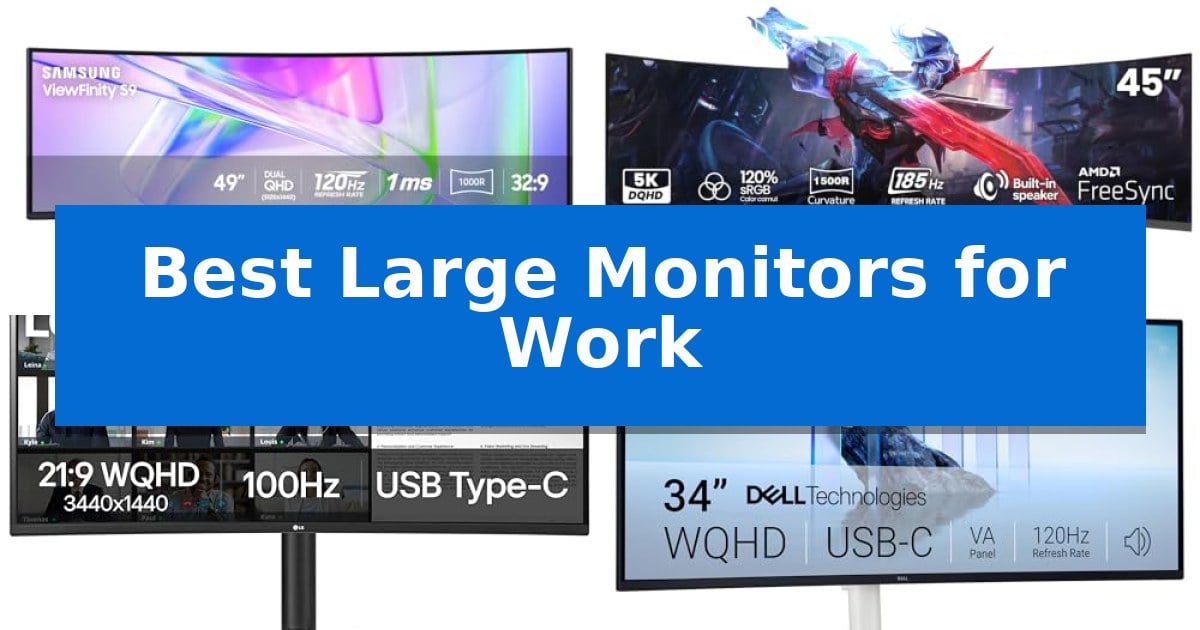
Finding the right display is essential when your daily tasks involve managing multiple windows, complex spreadsheets, or creative timelines. The Best Large Monitors for Work offer more than just extra pixels; they provide a cohesive digital environment that reduces the need for cumbersome dual-monitor setups and minimizes cable clutter.
Whether you require a massive curved canvas for data analysis or a high-resolution ultrawide screen to keep your communication apps and project files side-by-side, the right choice can significantly improve your focus. We have analyzed the latest offerings to help you identify which display best fits your specific professional requirements and desk configuration.
Best Large Monitors for Work in 2026
Quick Comparison
| Product | Best For | Key Strength | Score |
|---|---|---|---|
| Samsung 49 Business Curved Monitor | Best Overall | Expansive 49-inch 1000R curved screen for immersive viewing. | 4.9 |
| CRUA 45 Ultrawide Curved Monitor | Dual-Screen Space on One Display | Seamless 32:9 aspect ratio provides the workspace of two QHD monitors without a center bezel. | 4.3 |
| LG 34WR55QK-B UltraWide Monitor | Ergonomic Design for Extended Tasks | USB Type-C with 65W power delivery for single-cable connectivity. | 4.4 |
| Dell 34 S3425DW Monitor | Single-Cable USB-C Desk Solution | 65W USB-C power delivery for simplified device charging and connectivity. | 4.5 |
| Samsung 34 ViewFinity S50GC Monitor | Seamless Multitasking for Professionals | 21:9 Ultra-WQHD aspect ratio provides extensive screen real estate for seamless multitasking. | 4.6 |
How We Chose
- Screen Real Estate and Aspect Ratio: Assessing how effectively the display accommodates multiple active windows and complex software interfaces.
- Connectivity and Hub Capabilities: Evaluating the inclusion of USB-C power delivery and integrated ports to reduce desktop cable management.
- Ergonomic Adjustability: Checking for height, tilt, and mounting options that ensure long-term comfort during extended work sessions.
- Visual Fidelity and Eye Comfort: Reviewing features like HDR support, blue light reduction modes, and ambient light sensors that support sustained focus.
- Multitasking Features: Confirming the presence of Picture-by-Picture (PbP) or Picture-in-Picture (PiP) modes for handling multiple input sources simultaneously.
1 Samsung 49 Business Curved Monitor — Maximum Screen for Complex Workflows
The Samsung 49 Business Curved Monitor centers your workspace around a massive 49-inch 1000R curved display, designed to match the natural field of view for improved focus. By utilizing a 32:9 aspect ratio and Dual QHD resolution, this monitor provides a expansive canvas that eliminates the need for multiple side-by-side displays.
Beyond its visual scale, the monitor functions as a comprehensive docking station. It includes a USB Type-C input capable of 90W charging, alongside DisplayPort and dual HDMI ports, allowing you to consolidate your peripherals and keep your desk free of excess cables. The integrated hub simplifies connectivity for laptops and workstations alike.
For those who balance intensive design work with occasional downtime, the 120Hz refresh rate ensures smooth motion during scrolling and navigation. The display also supports VESA DisplayHDR 400, which enhances the contrast between light and dark shades, providing refined visual clarity for video and graphic projects.
The unit is built for an efficient, all-in-one environment, featuring built-in speakers that remove the requirement for external audio hardware. With its height-adjustable stand, the monitor offers ergonomic flexibility to suit various desk setups, making it a robust choice for complex, multi-tasking workflows.
Best for: Professionals who require a massive, seamless workspace for multitasking and creative projects without the clutter of dual-monitor setups.
Skip if: Users with limited desk space or those who prefer a traditional flat-panel display orientation.
PROS
- Expansive 49-inch 1000R curved screen for immersive viewing.
- Integrated USB-C docking station with 90W power delivery.
- 120Hz refresh rate for smooth navigation and scrolling.
- Built-in speakers to reduce peripheral clutter.
CONS
- Large physical footprint requires significant desk surface area.
2 CRUA 45 Ultrawide Curved Monitor — Dual-Screen Space on One Display
The CRUA 45" DQHD 185Hz Ultrawide Curved Gaming Monitor provides a massive 5120×1440 resolution, effectively replacing dual-monitor setups with a single, seamless 32:9 workspace. Its 1500R curvature is engineered to align with the natural field of view, which helps reduce eye movement when navigating complex spreadsheets, coding environments, or multi-window multitasking workflows.
Performance is driven by a high 185Hz refresh rate paired with AMD FreeSync, ensuring smooth motion for both professional applications and high-speed media. The VA panel technology delivers a 3000:1 contrast ratio and 120% sRGB color coverage, producing deep blacks and vibrant visuals that benefit creative editing and detailed data visualization tasks.
Designed for versatility, the monitor includes built-in speakers for essential audio needs and offers flexible connectivity via HDMI 2.1 and DP 1.4 ports. The chassis supports a 100x100mm wall-mount configuration, allowing users to reclaim desk space and maintain a clean, professional aesthetic in home offices or creative studios.
While the expansive screen offers significant productivity advantages, the 45-inch footprint requires a substantial desk area. Users should ensure their workstation can accommodate the width of this display before integrating it into their daily setup.
Best for: Professionals and multitaskers who require a seamless, expansive screen area to replace multiple monitor setups for productivity and creative workflows.
Skip if: Users with limited desk space or those who prefer a traditional multi-monitor configuration with adjustable bezels between screens.
PROS
- Seamless 32:9 aspect ratio provides the workspace of two QHD monitors without a center bezel.
- 1500R curvature enhances visual immersion and reduces eye strain during long work sessions.
- High 185Hz refresh rate ensures fluid motion for both productivity and media playback.
- Flexible connectivity options including HDMI 2.1 and DP 1.4 for high-performance workstations.
CONS
- Large 45-inch physical footprint requires significant desk space.
- VA panel technology may have different viewing angle characteristics compared to IPS alternatives.
3 LG 34WR55QK-B UltraWide Monitor — Ergonomic Design for Extended Tasks
Maximizing screen real estate is essential for complex workflows, and the LG 34WR55QK-B UltraWide Monitor addresses this by providing a expansive 21:9 WQHD (3440 x 1440) canvas. Its curved design and generous width allow users to manage multiple windows simultaneously, effectively replacing multi-monitor setups with a single, cohesive display.
Beyond its size, the monitor incorporates OnScreen Control software, which enables users to split the display or configure Picture-by-Picture (PbP) mode. This feature is particularly useful for those who need to monitor content from two separate input sources at once, such as a laptop and a desktop, on one screen.
Connectivity is streamlined through a USB Type-C port that supports up to 65W power delivery, allowing users to charge compatible laptops while transmitting data and video over a single cable. The unit also includes two HDMI ports, a DisplayPort, and a headphone jack to accommodate various peripherals.
For extended work sessions, the monitor features Reader Mode to reduce blue light and an ergonomic stand that allows for height and tilt adjustments. The 3-side virtually borderless design helps maintain a clean, professional aesthetic on any desk, ensuring the focus remains on the content rather than the hardware.
Best for: Professionals who require a wide, immersive workspace for multitasking and need integrated power delivery for their laptops.
Skip if: Users who require a flat screen for specialized design work or those who need a higher refresh rate for competitive gaming.
PROS
- USB Type-C with 65W power delivery for single-cable connectivity.
- 21:9 UltraWide WQHD resolution provides ample space for multitasking.
- Picture-by-Picture (PbP) support for dual-source input.
- Ergonomic stand with height and tilt adjustability.
CONS
- Curved panel may not be suitable for users requiring a perfectly flat surface for precision drafting or design.
4 Dell 34 S3425DW Monitor — Single-Cable USB-C Desk Solution
The Dell 34 S3425DW Monitor streamlines professional workflows by integrating a 65W USB-C power delivery system, allowing users to charge laptops and transmit data through a single cable. This design choice minimizes desk clutter while providing a centralized hub for daily productivity tasks.
Equipped with a 120Hz refresh rate and AMD FreeSync Premium support, the monitor ensures smooth visual transitions. The VA panel technology provides a 3,000:1 contrast ratio, which enhances depth and detail in complex spreadsheets or creative applications. Its 95% DCI-P3 and 99% sRGB color coverage offer accurate color reproduction for professional projects.
To support extended work sessions, the display features Improved ComfortView Plus, which limits blue light emissions to 35% without compromising color fidelity. The integrated 2x10W speakers provide upgraded audio output compared to previous generations, reducing the need for external sound equipment in workspace setups.
The monitor includes a 1-Year Advanced Exchange Service and Premium Panel Exchange warranty, providing a clear support path for professional users. While the 34-inch curved form factor is optimized for multitasking, it requires significant desk space, making it a specialized choice for those prioritizing screen real estate over portability.
Best for: Professionals who require a large, color-accurate workspace and a single-cable connectivity solution for their laptop.
Skip if: Users with limited desk space or those who prefer a flat display over a curved panel design.
PROS
- 65W USB-C power delivery for simplified device charging and connectivity.
- 120Hz refresh rate with AMD FreeSync Premium for smooth motion.
- Improved ComfortView Plus reduces blue light for extended viewing comfort.
- 95% DCI-P3 color coverage ensures vibrant and accurate visuals.
CONS
- Large 34-inch footprint may not fit on smaller workstations.
- VA panel viewing angles may be less consistent than IPS alternatives.
5 Samsung 34 ViewFinity S50GC Monitor — Seamless Multitasking for Professionals
Maximizing screen real estate for complex workflows is the primary advantage of the SAMSUNG 34" ViewFinity S50GC Series Ultra-WQHD Monitor, which utilizes a 21:9 aspect ratio to replace dual-monitor setups with a single, expansive workspace. This monitor is designed to streamline multitasking by providing the horizontal space necessary to view multiple documents or applications side-by-side without the visual distraction of a central bezel.
The display features a 3000:1 static contrast ratio and HDR10 support, allowing for a broader color range that enhances depth in visual content. For professionals working in varying lighting conditions, the integrated ambient light sensor automatically adjusts brightness, while Eye Saver Mode and flicker-free technology work to reduce eye strain during extended sessions.
Performance is bolstered by a 100Hz refresh rate, which provides smoother motion for design projects and general navigation compared to standard 60Hz panels. The inclusion of AMD Radeon FreeSync technology ensures that the refresh rate remains synchronized with the graphics card, effectively minimizing image tearing during high-motion tasks.
Connectivity and workflow management are handled through two HDMI 2.2 ports and one DisplayPort 1.2 input. These allow for advanced multitasking features such as Picture-by-Picture (PBP), which displays two sources at their native resolution, and Picture-in-Picture (PIP), which enables users to monitor a secondary source in a resized window while focusing on a primary task.
Best for: Professionals who need to manage multiple applications simultaneously on a single, wide-format display to improve productivity.
Skip if: Users who require high-precision color accuracy for professional-grade photo or video editing, as this model is optimized for general multitasking and office productivity.
PROS
- 21:9 Ultra-WQHD aspect ratio provides extensive screen real estate for seamless multitasking.
- 100Hz refresh rate offers smoother visual performance than standard monitors.
- PBP and PIP functionality allows for efficient management of multiple input sources.
- Ambient light sensor automatically adjusts brightness for consistent viewing comfort.
CONS
- Limited port selection with only two HDMI and one DisplayPort input.
- Flat panel design may result in less immersive viewing compared to curved alternatives for some users.
Best Large Monitors for Work Buying Guide
Understanding Aspect Ratios and Curvature
The shift toward ultrawide displays with 21:9 or 32:9 aspect ratios has fundamentally changed how professionals manage their digital workspaces. A wider aspect ratio allows you to snap three or more windows side-by-side, effectively replacing the need for a dual-monitor setup and eliminating the distracting bezel gap in the center of your view.
Curvature is another critical factor for large screens. A 1000R or 1500R curve is designed to match the natural arc of the human eye, ensuring that the edges of the screen remain within your peripheral vision. This design choice helps maintain consistent viewing distances across the entire panel, which can reduce eye strain during long hours of intensive work.
The Importance of Single-Cable Connectivity
Modern professional monitors often function as integrated docking stations. By utilizing USB-C with power delivery, you can transmit video signals, data, and power to your laptop through a single cable. This setup keeps your desk clean and ensures that your workstation is ready to go as soon as you plug in your computer.
When selecting a monitor, check the wattage rating of the USB-C port. Higher wattage, such as 90W, is generally better for power-hungry laptops, while 65W is often sufficient for standard ultrabooks. Always verify that your laptop supports display output over its USB-C port to ensure full compatibility.
Ergonomics and Mounting Options
Because large monitors occupy significant desk space, the stand design is vital. Look for models that offer height, tilt, and swivel adjustments, as these allow you to align the screen perfectly with your eye level to prevent neck strain. A stable, well-engineered stand is essential for supporting the weight of a wide panel.
If your desk space is limited, consider a monitor that supports VESA mounting. Using a monitor arm can free up the entire surface of your desk, providing more room for your keyboard, mouse, and physical documents. Ensure that the monitor's weight is within the limits of your chosen mounting arm.
Visual Comfort and Productivity Features
Features like Reader Mode or Eye Saver Mode are specifically designed to minimize blue light exposure, which can be beneficial during late-night work sessions. Some monitors also include ambient light sensors that automatically adjust the screen brightness based on your room's lighting conditions, ensuring a comfortable viewing experience throughout the day.
For those who work with multiple devices, Picture-by-Picture (PbP) and Picture-in-Picture (PiP) are invaluable. These features allow you to display content from two different sources—such as a desktop PC and a laptop—on the same screen simultaneously, making it easier to monitor multiple systems without switching inputs.
Panel Technology and Color Accuracy
Most large work monitors utilize VA (Vertical Alignment) panels, which are known for their high contrast ratios. A high contrast ratio ensures that blacks appear deep and dark, which is helpful for reading text or viewing detailed design work. This panel type is generally well-suited for office tasks and general productivity.
If your work involves color-critical tasks like photo editing or graphic design, look for monitors that specify sRGB or DCI-P3 color gamut coverage. While VA panels are excellent for contrast, professional-grade color accuracy is a separate metric that ensures your work looks consistent across different devices and print media.
Frequently Asked Questions
Can I use an ultrawide monitor for gaming as well as work?
Yes, many of the monitors listed feature high refresh rates, such as 100Hz or 120Hz, and support technologies like AMD FreeSync. These features provide a smooth visual experience for both professional applications and casual gaming.
What is the benefit of a curved screen for office work?
A curved screen brings the edges of the display closer to your eyes, which helps maintain a consistent focal distance. This can reduce the amount of eye movement required to scan across a wide screen, potentially decreasing fatigue during long work days.
Do I need a special cable for USB-C connectivity?
You should use a high-quality USB-C cable that supports both data transfer and the required power delivery wattage for your laptop. The cable included with your monitor is typically designed to support these features.
How do I know if my laptop can handle an ultrawide resolution?
Check your laptop's specifications to ensure its integrated or dedicated graphics card supports the monitor's native resolution (such as 3440 x 1440 or 5120 x 1440) via its video output port.
Is a 49-inch monitor too big for a standard desk?
A 49-inch monitor requires a significant amount of desk width. Before purchasing, measure your desk surface to ensure it can accommodate the monitor's footprint and that you have enough room to sit at a comfortable viewing distance.
Conclusion: Our Top Pick
For professionals seeking the ultimate multitasking experience, the Samsung 49 Business Curved Monitor stands out as the premier choice. Its massive 49-inch 1000R curved display provides an expansive, immersive workspace that effectively replaces dual-monitor setups, while the integrated USB-C docking capabilities help maintain a clean and efficient desk environment.
This monitor is particularly well-suited for complex workflows that require multiple windows open simultaneously, such as data analysis, video editing, or project management. With its high refresh rate and HDR support, it balances professional productivity with smooth visual performance, making it a versatile centerpiece for any modern office.